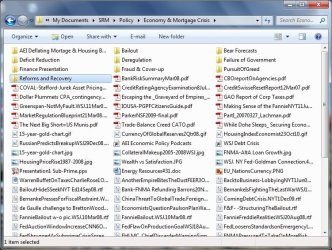
Icons in Folders are Listed horizonatally instead of vertically??

cyberbiker

New member
Member
Local time
9:33 PM
Messages
31
Most of the time icons in my folders are listed horizontally instead of vertically. However, occasionally, they are listed vertically. I usually choose the Small Icon view.

How do I always set them to be listed vertically instead of horizontally?
 

My Computer My Computer

At a glance

Windows 7 Home Premium 64
OS
Windows 7 Home Premium 64
Please open Windows Explorer. In the View Menu you can click and choose from "Extra Large Icons" to "Content" to show the various ways the contents of the Folder can be viewed.

Please choose the one that you like best. You may then open Folder Options from the Tools Menu, then open the View Tab and click on "Apply to Folders" Button if you want your preferred view for all Folders that you open.
 

My Computer My Computer

At a glance

Windows 7 Pro with SP1 32bit2 gigs of RAMIntel(R) 82845G/GL/GE/PE/GV Graphics Controller
Computer Manufacturer/Model Number
Custom Built
OS
Windows 7 Pro with SP1 32bit
Motherboard
Intel D845GVS1 X86-based PC
Memory
2 gigs of RAM
Graphics Card(s)
Intel(R) 82845G/GL/GE/PE/GV Graphics Controller
Sound Card
Realtek AC'97 Audio
Monitor(s) Displays
Samsung SyncMaster 931BF Black 19" LCD Monitor
Screen Resolution
1280X960
Hard Drives
1. SAMSUNG SP0822N ATA Device ~ 80 GigaBytes

2. Seagate FreeAgent Go USB Device ~ 500 GigaBytes
Keyboard
COMPAQ Standard PS/2 Keyboard
Mouse
iBall Laser Precise Speedster
Internet Speed
4 mb/sec
Wanchoo, kind of you to answer, but you did not understand the question. I know how to open a folder and how to choose any of the Sort or View options. They are not the issue. If you chose any View options in a folder with a bunch of sub-folders and files with XP or Vista, the icons use to be listed vertically by whatever sort option you selected. With Windows 7 the files are often listed horizontally as in the image below.

I want all files to be listed vertically as they use to be. My question is how to do that.
 

Attachments

  • Folder-IconsHorizontal.jpg
    Folder-IconsHorizontal.jpg
    101.8 KB · Views: 18

My Computer My Computer

At a glance

Windows 7 Home Premium 64
OS
Windows 7 Home Premium 64
I don't know what you are going on about but it has always been horizontal. Only Details and List views are vertical.
I just went though all the view options in Windows XP as well. All horizontal except for Details and List.
 

My Computer My Computer

At a glance

Windows 10 Pro (x64)Intel Core i7-3930K (3.2GHz - 4.5GHz)4x Samsung 4GB PC3-12800 DDR3 (16GB 1600MHz)Nvidia Geforce GTX 690
Computer type
PC/Desktop
Computer Manufacturer/Model Number
Alienware Aurora ALX R4
OS
Windows 10 Pro (x64)
CPU
Intel Core i7-3930K (3.2GHz - 4.5GHz)
Motherboard
Alienware Aurora-R4 x79
Memory
4x Samsung 4GB PC3-12800 DDR3 (16GB 1600MHz)
Graphics Card(s)
Nvidia Geforce GTX 690
Sound Card
SteelSeries Siberia Elite
Monitor(s) Displays
Dell UltraSharp U3011
Screen Resolution
2560x1600
Hard Drives
Samsung 850 Pro 256 GB, Seagate 1TB Desktop Hybrid HDD, 2x Western Digital 4TB Green HDD
PSU
875W Some Dell PSU <.<
Case
Alienware Aurora ALX
Cooling
Custom Liquid Cooling (EK CPU & GPU blocks) dual EK 480RAD
Keyboard
Logitech G710+ Mechanical
Mouse
Logitech G700s
Internet Speed
Verizon Fios (50 mbps average)
Other Info
Server: Intel NUC D54250WYK: i5-4250U, 16GB, 256 GB mSATA, Windows Server 2012 R2
Hi Cyberbiker. I just ran into the exact same problem and I've been pulling my hair out for an hour now. Google led me here and I still couldn't figure it out.

Until by accident I clicked "List" view.

Turns out that "List" and "Small Icons" are the same thing, except List sorts from upper left going down while Small Icons sorts from upper left going across.

I'm 99% certain that your screenshot is Explorer in the Small Icons view and selecting List view will bring things back exactly like you want them.
 

My Computer My Computer

At a glance

Win 7 Pro
OS
Win 7 Pro
Answer to change folders to vertical

On the top right of the screen is a little book with three dots and a drop-down. On my Windows 7 it is two icons (whatever they are called) to the left of the question mark(?).

On the drop-down, choose details. It changes automatically in front of you.
 

My Computer My Computer

At a glance

Windows 7 32bit
Computer type
PC/Desktop
Computer Manufacturer/Model Number
Asus
OS
Windows 7 32bit
Back
Top