
HP Desktop Startup Screen Frozen- Geek Squad Says Fried Motherboard?

Por2geezguy

New member
Hey everyone,

This is my parents' computer and the other day they had a power outage and now the computer won't get past the blue HP startup screen that looks like this.
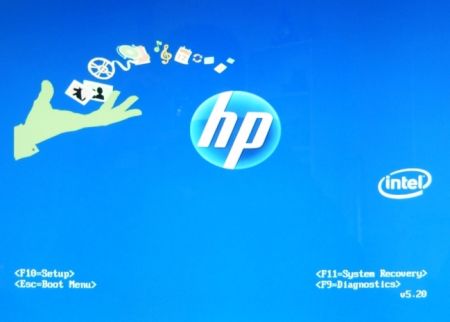
hp-bios-boot-screen-5169226.jpg


Here are the specs on the desktop:
Model: HP Pavillion p6210y
CPU: 2.6GHz AMD Athlon II X4 620
Memory: 6GB 800MHz DDR2 SDRAM
Graphics: 256MB (shared) NVIDIA GeForce 9100 integrated graphics chip
Hard drives : 640GB, 7,200rpm
Motherboard: M2N78-LA (violet)

My dad brought it to Best Buy and they told him that the motherboard was fried and it's most likely due to the fact that my parents keep it on all the time. They said they could backup everything on the hard drive for $100 which I thought was way too expensive so does anybody know how they would be able to do this exactly? Would I just need an external hard drive to do this myself and back everything up by going into recovery mode?

Now, when I try and turn the computer on it goes to the HP startup screen and then after a second, it goes to this screen...
reboot-and-select-proper-boot-device-or-insert-boot-media-in-select-boot-device.jpg


I've looked up this message and seen threads on fixing it but I'm not entirely sure what to do and I don't want to mess anything up. I work well with computers so if this is something that is fairly easy to fix, i'd much rather do it myself than have my parents buy a new desktop.

If anyone has a solution for me i'd greatly appreciate it.

-Thanks
 

My Computer

OS
Windows 7 64 bit
Hi Por2geezguy,

The HP screen gives you a few options

  1. Setup - Bios settings. HP bios doesn't give you much control though
  2. Boot menu - what device to boot from
  3. System Recovery - MS recovery , HP recovery
  4. Diagnostics - probably HP diags
Have you tried the diagnostics? Were there any instructions/reports?
Setup probably won't help too much.
Boot menu does you no good unless you have a boot disk or thumb drive.
System Recovery might be your last choice - try a few other things before that. Other members might give you some ideas too.

As far as the $100 - you're right, that's a lot of money. But they do spend time doing it, and thy have the equipment to do it. Soooo.....

I bought a case for my laptop's drive when it died. Cost $15 at Office Max - good deal, now I use it as an external USB drive. So you could back up the drive if you have another machine and space. It's a good idea to do that anyway.

The Reboot-and-Select screen could be your drive or your bios. If bios gets confused, it doesn't know how to read your drive. If bios is fine, then there's something amiss on your drive. It doesn't mean all is lost, there are means to recover data. But that's another topic.

If you can recover the machine -last resort-, you might have to wipe the drive and do a factory restore. I'm not sure how far you'll get - if it's the mother board, it's replace that or get a new machine. Soooo, get either a USB cable or external case for your drive and try to back it up. Searched "SATA/PATA/IDE Drive to USB":

Thanks, I've been meaning to look for one for some of my older drives and this one might be what I need - it's a pretty good price.

Sorry I couldn't be more help, but there's very little to work on. I'd try some simple things after you back up your drive. See if you can get into safe mode, or boot from another disk/flash drive. If you can, then you might have a disk problem, but you;ll know that when you try to back it up.

Good luck


Peace!
 
Last edited:

My Computer

Computer type
Laptop
Computer Manufacturer/Model Number
HP Pavilion dv6-6c10us
OS
x64 (6.3.9600) Win8.1 Pro & soon dual boot x64 (6.1.7601) Win7_SP1 HomePrem
CPU
AMD A6-3420M APU with Radeon(tm) HD Graphics
Motherboard
Hewlett-Packard 1805
Memory
6.00 GB
Graphics Card(s)
AMD Radeon(TM) HD 6520G
Sound Card
(1) AMD High Definition Audio Device (2) IDT High Definiti
Monitor(s) Displays
HP W2072a 20" LCD (1600 x 900) @ 60 Hz
Screen Resolution
1366 x 768 x 32 bits (4294967296 colors) @ 60 Hz
Hard Drives
ST640LM0 00 HM641JI SATA Disk Device
Keyboard
Logitech k520 wireless KB
Mouse
Logitech m320 wireless mouse (bundled with KB)
Internet Speed
15/5 | 54 MB Wireless 'n'
Antivirus
Realtime: Defender or Avast | On-demand: Malwarebytes, ESET
Browser
IE 11 on Win8, IE 10 on win 7
Other Info
Media: [Gimp, Audacity, VLC] || Comm: [WEmail 2012, Skype] || Productivity: [OpenOffice,| Textpad] || Utils: [Sysinternals, cCleaner, Speccy, Defraggler]
Hi Por2geezguy,

Have you tried the diagnostics? Were there any instructions/reports?

So I chose "HP Diagnostics" like you said and everything checked out except for "Drives".
The message read:
"error code: biohd-2
no drives detected
turn off your system and verify the cables are securely attached
it problems persist, contact HP"

I opened up the computer, disconnected and reconnected all the plugs for the hard drive and still got the same "Reboot and Select proper Boot Device" screen. I looked up this error code and people say my computer is seeing the drive as inactive and the way to fix it is by marking it as active through DISKPART. The tutorial i'm following says I need either a Windows 7 installer disk or Windows repair disk which I don't believe I own because my dad likes to throw things away.

Anybody have any ideas on how/what I should do next?

-Thanks
 
Last edited:

My Computer

OS
Windows 7 64 bit
The first thing I would do, is to check whether the HDD is actually being detected. The easiest way to do this is if you get a BIOS readout, however I am willing to bet that as you have a HP machine, you don't get that, you just get a lovely HP splash screen when you switch on the machine.

Therefore, boot into the BIOS, (on a HP this is usually achieved by hitting F1 or F10 when you boot the machine up, if these don't work look for something saying "Press * to enter Setup" Once you've got in there, look for an option (usually under advanced BIOS settings....) called EITHER Boot Priority or First Hard Drive.

If you happen to come across boot order first (assuming you only have one HDD) make sure that its SECOND on the list, just under the DVD/CD drive (this is for later... if its what I hope it is). If the BIOS isn't seeing the HDD you have a drive problem, otherwise its a Windows problem.

For the record... if it was the motherboard the PC wouldn't even switch on.

Anyway, let me know how you get on with that.
 

My Computer

Computer type
PC/Desktop
Computer Manufacturer/Model Number
Medion Erazer (note to self: insert model number) - with custom additions
OS
Windows 10 Pro x64
CPU
Intel Core i5 7400 @ 3.00GHz
Motherboard
OEM supllied with PC
Memory
8GB 2133Mhz DDR4 (OEM supplied)
Graphics Card(s)
Gygabyte Windforce GTX 1050Ti (Factory Overclocked)
Sound Card
Realtek
Monitor(s) Displays
Acer Al1980 + HKC
Screen Resolution
1360*768(HKC) / 1280*1024(Acer)
Hard Drives
1TB Toshiba
1TB WD Caviar Green
120GB Samsung Evo 840
PSU
OEM supplied (no power rating on case)
Case
OEM Supplied
Cooling
Stock
Keyboard
Logitech Wireless
Mouse
Logitect Wireless
Internet Speed
40Mb/s Down 10Mb/s Up
Antivirus
Defender
Browser
Firefox
The first thing I would do, is to check whether the HDD is actually being detected. The easiest way to do this is if you get a BIOS readout, however I am willing to bet that as you have a HP machine, you don't get that, you just get a lovely HP splash screen when you switch on the machine.

Therefore, boot into the BIOS, (on a HP this is usually achieved by hitting F1 or F10 when you boot the machine up, if these don't work look for something saying "Press * to enter Setup" Once you've got in there, look for an option (usually under advanced BIOS settings....) called EITHER Boot Priority or First Hard Drive.

If you happen to come across boot order first (assuming you only have one HDD) make sure that its SECOND on the list, just under the DVD/CD drive (this is for later... if its what I hope it is). If the BIOS isn't seeing the HDD you have a drive problem, otherwise its a Windows problem.

For the record... if it was the motherboard the PC wouldn't even switch on.

Anyway, let me know how you get on with that.

I went into "setup" and took a photo that I attached below. It clearly shows that none of the drives are being recognized and when I enter any one of them to choose a drive, there's nothing there. By the way, there is only one hard drive which makes things a bit less complicated.

Also, I went to the "boot" section in the setup menu and it says "boot device priority" and when I enter that, I can select the following:
-CD-ROM Group
-Hard Drive Group
-Floppy Group
-Network Boot Group

The hard drive is second on the list like you said so what am I doing wrong?

-Thanks
 

Attachments

  • IMG_1853.jpg
    IMG_1853.jpg
    479 KB · Views: 49

My Computer

OS
Windows 7 64 bit
The first thing I would do, is to check whether the HDD is actually being detected. The easiest way to do this is if you get a BIOS readout, however I am willing to bet that as you have a HP machine, you don't get that, you just get a lovely HP splash screen when you switch on the machine.

Therefore, boot into the BIOS, (on a HP this is usually achieved by hitting F1 or F10 when you boot the machine up, if these don't work look for something saying "Press * to enter Setup" Once you've got in there, look for an option (usually under advanced BIOS settings....) called EITHER Boot Priority or First Hard Drive.

If you happen to come across boot order first (assuming you only have one HDD) make sure that its SECOND on the list, just under the DVD/CD drive (this is for later... if its what I hope it is). If the BIOS isn't seeing the HDD you have a drive problem, otherwise its a Windows problem.

For the record... if it was the motherboard the PC wouldn't even switch on.

Anyway, let me know how you get on with that.

I went into "setup" and took a photo that I attached below. It clearly shows that none of the drives are being recognized and when I enter any one of them to choose a drive, there's nothing there. By the way, there is only one hard drive which makes things a bit less complicated.

Also, I went to the "boot" section in the setup menu and it says "boot device priority" and when I enter that, I can select the following:
-CD-ROM Group
-Hard Drive Group
-Floppy Group
-Network Boot Group

The hard drive is second on the list like you said so what am I doing wrong?

-Thanks

Since you had an existing drive and it doesn't show up anymore, the drive is probably dead. You can try changing cables and trying a different power connector, but if the drive worked and now no longer works, this likely means the drive has failed. Drives can stop working due to an electrical or mechanical problem. A mechanical problem with the hard drive usually manifests itself in grinding or squeaking noises, random crashes or data loss. Electrical problems can happen instantly, without warning: Such as what you stated in your original post.

To verify its failed, try connecting it to another computer and test the results.


HTH
 

My Computer

Computer type
PC/Desktop
Computer Manufacturer/Model Number
Custom Built
OS
Windows 7 Professional x64
CPU
Intel i5 quad processor
Motherboard
DP67BG
Memory
16 GB
Graphics Card(s)
Radeon HD 5770
Sound Card
Realtek High Definition Audio
Monitor(s) Displays
Samsung SyncMaster
Screen Resolution
1920X1080
Hard Drives
WD 2TB (SATA Internal)
WD 1TB (USB External)
PSU
Corsair GS800
Case
Tower (Generic)
Cooling
3 Internal Fans
Keyboard
MS Wireless
Mouse
MS Optical Wired
Internet Speed
54 mbps
Antivirus
Emsisoft
Browser
IE-Version 9, Palemoon-Version 24.2.0
Since you had an existing drive and it doesn't show up anymore, the drive is probably dead. You can try changing cables and trying a different power connector, but if the drive worked and now no longer works, this likely means the drive has failed. Drives can stop working due to an electrical or mechanical problem. A mechanical problem with the hard drive usually manifests itself in grinding or squeaking noises, random crashes or data loss. Electrical problems can happen instantly, without warning: Such as what you stated in your original post.

To verify its failed, try connecting it to another computer and test the results.


HTH

Thanks, i'll test it out on another computer and see what happens.

If it is the hard drive, is there any way that I can still save the data on it?

-Thanks
 

My Computer

OS
Windows 7 64 bit
found a guide for you.
http://h10032.www1.hp.com/ctg/Manual/c01859455.pdf

The problem might be a connection issue since this happened right after a surge. If you can, plug the Hard Drive Sata connector into a different Sata slot on the motherboard.

Sir George beat me to it...
 

My Computer

Computer type
Laptop
Computer Manufacturer/Model Number
ASUS G60-RBBX05
OS
Win7 Home Premium 64x
CPU
Intel Core 2 Duo P7450 / 2.13 GHz (2.29 with Extreme Turbo)
Memory
4 GB PC-6400 Hyundai (2X2) at 800Mhz
Graphics Card(s)
NVIDIA GeForce GTX 260M 1GB DDR3 VRAM
Monitor(s) Displays
16" LED Backlit
Screen Resolution
1366 x 768 on laptop 1600x1050 max res on 22" external mon
Hard Drives
OCZ Agility 3 60GB SSD / 320 GB - Serial ATA-150 - 7200 rpm
PSU
6-cell Lithium ion { lasts 1.5 hours }
Case
ASUS G60 Laptop
Keyboard
Chicklet type back-lit (white light) keyboard
Mouse
Logitech G9 Laser Mouse 3200dpi and 1000 reports per minute
Internet Speed
Comcast 8.60mb/s up - 3.11mb/s down
Antivirus
MSE
Browser
Firefox
Other Info
General mid-budget gaming Comp. Low batterylife - High FrameRates - currently overheating problems :(

2nd Rig: Case: Rosewill BLACKHAWK Gaming ATX Mid Tower Computer Case

Mobo: GIGABYTE GA-990FXA-UD3
CPU: AMD FX-6200 Zambezi 3.8GHz (4.1GHz Turbo)
Heatsink: COOLER MASTER V8 CPU Cooler
RAM: Patriot Viper 3 8GB (2 x 4GB) 240-Pin DDR3 SDRAM 1866 (PC3 15000)
GPU: SAPPHIRE Radeon HD 6850 1GB 2
My money is also on drive failure. By all means try it in a different SATA port and change the cable and power connector as suggested, but if the drive is dead, chances are the data is unrecoverable if the PC can't even find it, if your BIOS isn't finding it, then the PC can't find it either. (the BIOS basically tells the OS what drives it has available, in non-techy speak) If it's an electrical failure, chances are the drive controller is dead, meaning the PC can't actually talk to the hard drive any more.
 

My Computer

Computer type
PC/Desktop
Computer Manufacturer/Model Number
Medion Erazer (note to self: insert model number) - with custom additions
OS
Windows 10 Pro x64
CPU
Intel Core i5 7400 @ 3.00GHz
Motherboard
OEM supllied with PC
Memory
8GB 2133Mhz DDR4 (OEM supplied)
Graphics Card(s)
Gygabyte Windforce GTX 1050Ti (Factory Overclocked)
Sound Card
Realtek
Monitor(s) Displays
Acer Al1980 + HKC
Screen Resolution
1360*768(HKC) / 1280*1024(Acer)
Hard Drives
1TB Toshiba
1TB WD Caviar Green
120GB Samsung Evo 840
PSU
OEM supplied (no power rating on case)
Case
OEM Supplied
Cooling
Stock
Keyboard
Logitech Wireless
Mouse
Logitect Wireless
Internet Speed
40Mb/s Down 10Mb/s Up
Antivirus
Defender
Browser
Firefox
Thanks for your help everyone. I'm going to buy a new SATA cable and see if that works. If worse comes to worse and I have to buy a new hard drive, would that mean I have to buy Windows 7 again?

Also, is there any way for me to plug in my hard drive via usb and see if I can pull any data from it onto another computer?

-Thanks again
 

My Computer

OS
Windows 7 64 bit
You can get a USB SATA HDD enclosure for about £20-30 (that translates to about US$50 but I don't know if they actually are that much over there. If you are very lucky you may be able to get the data like that, however, if the drive isn't running on any SATA ports, and its definitely not a port issue, (and the chances of all SATA ports dying are very very low) probably not. You may be able to get professional recovery... but in fairness, it depends on the value of the data

As for Windows, no you shouldn't have to. On the side of your machine you should have a sticker with a product key, if you input that into Windows then it will accept it (assuming your machine came with Windows 7 preinstalled). If you have a retail edition of 7 then just use the product key on the box. Just make sure you use the right level of Windows (Home Premium, Ultimate etc.)

If you don't have installation media, but do have the product key, let us know, we can help with that.

Just as an aside, as I said the chances of all ports dying are ridiculously low, however if this has happened, then you won't be able to use any HDD on the machine, which means its as good as dead. I honestly can't believe this has happened, but I'm just giving you all the scenarios here.
 

My Computer

Computer type
PC/Desktop
Computer Manufacturer/Model Number
Medion Erazer (note to self: insert model number) - with custom additions
OS
Windows 10 Pro x64
CPU
Intel Core i5 7400 @ 3.00GHz
Motherboard
OEM supllied with PC
Memory
8GB 2133Mhz DDR4 (OEM supplied)
Graphics Card(s)
Gygabyte Windforce GTX 1050Ti (Factory Overclocked)
Sound Card
Realtek
Monitor(s) Displays
Acer Al1980 + HKC
Screen Resolution
1360*768(HKC) / 1280*1024(Acer)
Hard Drives
1TB Toshiba
1TB WD Caviar Green
120GB Samsung Evo 840
PSU
OEM supplied (no power rating on case)
Case
OEM Supplied
Cooling
Stock
Keyboard
Logitech Wireless
Mouse
Logitect Wireless
Internet Speed
40Mb/s Down 10Mb/s Up
Antivirus
Defender
Browser
Firefox
Since you had an existing drive and it doesn't show up anymore, the drive is probably dead. You can try changing cables and trying a different power connector, but if the drive worked and now no longer works, this likely means the drive has failed. Drives can stop working due to an electrical or mechanical problem. A mechanical problem with the hard drive usually manifests itself in grinding or squeaking noises, random crashes or data loss. Electrical problems can happen instantly, without warning: Such as what you stated in your original post.

To verify its failed, try connecting it to another computer and test the results.


HTH

Thanks, i'll test it out on another computer and see what happens.

If it is the hard drive, is there any way that I can still save the data on it?

-Thanks

I have never tried to recover data from a dead drive. With that said you can search the web for something that may work. For awhile I was employed by a company, Zeinth Infotech, that provided backup disaster recovery for business and the cost for data recovery from a professional souce is pricy. So, professional recovery depends on the value of the data.

HTH
 

My Computer

Computer type
PC/Desktop
Computer Manufacturer/Model Number
Custom Built
OS
Windows 7 Professional x64
CPU
Intel i5 quad processor
Motherboard
DP67BG
Memory
16 GB
Graphics Card(s)
Radeon HD 5770
Sound Card
Realtek High Definition Audio
Monitor(s) Displays
Samsung SyncMaster
Screen Resolution
1920X1080
Hard Drives
WD 2TB (SATA Internal)
WD 1TB (USB External)
PSU
Corsair GS800
Case
Tower (Generic)
Cooling
3 Internal Fans
Keyboard
MS Wireless
Mouse
MS Optical Wired
Internet Speed
54 mbps
Antivirus
Emsisoft
Browser
IE-Version 9, Palemoon-Version 24.2.0
Sounds like the HD is bad since no boot disk was found.

Do a Google search for 'Paragon Rescue' (sorry I don't have time to do it now) and burn the .iso file on a CD. Boot the CD by the key shown on the HP splash screen when you start the computer. If it won't boot it may be the mother board, it it does boot, look for the hard drive, if it is still working you can try copying the files to a USB drive.
 

My Computer

Computer Manufacturer/Model Number
HP p6370t
OS
Windows 7 Home Premium 64bit
CPU
i3-530
Motherboard
MSI - IONA
Memory
8 Gb
Graphics Card(s)
onboard
Sound Card
onboard
Monitor(s) Displays
Dell ST2400
Screen Resolution
1920x1080
Hard Drives
Intell 520 SSD 120Gb, WD6400AAKS, 640Gb & WD USB MyBook 1Tb
Internet Speed
1.5 Mmbps, Hughes Satellite
Por2geezguy,

I guess it's back in my court. Yes you can plug it in a USB port, but you need the Hw I previously mentioned.

Soooo, get either a USB cable or external case for your drive and try to back it up. Searched "SATA/PATA/IDE Drive to USB":

I think that once you get a new drive, you could get the ISO from Ms store and use your original license. I think that would be kosher. There's a post somewhere about it - I don't have the site handy, but I recall it's digital river/microsoft - or at least along those lines. It's not easy to find (at lest for me), the ISO that is, and they might have discontinued offering it. Dunno...

Peace!

Peace!
 

My Computer

Computer type
Laptop
Computer Manufacturer/Model Number
HP Pavilion dv6-6c10us
OS
x64 (6.3.9600) Win8.1 Pro & soon dual boot x64 (6.1.7601) Win7_SP1 HomePrem
CPU
AMD A6-3420M APU with Radeon(tm) HD Graphics
Motherboard
Hewlett-Packard 1805
Memory
6.00 GB
Graphics Card(s)
AMD Radeon(TM) HD 6520G
Sound Card
(1) AMD High Definition Audio Device (2) IDT High Definiti
Monitor(s) Displays
HP W2072a 20" LCD (1600 x 900) @ 60 Hz
Screen Resolution
1366 x 768 x 32 bits (4294967296 colors) @ 60 Hz
Hard Drives
ST640LM0 00 HM641JI SATA Disk Device
Keyboard
Logitech k520 wireless KB
Mouse
Logitech m320 wireless mouse (bundled with KB)
Internet Speed
15/5 | 54 MB Wireless 'n'
Antivirus
Realtime: Defender or Avast | On-demand: Malwarebytes, ESET
Browser
IE 11 on Win8, IE 10 on win 7
Other Info
Media: [Gimp, Audacity, VLC] || Comm: [WEmail 2012, Skype] || Productivity: [OpenOffice,| Textpad] || Utils: [Sysinternals, cCleaner, Speccy, Defraggler]

My Computer

Computer Manufacturer/Model Number
HP p6370t
OS
Windows 7 Home Premium 64bit
CPU
i3-530
Motherboard
MSI - IONA
Memory
8 Gb
Graphics Card(s)
onboard
Sound Card
onboard
Monitor(s) Displays
Dell ST2400
Screen Resolution
1920x1080
Hard Drives
Intell 520 SSD 120Gb, WD6400AAKS, 640Gb & WD USB MyBook 1Tb
Internet Speed
1.5 Mmbps, Hughes Satellite
Don't Panic!

Is the Windows 7 USB/DVD download tool included? If not click the link to get it.

MSFT_StoreMark.jpg


TO MAKE A COPY OF YOUR WINDOWS 7 ISO FILE:


  1. Click the Windows START button, and click WINDOWS 7 USB/DVD DOWNLOAD TOOL in the ALL PROGRAMS list to open the Windows 7 USB/DVD Download Tool.
  2. In the SOURCE FILE box, type the name and path of your Windows 7 ISO file, or click BROWSE and select the file from the OPEN dialog box. Click NEXT.
  3. Select USB DEVICE to create a copy on a USB flash drive or select DVD disk to create a copy on a DVD disk.
  4. If you are copying the file to a USB flash drive, select your USB device in the drop-down list and click BEGIN COPYING. If you are copying the file up to a DVD, click BEGIN BURNING.
 

My Computer

Computer type
Laptop
Computer Manufacturer/Model Number
HP Pavilion dv6-6c10us
OS
x64 (6.3.9600) Win8.1 Pro & soon dual boot x64 (6.1.7601) Win7_SP1 HomePrem
CPU
AMD A6-3420M APU with Radeon(tm) HD Graphics
Motherboard
Hewlett-Packard 1805
Memory
6.00 GB
Graphics Card(s)
AMD Radeon(TM) HD 6520G
Sound Card
(1) AMD High Definition Audio Device (2) IDT High Definiti
Monitor(s) Displays
HP W2072a 20" LCD (1600 x 900) @ 60 Hz
Screen Resolution
1366 x 768 x 32 bits (4294967296 colors) @ 60 Hz
Hard Drives
ST640LM0 00 HM641JI SATA Disk Device
Keyboard
Logitech k520 wireless KB
Mouse
Logitech m320 wireless mouse (bundled with KB)
Internet Speed
15/5 | 54 MB Wireless 'n'
Antivirus
Realtime: Defender or Avast | On-demand: Malwarebytes, ESET
Browser
IE 11 on Win8, IE 10 on win 7
Other Info
Media: [Gimp, Audacity, VLC] || Comm: [WEmail 2012, Skype] || Productivity: [OpenOffice,| Textpad] || Utils: [Sysinternals, cCleaner, Speccy, Defraggler]
As for Windows, no you shouldn't have to. On the side of your machine you should have a sticker with a product key, if you input that into Windows then it will accept it (assuming your machine came with Windows 7 preinstalled). If you have a retail edition of 7 then just use the product key on the box. Just make sure you use the right level of Windows (Home Premium, Ultimate etc.)

Okay so I finally got around to buying a new hard drive. Windows 7 was installed by Best Buy for me when my parents purchased the computer so there is a key code on the side. How do I go about setting everything up once i've installed the new hard drive? If anyone has a link to a tutorial I would appreciate it.
 

My Computer

OS
Windows 7 64 bit

My Computer

Computer Manufacturer/Model Number
HP p6370t
OS
Windows 7 Home Premium 64bit
CPU
i3-530
Motherboard
MSI - IONA
Memory
8 Gb
Graphics Card(s)
onboard
Sound Card
onboard
Monitor(s) Displays
Dell ST2400
Screen Resolution
1920x1080
Hard Drives
Intell 520 SSD 120Gb, WD6400AAKS, 640Gb & WD USB MyBook 1Tb
Internet Speed
1.5 Mmbps, Hughes Satellite
hp startup frozen

I have an hp pavilian and after attempting to configure a bluetooth speaker I did a standard restart. The computer stopped at the blue screen identical to this thread where there are options for setup, boot menu, system recovery, and diagnostics, but every thing is frozen. The only thing that works is the power button and a reboot returns here. Is there any thing to try other than trying to boot to a cd?
 

My Computer

Computer type
PC/Desktop
Computer Manufacturer/Model Number
hp
OS
windows 7
You will get more help by starting a new thread about your problem since this thread is quite old.

Meanwhile, when starting the machine, start tapping the F11 key. This should take you to System Recovery. See if you have a System Restore point (date) before you tried installing the blue tooth app.

If you have a System Repair DVD you made as recommended by most W7 users, try tapping the Escape key while restarting.

Hope this helps!
 

My Computer

Computer Manufacturer/Model Number
HP p6370t
OS
Windows 7 Home Premium 64bit
CPU
i3-530
Motherboard
MSI - IONA
Memory
8 Gb
Graphics Card(s)
onboard
Sound Card
onboard
Monitor(s) Displays
Dell ST2400
Screen Resolution
1920x1080
Hard Drives
Intell 520 SSD 120Gb, WD6400AAKS, 640Gb & WD USB MyBook 1Tb
Internet Speed
1.5 Mmbps, Hughes Satellite
Back
Top