
stevebeans
New member
- Local time
- 5:13 AM
- Messages
- 8
I have been experiencing some general weirdness with my windows lately, here are some issues....
a) If I click on 'New Updates Available', it doesn't open up Windows Update like it should
b) The same can be said about my notifications to open 'Action Center'
c) When I do a windows search, it just brings up random documents. For example, searching for 'Windows Update' should bring up the program, but instead shows 23 text files that may contain the word windows update.
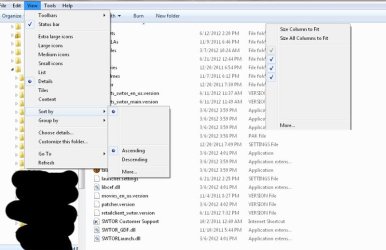
d) My Windows Explorer is messed up by not showing file sizes, and some blank spots where I should be able to sort, etc.
I uploaded a screenshot of the windows explorer weirdness as part of the attachment.
----
Notes:
- I ran Malewarebytes with nothing detected, combofix was fine, and did a scan with avast resulting in 0 threats
- It fixed itself once on a reboot recently but has since gone back to acting strange again.
I'm not really sure what could be causing this, has it happened to anyone else?
Thanks fro any replies
a) If I click on 'New Updates Available', it doesn't open up Windows Update like it should
b) The same can be said about my notifications to open 'Action Center'
c) When I do a windows search, it just brings up random documents. For example, searching for 'Windows Update' should bring up the program, but instead shows 23 text files that may contain the word windows update.
d) My Windows Explorer is messed up by not showing file sizes, and some blank spots where I should be able to sort, etc.
I uploaded a screenshot of the windows explorer weirdness as part of the attachment.
----
Notes:
- I ran Malewarebytes with nothing detected, combofix was fine, and did a scan with avast resulting in 0 threats
- It fixed itself once on a reboot recently but has since gone back to acting strange again.
I'm not really sure what could be causing this, has it happened to anyone else?
Thanks fro any replies
Attachments
My Computer
At a glance
MS Windows 7 64-bit SP1Intel Core 2 Duo E7500DDR2 6144 MBytesATI Radeon HD 5700
- Computer Manufacturer/Model Number
- Custom built desktop
- OS
- MS Windows 7 64-bit SP1
- CPU
- Intel Core 2 Duo E7500
- Motherboard
- ASUSTeK Computer INC, P5B-Deluxe (LGA 775)
- Memory
- DDR2 6144 MBytes
- Graphics Card(s)
- ATI Radeon HD 5700
- Sound Card
- SB Audigy
- Monitor(s) Displays
- 22"
- Screen Resolution
- 1680x1050 pixels
- Hard Drives
- WDC WD15EARS-00Z5B1 ATA Device
WDC WD1001FALS-00Y6A0 ATA Device
WDC WD3200YS-01PGB0 ATA Device
- PSU
- 650w
- Case
- Cooler Master
- Cooling
- fan
- Keyboard
- Logitech G15
- Mouse
- Logitech MX518
- Internet Speed
- Cable
- Other Info
- Mouse, Keyboard, Logitech Webcam, EPSON NX100 Printer


 Now my network icon is showing the red x like it's disconnected but I have Internet access.... It may be time to plan a re-install
