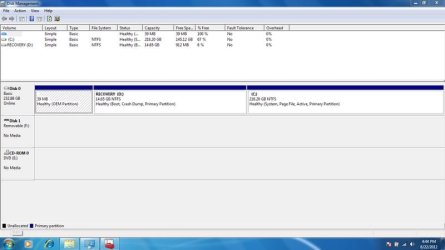
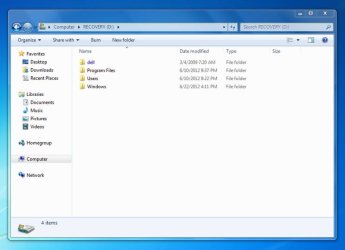
I bought a Dell Inspiron 1545 used with Windows Vista on it. My school offers free Windows software downloads for students so I decided to upgrade to Windows 7 32bit. The download went smoothly, however, the computer is slow now and I get a message that says low space on recovery drive 0mb available. I used disk clean and removed old system files, windows.old and previous restore points but that barely put a dent in it. When I start my computer the Windows 7 is on a different partition and I can still see Windows Vista, I would also like to delete the Vista partition. Maybe that is why I am having a problem. I do not know much about computer so any help is appreciated. I've attached a screen shot. Thanks.
It is an upgrade I suppose. It says 'Windows 7 Enterprise(32bit) Upgrade for Students. It is not an ISO file. I have the choice to download or they can mail me the disks. Maybe I should see if they can mail me the disk and possibly do a fresh install. I also chose 'custom' install during the installation, I don't know if that makes a difference. I chose this because I didn't want any of the previous owners files.
Thanks SIW, yes I believe that is what I did. Although, I don't know how to fix it. I have already downloaded Windows 7 and I have been using it fine. I just receive the 'low disk space' error message. It took a little bit, but I was able to boot Vista. What's the fix?
No need to try to repair the install you mistakenly put on the Recovery partition, which is on D anyway since you ran the Clean Install from Vista and didn't boot the installer.
Boot the Win7 DVD to Clean Install Windows 7, choose Custom install then use the Custom Drive options to delete all partitions and create new ones as you wish, or just click Next and Win7 will create and format its own partition and begin install.
Be sure to save the Win7 Product Key as it can migrate to any computer for the life of the OS as long as it's on only one at a time.
I just don't believe you performed a monstrous download. An ISO file for Win 7 is not small in and of itself.
A copy of all of the files that would normally be on an exploded Win 7 would be rather large.
You do or you do not have a copy of the file you "downloaded"?
Some vital piece of info is missing.
You say that you downloaded Win 7, yet you haven't been able to tell us what you downloaded other than to say Win 7 Enterprise upgrade. That should have been an ISO file. Something just doesn't fit here.
My Computer
Computer Manufacturer/Model Number
Toshiba Satellite S875D-S7239 laptop
OS
MS Windows 7 Ultimate SP1 64-bit
CPU
AMD A10-4600M
Motherboard
AMD Pumori (Socket FT1)
Memory
6.00 GB Dual-Channel DDR3 @ 798MHz (11-11-12-28)
Graphics Card(s)
AMD Radeon HD 7660G
Sound Card
High Definition Audio Device
Monitor(s) Displays
Generic PnP Monitor (1600x900@60Hz)
Screen Resolution
1600x900@60Hz
Hard Drives
SSD 119GB Corsair CSSD-V128GB2 ATA Device
Keyboard
Standard PS/2 Keyboard
Mouse
HP Wireless Optical Mobile Mouse Model FHA-3410
Internet Speed
What the local pub, local coffee shop offers.
Other Info
Optical Drive:MATSHITA BD-CMB UJ160B ATA Device
Also have an Asus ha1002xp netbook with Win 7 Ultimate installed.
Originally Student version was offered in an .exe installer until complaints forced Digital River to offer an ISO. I haven't heard of Enterprise being offered as a Student edition, but if it's a school it is certainly a qualifying organization for volume licensing.
If you can browse into the Vista partition through Explorer and find the download it may be able to be converted into an ISO using this tutorial by SIW2 who is here to guide you: Make bootable iso from student d-l
Is this activated by your school or do you have a Volume License Key which is what is used to activate Enterprise?
You can download the ISO and burn to DVD using ImgBurn at 4x speed, then follow these steps to Clean Install Windows 7, or order it. You should have a disk for reinstalls or repairs.
Sorry it's taken me a while to get back. OK, well if I want to completely remove Windows 7 and just go back to Vista for now how do I remove it or the whole Windows 7 in the partition? I am able to log successfully into Vista. Thanks for all responses!
The better solution is to go to your school bookstore and actually buy Win 7. Through your bookstore, you will get a fantastic price on Win 7 that others can only dream about.
My Computer
Computer Manufacturer/Model Number
Toshiba Satellite S875D-S7239 laptop
OS
MS Windows 7 Ultimate SP1 64-bit
CPU
AMD A10-4600M
Motherboard
AMD Pumori (Socket FT1)
Memory
6.00 GB Dual-Channel DDR3 @ 798MHz (11-11-12-28)
Graphics Card(s)
AMD Radeon HD 7660G
Sound Card
High Definition Audio Device
Monitor(s) Displays
Generic PnP Monitor (1600x900@60Hz)
Screen Resolution
1600x900@60Hz
Hard Drives
SSD 119GB Corsair CSSD-V128GB2 ATA Device
Keyboard
Standard PS/2 Keyboard
Mouse
HP Wireless Optical Mobile Mouse Model FHA-3410
Internet Speed
What the local pub, local coffee shop offers.
Other Info
Optical Drive:MATSHITA BD-CMB UJ160B ATA Device
Also have an Asus ha1002xp netbook with Win 7 Ultimate installed.
Sorry it's taken me a while to get back. OK, well if I want to completely remove Windows 7 and just go back to Vista for now how do I remove it or the whole Windows 7 in the partition? I am able to log successfully into Vista. Thanks for all responses!
Post back a screenshot of your maximized Disk Management drive map and listings, using the Snipping Tool in Start Menu. We will give you the steps to remove Win7.
Did you confirm if the Enterprise Win7 version you have will be activated by your school? Can they provide you with an installation DVD or bootable ISO file we can help you burn to DVD?
Be sure to post your disk management snippet in you NEXT post.
Do not include the snippet in a previous post.
We seldom go back thru the old posts. HOW TO POST A SNAPSHOT OF DISK MANAGEMENT DISPLAY Run disk management: WIN | type DISKMGMT.MSC | ENTER This method gives you a display without the unneeded navigation pane. WIN=key with Microsoft logo on top.
Maximize the output of Disk Management: Maximize the output of Disk Management: ALT-Spacebar key combo | X key (selects Maximize) | Drag the field separators(such as between Status and Capacity) to show entire field.
Make a snapshot: WIN | type SNIPPING | ENTER | New
Drag the cursor around the area you want to snip. File | Save as | select save location and name | Save