Hi Syngenta, welcome to the Seven Forums. Here's a comprehensive tutorial for Windows Search:
http://www.sevenforums.com/tutorials/129437-windows-search-configure-use.html
A few additional tips for you in following screenshots below. Click images to enlarge.
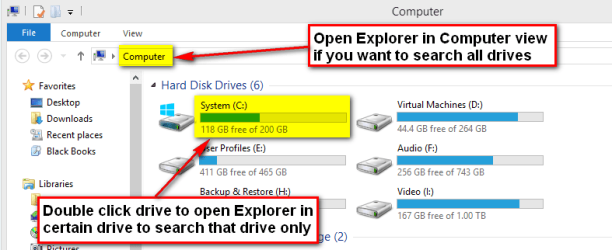
Search whole computer or just one drive:
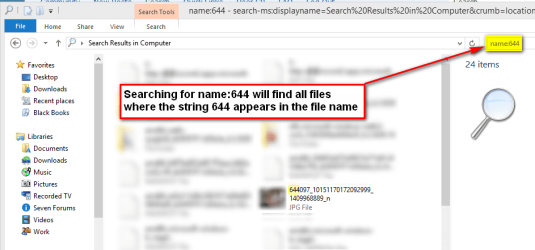
Search a partial filename:
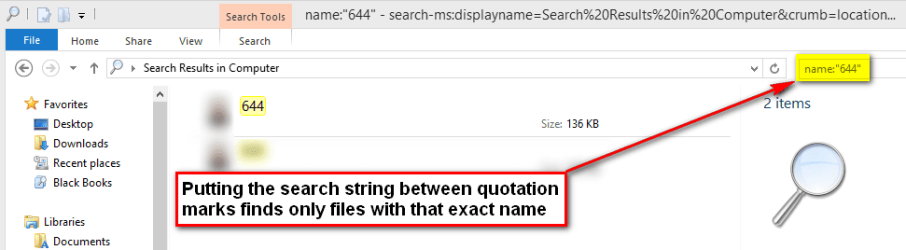
Search an exact filename:
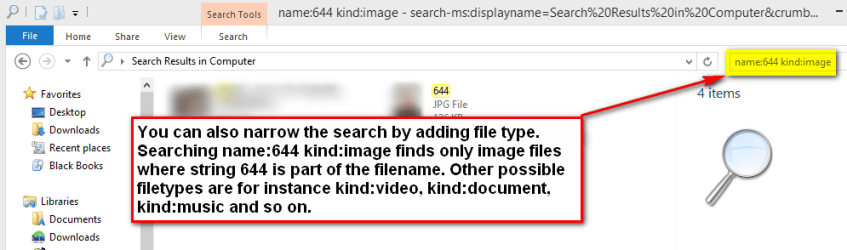
Search partial filename but only a certain file type:
In this last example you can also tell Windows Search the file type by using its extension. This finds all
PDF files with partial filename
644:
You can also use
AND,
OR &
NOT operators to include more search criteria. With
AND both criteria must be true, with
NOT first one must be true, second one false, with
OR one of the search criteria separated with it must be true. Notice that
OR,
AND &
NOT must be written in capital letters.
This will find a
PNG image where the name contains string
644 leaving out all files where also string
555 appears in the filename:
Code:
name:644 NOT name:555 ext:png
(Files 644.pdf and
6449604.pdf would be included in search results, but file
644234
555.pdf would be left out.)
This finds all documents where partial filename is
644 and where also string
555 appears in the name:
Code:
name:644 AND name:555 kind:document
(Files
644sfsg
555.doc and
644kasdl
555asd.txt would be included in search results, but file
644asdsf.doc left out.)
This finds all
BMP,
JPG and
PNG images with exact filename
644:
Code:
name:"644" ext:bmp OR ext:jpg OR ext:png
Kari



