AgentSmith5150
New member
- Local time
- 6:15 PM
- Messages
- 7
Hello all.
I have read through a few threads related to dual boot problems. I have made a few strides in the right direction. But I don't quite have things back to "normal".
Where things sit right now, I have a fresh install of XP Pro 32-bit on one drive, then I installed W7 64-bit on another drive. For some reason, I never got the boot choice during startup, it just went into W7.
Did all kinds of searching and playing around, 3 hours or so worth. Now it's time to ask, lol
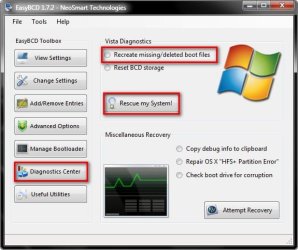
I have the EasyBCD program, and I have things to where startup gives me a choice between Windows 7 and Windows XP. I can chose W7 and it boots up fine. If I choose XP, it just reboots and brings me back to the Os select screen again. Here is what BCD setting screen shows:

I feel like I am close to righting this wrong, but I am also possibly tired, anyway, any ideas?
PS: I also noticed in another thread people showing a screenshot of an "About" screen that shows an expiration date, where is that?
I have read through a few threads related to dual boot problems. I have made a few strides in the right direction. But I don't quite have things back to "normal".
Where things sit right now, I have a fresh install of XP Pro 32-bit on one drive, then I installed W7 64-bit on another drive. For some reason, I never got the boot choice during startup, it just went into W7.
Did all kinds of searching and playing around, 3 hours or so worth. Now it's time to ask, lol
I have the EasyBCD program, and I have things to where startup gives me a choice between Windows 7 and Windows XP. I can chose W7 and it boots up fine. If I choose XP, it just reboots and brings me back to the Os select screen again. Here is what BCD setting screen shows:
I feel like I am close to righting this wrong, but I am also possibly tired, anyway, any ideas?
PS: I also noticed in another thread people showing a screenshot of an "About" screen that shows an expiration date, where is that?
My Computer
At a glance
Windows 7, Vista, XP Pro
- OS
- Windows 7, Vista, XP Pro