Windows 7 Forums


Windows 7: Messed up drives and partitions

23 Oct 2009   #1

Windows 7 Professional
Vancouver, BC
 
 
Messed up drives and partitions

Hi!

I seem to have messed up my drives big time.
I had Windows XP installed on C:\
Partitioned that drive, installed Windows 7 Beta on D:\
Bought a second hard drive
Partitioned it to to drives, E and F

I just bought the Windows 7 Pro Upgrade, made a fresh install on E:\ with the hopes that it would change E:\ to C:\ like the beta did on my primary drive.

It didn't, now my drive lettering looks awful and it's confusing me lol.

I don't need the Windows XP or the Windows 7 Beta installation (on disk0), I would like to combine those partitions back into 1 drive.

Is there any way I can fix this mess? maybe make my current windows location C: ?


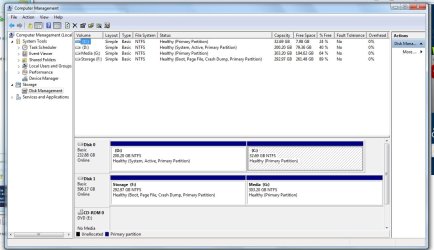
Confused? I know I am... I've posted some pics, hope they can clarify what I'm talking about

Thanks for your help!
Attached Thumbnails
Messed up drives and partitions-partitions.jpg  
My System SpecsSystem Spec

23 Oct 2009   #2

Vista Ult 64 bit Seven Ult RTM x64
Maine, USA


Hello Angloman,

Welcome to Seven Forums.

You can change the drive letters manually. Do you now have all three boot options at startup? If you manually changed the letters (in disk manager, rt. click on a partition and select 'change letter and path') then you could combine and format old C & D. Next you would have to remove the old boot options via 'msconfig'.

Hope this helps.

Gary
My System SpecsSystem Spec
23 Oct 2009   #3

Windows 7 Professional
Vancouver, BC


Thanks for the quick reply!

I do have all 3 boot options at startup, which I would like to get rid of. MSconfig only shows me the other windows 7 option, not XP but I'll get to fixing that later.

What I really want to do is transfer the bootloader to disk1, partiton 1 (F: Storage), and then completely reformat disk0.

Once that's done I can worry about clearing up the boot menu.

Any suggestions for how I can do that?
My System SpecsSystem Spec
.


23 Oct 2009   #4

7 RC


Every partition that is bootable will have a bootstrap so just make sure you are booted to the retail 7, and then delete both partitions on disk 0. Then you can repartion as you wish and remove the deleted OSes boot entries through boot in msconfig.

Weird the XP isn't listed and that it doesn't make the new 7 C: when it is the active OS.
My System SpecsSystem Spec
23 Oct 2009   #5

Windows 7 Professional
Vancouver, BC


Okay problem solved.

Made Disk1 active, rebooted and got the bootmgr missing error msg.

Disconnected Disk0

Ran the recovery CD, fixed it

Booted up fine, reconnected Disk0, still booted fine... now going to reformat disk0

In the end, my drive letters will be F, G and H instead of C D and E but whatever... for the most part everything's working.

Thanks again!
My System SpecsSystem Spec
23 Oct 2009   #6

Vista Ult 64 bit Seven Ult RTM x64
Maine, USA


Glad you've got it figured. You can change the letters to whatever you like anytime.

Gary
My System SpecsSystem Spec
23 Oct 2009   #7

Windows 7 Professional
Vancouver, BC


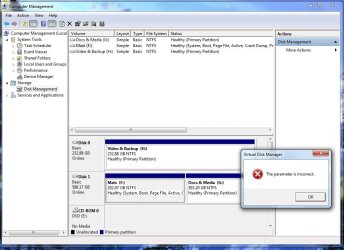
I tried, I get to the point where it warns me that changing the drive letter could mess some programs up, then when I click OK it tells me the parameter is incorrect
Attached Thumbnails
Messed up drives and partitions-drivechange.jpg  
My System SpecsSystem Spec
Reply

 Messed up drives and partitions problems?


Thread Tools


Similar help and support threads for: Messed up drives and partitions
Thread Forum
Bitlocker drives/partitions are not visible in windows 8 System Security
Mount Drives or Partitions as a Folder Tutorials
Windows 7 SP1 messed up 2 USB drives Windows Updates & Activation
Help please! Loosing drives and partitions General Discussion
Partitions and drives. General Discussion


All times are GMT -5. The time now is 02:06 AM.


Seven Forums Android App Seven Forums IOS App Follow us on Facebook

Windows 7 Forums is an independent web site and has not been authorized,
sponsored, or otherwise approved by Microsoft Corporation.
"Windows 7" and related materials are trademarks of Microsoft Corp.
© Designer Media Ltd
  

1 2 3 4 5 6 7 8 9 10 11 12 13 14 15 16 17 18 19 20 21 22 23 24 25 26 27 28 29 30 31 32