
| Windows 7: Help formatting my old XP drive |
28 Dec 2009
|
#1 | | Windows 7 Ultimate x64 Las Vegas |
Help formatting my old XP drive Hello,
I am having a problem formatting a drive. When I first built this computer, I had two 500GB HDD's installed. Originally I installed XP on the machine. Some time ago, I installed Windows 7 on my other drive. I have been using Windows 7 for months now, and I no longer wish to use Windows XP.
I am running out of space on my Windows 7 Drive, I originally only allocated 90GB to it. I want to format my XP drive so I can move things around and get more space, but I cannot reformat, disk management gives me the error, "Windows cannot format the System Partition on this disk."
I REALLY REALLY do not want to have to reinstall windows 7.
This is what my drives look like.
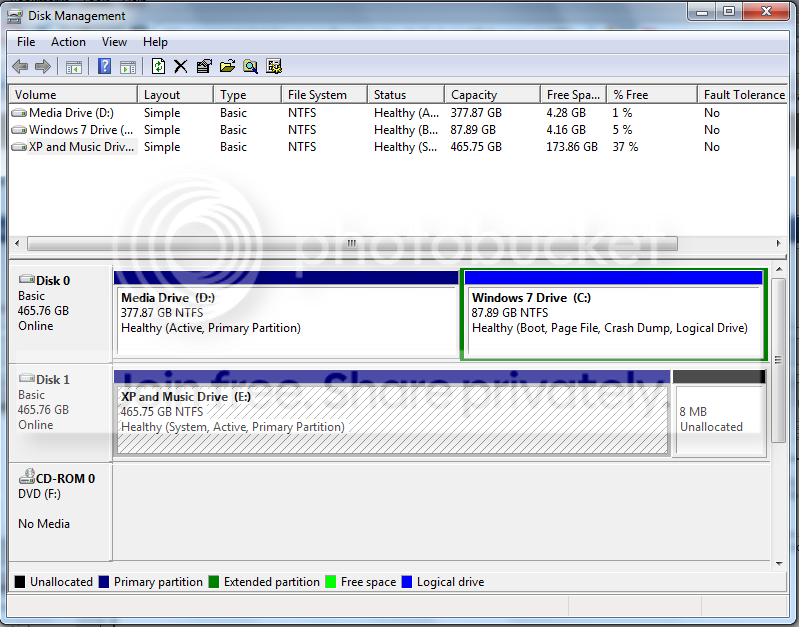
I basically want to format the XP drive and make that my new media drive, and extending the current Windows 7 drive to include the space that I will gain from moving my media drive.
Any help would be greatly appreciated.
-Shane | My System Specs |
| System Manufacturer/Model Number Custom OS Windows 7 Ultimate x64 CPU Intel Q6600 2.4GHz Quad Core Memory 4GB Graphics Card NVidia 8600GT Sound Card Audigy 2ZS |
28 Dec 2009
|
#2 | | Windows 7 Home Premium SP1, clean install, upgrade disc CT |

Quote: Originally Posted by Serantos Hello,
I am having a problem formatting a drive. When I first built this computer, I had two 500GB HDD's installed. Originally I installed XP on the machine. Some time ago, I installed Windows 7 on my other drive. I have been using Windows 7 for months now, and I no longer wish to use Windows XP.
I am running out of space on my Windows 7 Drive, I originally only allocated 90GB to it. I want to format my XP drive so I can move things around and get more space, but I cannot reformat, disk management gives me the error, "Windows cannot format the System Partition on this disk."
I REALLY REALLY do not want to have to reinstall windows 7.
This is what my drives look like.
I basically want to format the XP drive and make that my new media drive, and extending the current Windows 7 drive to include the space that I will gain from moving my media drive.
Any help would be greatly appreciated.
-Shane Here is a url with a video toward the end explaining how to format. I wish you luck How to Format a Hard Drive | My System Specs | | System Manufacturer/Model Number Dell XPS 420 OS Windows 7 Home Premium SP1, clean install, upgrade disc CPU Intel Core2 processsor Q8200(2.33Ghz 1333FSB) Quad Core Tech Motherboard Dell Memory 6 gb Graphics Card ATI Radeon 256MB HD3650 Sound Card Intergrated 7.1 Channel Audio Monitor(s) Displays Dell SP2009W 20" Keyboard Dell USB Keyboard Mouse Dell Premium Optical USB Cooling Fan Hard Drives 640 GB Serial ATA Hard drive Internet Speed DSL 2.85 |
28 Dec 2009
|
#3 | | Windows 7 Ultimate x64 Las Vegas |
I don't want to sound rude or anything like that because I'm new here. Maybe I didn't specify in my first post but I am far from computer illiterate. I am trying to ask how to format this drive that windows isn't letting me format.
I do not want to have to reinstall windows 7, I just want the XP data gone. Unfortunately, that is where my boot information is being kept, and I do not know how to circumvent that.
any help would be greatly appreciated. | My System Specs | | System Manufacturer/Model Number Custom OS Windows 7 Ultimate x64 CPU Intel Q6600 2.4GHz Quad Core Memory 4GB Graphics Card NVidia 8600GT Sound Card Audigy 2ZS |
29 Dec 2009
|
#4 | | Win7 x 6 PC's California, Florida, Boston |
To accomplish what you want you must set Windows 7 drive as first HD to boot in BIOS boot order, mark XP and the Media drives inactive, mark the Windows 7 drive active, then recover the MBR to Windows 7 by running Startup Repair 3 separate times.
Back up your files and a Windows 7 system image externally or to the other drive.
Now reboot, Enter BIOS Setup by tapping key given on first bootup screen, set Windows 7 partition as first HDD to boot, after DVD drive. Save settings and exit BIOS.
Boot into Windows 7 DVD Repair console, click through to Recovery tools list and open a Command Prompt, type:
DISKPART
LIST DISK
SELECT DISK # (for XP drive)
LIST PARTITION
SELECT PARTITION # (for XP partition)
INACTIVE
SELECT DISK # (for Windows 7 drive)
SELECT PARTITION # (for Media partition)
INACTIVE
SELECT PARTITION # (for Windows 7 Partition)
ACTIVE
EXIT
Return to DVD Recovery Tools list and run Startup Repair 3 separate times to attempt repair and then rewrite MBR to Windows 7.
Check Disk Management that Windows 7 is now System Active so you can now format your XP HD. | My System Specs | | |
29 Dec 2009
|
#5 | | Windows 7 Ultimate x64 Las Vegas |
Greg, thank you very much for the detailed post. After reading all of this, it seems much more difficult than I thought it would be, and time consuming. If I just do a complete clean install of Windows 7, will I be able to format BOTH of my hard drives with no problems?
If that's the case, I'll just back up the files I need. I was trying to avoid this because I don't have an external HDD, but I can borrow one I'm sure. It looks like I was going to need to backup either way it goes, my Windows 7 install is fairly fresh, so it wont be too hard to get back to where I am now. | My System Specs | | System Manufacturer/Model Number Custom OS Windows 7 Ultimate x64 CPU Intel Q6600 2.4GHz Quad Core Memory 4GB Graphics Card NVidia 8600GT Sound Card Audigy 2ZS |
29 Dec 2009
|
#6 | | Win7 x 6 PC's California, Florida, Boston |
Didn't mean to scare you off!
But I'll never argue with anyone wanting to clean reinstall, because nothing beats it including getting a new computer - since most all of today's machines are loaded with bloatware with no DVD to clean reinstall!
You can back up your data to the other internal HD and just unplug it during Windows 7 reinstall if you want, then plug it back in to move data back. But you'll still need to deactivate the two partitions so it won't interfere with Windows 7 boot after being plugged back in.
But if you want to wipe both slates clean during install, then set DISK0 as first HD in BIOS boot order after DVD, boot Windows 7 DVD, select "connect to internet during install" to get latest drivers/Updates during install, then Custom install, then use Drive Options to delete all partitions on both HD's, create a new one for Windows 7, then format before install.
Later use Disk Management to create your data drives so you can format them NTFS Logical so that they can never be marked active (unless converted) as the Media drive somehow was. | My System Specs | | |
29 Dec 2009
|
#7 | | Windows 7 Ultimate x64 Las Vegas |
Ok, I just couldn't remember if during the installation of Windows I could format both drives with no error messages. I'll leave my boot order alone, and format both drives and install on my old XP drive which is Disk 0.
Sound about right?
Again, thanks for the help. | My System Specs | | System Manufacturer/Model Number Custom OS Windows 7 Ultimate x64 CPU Intel Q6600 2.4GHz Quad Core Memory 4GB Graphics Card NVidia 8600GT Sound Card Audigy 2ZS |
29 Dec 2009
|
#8 | | Win7 x 6 PC's California, Florida, Boston |
Sounds like a plan.
When you wipe the drives ilke that, the installer will want to make the 100mb System Reserved partition which holds the boot and repair console made available at F8 during bootup which is useful. But there is a way to avoid it if you dont' want it.
Let us know if you need any help. | My System Specs | | |
29 Dec 2009
|
#9 | | Windows 7 Ultimate x64 Las Vegas |
That's fine. I'll try and do this today, if I can find an external for backing up. I'll post back here when I'm done. Thank you so much for all the help Greg! | My System Specs | | System Manufacturer/Model Number Custom OS Windows 7 Ultimate x64 CPU Intel Q6600 2.4GHz Quad Core Memory 4GB Graphics Card NVidia 8600GT Sound Card Audigy 2ZS |
29 Dec 2009
|
#10 | | |
Serantos,
I have been exactly where you are.
I certainly won't disagree with Greg that nothing beats a clean slate, but his post#4 is still excellent advice. It may seem complicated, but really he has laid out every step you'll need to follow. That may take a lot more lines than; format + reinstall, but it isn't more work -especially if you have numerous programs installed.
And of course, if it doesn't work out, you have only lost a half hour and can proceed to Plan B. | My System Specs | | OS 7 x64 CPU AMD X2 245 @ 3.5 Motherboard Gigabyte MA 790FX Memory 4 gb OCZ Graphics Card Radeon 4550 1GB Monitor(s) Displays Dell 2407 Samsung 1701B Screen Resolution 1920 x 1200 1280 x 1024 PSU Antec 500 Hard Drives WD 500GB x2
WD 250GB x1 Help formatting my old XP drive problems? All times are GMT -5. The time now is 04:10 AM. | |