Windows 7 Forums Search
Welcome to Windows 7 Forums. Our forum is dedicated to helping you find solutions with any problems, errors or issues you are experiencing with Windows 7. The Windows 7 forum also covers news and updates and has an extensive Windows 7 tutorial section that covers a wide range of tips and tricks.


Windows 7 - File system annoyance

 
03-14-2009   #1


Linux (Debian, Android)


File system annoyance

One annoyance I have is there is a desktop configuration settings file in every single folder in my OS, does anyone know why this is?

Also does anyone know how to view every folder in the OS to be "tiles"?

My System SpecsSystem Spec
03-15-2009   #2


Windows 7 Ultimate x64 SP1


Hello Firestrider,

The desktop.ini file seems to be a bug in this build. You can just check the Hide box in that files properties page to hide them as you come across them.


After you set that folder to "Tiles" view, open Folder Options from within that folder and click on the View tab and Apply to Folders for all folders using that folder template (ex: Music, Pictures, General Items, etc...).

Hope this helps,
Shawn
My System SpecsSystem Spec
03-15-2009   #3


Linux (Debian, Android)


Do you always get the desktop.ini file to pop up every time you boot up Windows?


EDIT: Heh, I probably should have looked at the sticky - Build 7057 desktop.ini Fix

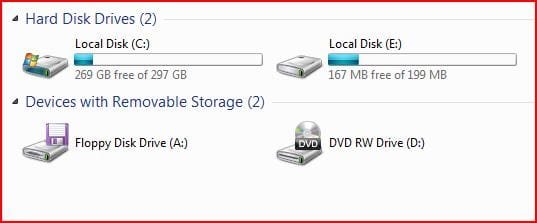
On another note, is showing the 200 MB partition in this build another bug?
Attached Thumbnails
File system annoyance-partition.jpg  
My System SpecsSystem Spec
.


03-15-2009   #4


Windows 7 Ultimate x64 SP1


LOL, I'm happy to hear that you got the desktop.ini file sorted.

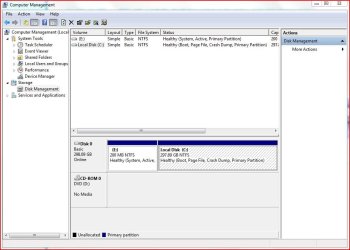
It should not be the same partition since the 7057 build now only creates a 100 MB hidden system partition instead. What do you have showing in Disk Management?
My System SpecsSystem Spec
03-15-2009   #5


Linux (Debian, Android)


This is what I have showing in disk management:

File system annoyance-diskmanage.jpg
My System SpecsSystem Spec
03-15-2009   #6


W7 X-64 RTM,SUSE 11.1, XP PRO SP3 as a VM, VMware ESXi


'Nope
this is OK
Windows 7 reserves some system space.

You can actually get rid of it -- but if you do you *might* need to do the following or your system will become unbootable.

I prefer having the OS contained COMPLETELY in a single partition so I can make a decent "bare metal" bootable recovery system.

1) go into contol panel ==> administrative tools ==> computer management==disk management.

2) delete the partition

3) expand (either now or after a boot) your 'C' partition to reclaim the space.

If on boot your system fails with a message like bootmgr missing just boot your Windows 7 install DVD and repair system. It should install the boot manager on your "C" partition

job done.


To make 100% certainty that the system doesn't create another partition download the GPARTED cd and ensure your "C" partition starts at track 0.

GParted -- Download

Cheers
jimbo
My System SpecsSystem Spec
03-15-2009   #7


Windows 7 Ultimate x64 SP1


Quote   Quote: Originally Posted by Firestrider View Post
This is what I have showing in disk management:

Attachment 5846
Firestrider,

In Disk Management, you can just right click on the E: drive and click on Change Drive Letter and Paths, Remove, Yes, and Yes to remove the drive letter and have the partition hidden again.
My System SpecsSystem Spec
Reply

 File system annoyance problems?


Thread Tools


Similar Threads for: File system annoyance
Thread Forum
seeking fix for “File is too large for destination file system” erro Crashes and Debugging
Solved Tapatalk annoyance... Chillout Room
IE8 Annoyance Browsers & Mail
Mouse Over Annoyance General Discussion
Bit of an annoyance in Win 7 beta General Discussion


All times are GMT -5. The time now is 04:13 AM.


Windows 7 Forums is an independent web site and has not been authorized,
sponsored, or otherwise approved by Microsoft Corporation.
"Windows 7" and related materials are trademarks of Microsoft Corp.
© Designer Media Ltd
  

1 2 3 4 5 6 7 8 9 10 11 12 13 14 15 16 17 18 19 20 21 22 23 24 25 26 27 28 29 30