- Local time
- 1:20 PM
- Messages
- 5,599
Hi Everyone,
A little while ago I was working with a 60day trial of Microsoft Office, and also had the calculator program open.
I was preforming calculations, and copying, and pasting them into the word portion of the Office program.
When I finished what I was doing I closed both programs.
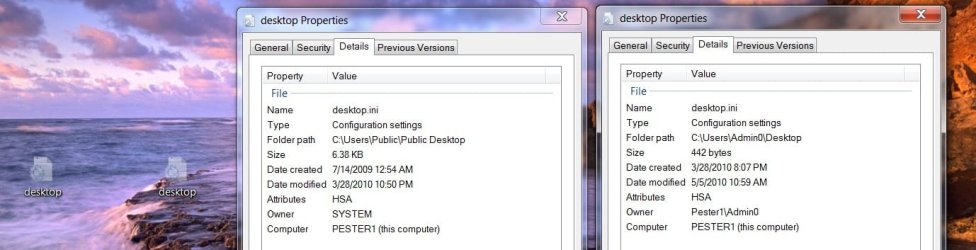
It was then, that I noticed two grayed-out Icons on my desktop both named desktop - Notepad.
Properties list them both as hidden files.
When I opened them one pertained to the 60day trial, and the other to calculator.
They start with:
[.ShellClassInfo]
LocalizedResourceName=@%SystemRoot%\system32\shell32.dll,-21799
[LocalizedFileNames]
Microsoft Office - 60 Day Trial.lnk=@C:\PROGRA~2\MICROS~3\mui\oaa.dll,-103
Gateway Registration.lnk=@C:\Program Files (x86)\Gateway\Registration\GlobalRegistrationMUI.dll,-103
[.ShellClassInfo]
LocalizedResourceName=@%SystemRoot%\system32\shell32.dll,-21769
IconResource=%SystemRoot%\system32\imageres.dll,-183
[LocalizedFileNames]
Calculator.lnk=@%SystemRoot%\system32\shell32.dll,-22019
I thought I could just delete them, but when I try to a dialog box appears warning me that if I do neither program will work properly.
I am not that concerned about the Office program because I plan on un-installing it, but I do not want to disturb the calculator program.
Would placing them back in the "SystemRoot%\system32\shell32.dll" Folder make things worse than they are or is there a better solution?
Anak
A little while ago I was working with a 60day trial of Microsoft Office, and also had the calculator program open.
I was preforming calculations, and copying, and pasting them into the word portion of the Office program.
When I finished what I was doing I closed both programs.
It was then, that I noticed two grayed-out Icons on my desktop both named desktop - Notepad.
Properties list them both as hidden files.
When I opened them one pertained to the 60day trial, and the other to calculator.
They start with:
[.ShellClassInfo]
LocalizedResourceName=@%SystemRoot%\system32\shell32.dll,-21799
[LocalizedFileNames]
Microsoft Office - 60 Day Trial.lnk=@C:\PROGRA~2\MICROS~3\mui\oaa.dll,-103
Gateway Registration.lnk=@C:\Program Files (x86)\Gateway\Registration\GlobalRegistrationMUI.dll,-103
[.ShellClassInfo]
LocalizedResourceName=@%SystemRoot%\system32\shell32.dll,-21769
IconResource=%SystemRoot%\system32\imageres.dll,-183
[LocalizedFileNames]
Calculator.lnk=@%SystemRoot%\system32\shell32.dll,-22019
I thought I could just delete them, but when I try to a dialog box appears warning me that if I do neither program will work properly.
I am not that concerned about the Office program because I plan on un-installing it, but I do not want to disturb the calculator program.
Would placing them back in the "SystemRoot%\system32\shell32.dll" Folder make things worse than they are or is there a better solution?
Anak
Last edited:
My Computer
At a glance
Originally Win 7 Hm Prem x64 Ver 6.1.7600 Bui...Intel i3 530 2.93GHz, 2933MHz 2 Cores 4 Logic...6GB of 1,333MHz DDR3 SDRAM32MB Intel Graphics Media Accelerator HD IGChip
- Computer type
- PC/Desktop
- Computer Manufacturer/Model Number
- Gateway DX4831-01e (Mid-Tower Desktop)
- OS
- Originally Win 7 Hm Prem x64 Ver 6.1.7600 Build 7601-SP1 | Upgraded to Windows 10 December 14, 2019
- CPU
- Intel i3 530 2.93GHz, 2933MHz 2 Cores 4 Logical Processors
- Motherboard
- Gateway H57M01 133 megahertz
- Memory
- 6GB of 1,333MHz DDR3 SDRAM
- Graphics Card(s)
- 32MB Intel Graphics Media Accelerator HD IGChip
- Sound Card
- Realtek High Definition Audio
- Monitor(s) Displays
- Gateway HX2000 20inch TFT active matrix TN
- Screen Resolution
- 1600 x 900 x 59 hertz
- Hard Drives
- WDC WD10EADS-00M2B0 [HDD] (1000.20 GB) -- drive 0,
HL-DT-ST DVDRAM GH41N [CD-ROM dr]
Four card readers, and Four USB 2.0
- PSU
- 300watts.
- Case
- Mid-Tower Desktop
- Cooling
- Stock from Gateway
- Keyboard
- Natural Ergonomic Keyboard 4000, see Other Info
- Mouse
- Orig. Gateway wore out now using Insignia USB wired optical
- Internet Speed
- Vz FIOS 10ms png 57.64Mbps down 65.53Mbps up Speedtest.org
- Antivirus
- Zamana Anti-logger with Anti-malware, MSE, Windows Firewall,
- Browser
- IE11.0.9600.19399-Upd ver11.0.135, Firefox 68.0.1 x64
- Other Info
- System Specs by Belarc.
BIOS: American Megatrends Inc. P01-A0 11/17/2009
Replaced the MS 'Natural' Standard PS/2 Enhanced 101-102 Keyboard with a new Natural Ergonomic Keyboard 4000 on August 1st 2014.
Canon Pixma MG3222 Printer.
Updated to IE11 on 12102015 | Fios Quantum Router g1100
Additional AV: SpywareBlaster, manual Mbam, SAS