
| Windows 7: Merging directories in Win 7 |
02 Jul 2010
|
| | |
Merging directories in Win 7 Problem:
I have a directory with 10000 .jpg files. I have another directory with 5000 .jpg files that have the same names as 5000 of those in the first directory. But some are of lesser size and some greater size. I just want to merger ie replace just the smaller files in the first directory with the larger files from the second directory. Can this be done easily?
Win 7 gives me the option to do this one file at a time. WAY to slow.
Someone suggested the cmd box copy command, but I'm not sure which parameters could do this, if any.
Ideas?
Thanks | My System Specs |
| |
02 Jul 2010
|
| | Win7 x 6 PC's 36,547 posts California, Florida, Boston |
What I would do is Change folder View to Details, then order the Size list either ascending or descending, highlight the size group you want to delete in First file, then delete. Now in the Second file, highlight the size group you want to copy (merge) into First folder and either drag them as a group to the First folder in Explorer tree, or copy and paste them into First folder. Finally delete the Second folder once you're sure you have everything.
You don't say if the files needing replacement have the same name as their counterparts you want to replace them with, as if they do then you could just drag the replacement files from the Second to the First file, then when it asks you if you want to replace them, say "Yes to all." | My System Specs | | |
02 Jul 2010
|
| | Windows 7 Ultimate (x64) 754 posts |
I am not sure what do you mean by Windows 7 giving you an option to do this one by one. If you simply try to copy all files from the second directory to the first one, Windows will do this until there is a conflict, i.e. until it finds that the file you want to copy has the same name as some other file that already exist in the target directory. At this point you are given several options, such as to skip this file, keep both files or replace the file with the target directory by the new one. Windows can remember your choice - you have to check the small box at the bottom of the pop-up window with the choice options - and then do the same for all other files.
So, if you simply want to move files from second directory to the first and while doing so overwrite the files that are already there - then you simply move all, then choose replace, check "do so for all other conflicts" and you're done.
Now, if you want to do so only for some files, not all, then of course some manual tinkering will be required. Say, your second directory contains some small and some large files, and yo only want the small files to overwrite files in the target directory. Then you could sort your files by size, then select those you want to move, then do as I described above.
Hope that was not too confusing. | My System Specs | | System Manufacturer/Model Number Dell Inspiron 530 OS Windows 7 Ultimate (x64) CPU Q6600 Memory 8 GB Graphics Card ATI Radeon HD 2600 XT Monitor(s) Displays Samsung Syncmaster P2450 Screen Resolution 1920x1080 Hard Drives Samsung HD103UJ
Samsung HD501LJ Internet Speed 25 Mb/s |
02 Jul 2010
|
| | |
Thanks to both replys. I guess I wasn't that clear. Let me try again.
The files in the 2nd directory (D2) have the same names as the ones in the larger 1st directory (D1). But some files are larger and some smaller in D2 then their counterparts in D1. I just want to replace just the files in D1 if the same named files in D2 are larger than the ones in D1.
gregrocker's aproach will not work well, because D1 has many more files, then D2. Sorting by size will include files in D1 that are not in D2. I wish explorer could sort by AND by size
unifex's approach will replace all files, not just the larger ones, because sometimes the bigger files in already in D1, sometimes not. I do not want to click 'Move or Don't move" 5000 times. | My System Specs | | |
02 Jul 2010
|
| | Windows 7 Ultimate 1,223 posts La Crosse, WI |
Soo.. I'm gonna shorten it up a bit to make sure I have it clear, using your D1 and D2 examples above..
You want to replace all of the files in D1 with files from D2 that have the same name and larger size, and NOT have to click Move or Don't Move a bunch of times.
Correct?
If so, I think you are out of luck.
However, let me dig around a bit. | My System Specs | | System Manufacturer/Model Number Custom Built OS Windows 7 Ultimate CPU AMD Athlon II X2 245 2.90Ghz Motherboard Some Gigabyte one, dont remember model Memory 3.00 GB Graphics Card 8800GTS 512MB Sound Card Sound Blaster X-Fi Titanium Fatal1ty Monitor(s) Displays Dual 22" widescreen Keyboard Saitek Eclipse 2 Mouse Logitech MX518 PSU CORSAIR CMPSU-850TX 850W Power Supply Case Thermalkake Tsunami Dream Cooling Thermaltake Golden Orb II Hard Drives 250GB internal, 500GB internal |
02 Jul 2010
|
| | Windows 7 Ultimate (x64) 754 posts |
Well, are your smaller files randomly smaller or smaller because you did something to your pictures, like reduced their size? If the latter is true, i.e. your larger files are 2-3 MB pictures and your smaller files are their 100kB versions, then you can do as I outlined in my first post, namely sort your directory D2 by size, and then select smaller files, move and replace.
If, on the other hand, the first case applies, then you are basically out of luck - the only thing you could do is to write a short script that would compare the file sizes in two directories and then move the smaller ones. But I am not sure how you would do this in cmd. If you had cygwin installed, then a bash script would not be so difficult. | My System Specs | | System Manufacturer/Model Number Dell Inspiron 530 OS Windows 7 Ultimate (x64) CPU Q6600 Memory 8 GB Graphics Card ATI Radeon HD 2600 XT Monitor(s) Displays Samsung Syncmaster P2450 Screen Resolution 1920x1080 Hard Drives Samsung HD103UJ
Samsung HD501LJ Internet Speed 25 Mb/s |
02 Jul 2010
|
| | Win7 x 6 PC's 36,547 posts California, Florida, Boston |
Someone  would have to write a script for you to run. | My System Specs | | |
02 Jul 2010
|
| | Windows 7 Ultimate x64 1,322 posts |
I'm not sure if this will do the trick for you, but it may help.
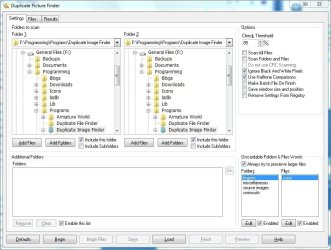
I've attached a ZIp of a little utility I wrote, Duplicate Image Finder, which scan any given set of folders for JPG files (it can take anything from a few minutes to several hours to complete a scan, depending on the number of images it finds, and the speed of you pc), and attempts to locate visually duplicated files, even if the image dimansions are different:
When scans are complete, you can select which files must be deleted or preserved, of which larger images are preserved by default.
If you don't want "duplicates" to be deleted, then I'm afraid you'll have to wait for awhile, because DPF is (for me anyway) in a perpetual state of BETA testing, and currently only allows for duplicates to be deleted. Files located in different folders can be moved one at a time.
If my time was my own, then perhaps I'd get around to allowing duplicates to be moved or copied to alternate locations all in a single pass.
Hope this helps. | My System Specs | | System Manufacturer/Model Number Custom Build OS Windows 7 Ultimate x64 CPU AMD Phenom 9600 Quad Core Motherboard ASUS MB-M3A32-MVP Deluxe/WiFi Memory 2 x A-Data 2GB DDR2-800 Graphics Card ASUS ATI Radeon HD 2400PRO Sound Card C-Media 7.1 Surround Monitor(s) Displays Sahara 19" Screen Resolution 1600x1200 Keyboard Mercury Mouse Logitech PSU 800W Case Thermaltake Tai-Chi Cooling Tai-Chi Water Cooler Hard Drives 1 x 80GB Seagate (IDE)
2 x 120GB Seagate (IDE/Sata)
2 x 200GB Seagate (IDE/Sata)
1 x 250GB Seagate (Sata)
1 x 320GB Seagate (Sata)
2 x 1TB Seagate (Sata)
1 x 1.5TB Seagate (Sata) Internet Speed 384kbps Merging directories in Win 7 problems? All times are GMT -5. The time now is 11:59 PM. | |