| Windows 7: Multiple Drive and Partition Question |
21 Feb 2011
|
#1 | | |
Multiple Drive and Partition Question Hello,
Back to show my ignorance. I have a c: Drive 500 GB Drive with the System Reserved Partition on it. A second physical drive 1 TB partitioned as E: and F: are used solely for backup. What type of partition/type should each of the four sections of the two drives have. System, Logical, Primary, whatever the hey else there is?
If your kindness extends to a minor explanation it would be additionally appreciated. I am wondering if this is the reason I have the Disk 0 and Disk 1 assignment intermittent swap, noted in a previous thread. Thanks for any help.
glennc | My System Specs |
| System Manufacturer/Model Number Self-Built OS Windows 7 Ultimate CPU AMD Phenom-II X4 965 Motherboard Gigabyte GA-MA785GM-US2H Memory 8192 MB DDR2-SDRAM Graphics Card ATI Radeon HD 4200 Sound Card ATI Radeon HD 4200 High Definition Audo Monitor(s) Displays LG Electronics W1943 Screen Resolution 1360 X 768 Keyboard Acer Mouse Logitech PSU Ultra LSP 750 Case Ultra XBlaster Cooling 2 Fans, CPU Fan, PS Fan Hard Drives C: 500 GB Caviar Black SATA
E: 1 TB Caviar Green SATA Internet Speed 6 MB |
21 Feb 2011
|
#2 | | Windows 7 Home Premium 64 bit Oklahoma |
Hi glenc
If you could post a pic of disk mgmt that shows how it's set up, system reserved is a 100mb partition that's put there when you clean install Win 7 it doesn't get a drive letter, C: os, then your 1tb drive is 2 partitions E and F which are primary partitions also and that is fine, you are allowed 4 primary partitions, but when your setting it up with the wizard there is the option to make an extended or logical partition, make sure you never make a dynamic partition they cause big problems. But a pic is worth a thousand words. | My System Specs | | System Manufacturer/Model Number Dell XPS 730 OS Windows 7 Home Premium 64 bit CPU Intel Core 2 quad Extreme Q9770 @ 3.2 GHz Memory 4x2 GB Muskin 1600 MHz ram Graphics Card NVidia GTX 250 Sound Card Soundblaster X-Fi Fatality Champion Monitor(s) Displays 2 Dell 2007WFP Ultrascans Screen Resolution 3360 x 1050 Keyboard MS Natrual Keyboard Pro Mouse Logitech Wireless Trackball PSU 1000 Watt Cooling air Hard Drives WD Black 1TB sata, 2-WD Black 500 sata, 2-Seagate 500 Go external Internet Speed DSL Elite |
21 Feb 2011
|
#3 | | |

Quote: Originally Posted by 1Bowtie Hi glenc
If you could post a pic of disk mgmt that shows how it's set up, system reserved is a 100mb partition that's put there when you clean install Win 7 it doesn't get a drive letter, C: os, then your 1tb drive is 2 partitions E and F which are primary partitions also and that is fine, you are allowed 4 primary partitions, but when your setting it up with the wizard there is the option to make an extended or logical partition, make sure you never make a dynamic partition they cause big problems. But a pic is worth a thousand words. Howdy 1Bowtie,
How would I get to disk management to get the view. Having no idea of the differences between the types of partitions, logical, dynamic etc. I am more severely lost. Thanks for answering the call.
glennc | My System Specs | | System Manufacturer/Model Number Self-Built OS Windows 7 Ultimate CPU AMD Phenom-II X4 965 Motherboard Gigabyte GA-MA785GM-US2H Memory 8192 MB DDR2-SDRAM Graphics Card ATI Radeon HD 4200 Sound Card ATI Radeon HD 4200 High Definition Audo Monitor(s) Displays LG Electronics W1943 Screen Resolution 1360 X 768 Keyboard Acer Mouse Logitech PSU Ultra LSP 750 Case Ultra XBlaster Cooling 2 Fans, CPU Fan, PS Fan Hard Drives C: 500 GB Caviar Black SATA
E: 1 TB Caviar Green SATA Internet Speed 6 MB |
21 Feb 2011
|
#4 | | Windows 7 Home Premium 64 bit Oklahoma |
Sorry it took so long to get back, but to answer one of your questions, go to control panel / admin tools / then disk mgmt. It will show you all your drives and how they are set up, drive letters etc. There you can create new partitions, change drive letters, extend or shrink partitions. Let me know when you get there if you have specific questions, how to and i'll try to answer as i can | My System Specs | | System Manufacturer/Model Number Dell XPS 730 OS Windows 7 Home Premium 64 bit CPU Intel Core 2 quad Extreme Q9770 @ 3.2 GHz Memory 4x2 GB Muskin 1600 MHz ram Graphics Card NVidia GTX 250 Sound Card Soundblaster X-Fi Fatality Champion Monitor(s) Displays 2 Dell 2007WFP Ultrascans Screen Resolution 3360 x 1050 Keyboard MS Natrual Keyboard Pro Mouse Logitech Wireless Trackball PSU 1000 Watt Cooling air Hard Drives WD Black 1TB sata, 2-WD Black 500 sata, 2-Seagate 500 Go external Internet Speed DSL Elite |
21 Feb 2011
|
#5 | | Windows 7 SP1, Home Premium, 64-bit |
If I understand correctly, you have 3 partitions across 2 drives.
Normally, I'd expect to see C with these characteristics in disk management: system, boot, page file, active, crash dump, and primary.
The other two may just be designated primary.
That will work fine. You don't need logicals, but there would be nothing particularly wrong with having them.
Avoid dynamic like the plague.
You can think of extended partitions like an outer container that contain logical partitions inside--kinda like a cigarette carton that contains individual packs. But you don't need logicals in your situation.
You may or may not also have a small "reserved partition" of 100 mb or 200 mb. Leave it alone if you have it. Whether or not you have it depends on the exact steps you took when you installed Windows. It can be avoided at the time of installation, but if you have it now, I would leave it alone rather than remove it.
Last edited by ignatzatsonic; 22 Feb 2011 at 02:18 AM..
| My System Specs | | System Manufacturer/Model Number Ignatz Special; 4 speed manual gearbox; factory air conditioning; one of one OS Windows 7 SP1, Home Premium, 64-bit CPU Intel Sandy Bridge i5-2500, not overclocked Motherboard Gigabyte H67A-UD3H-B3, full ATX Memory 4 GB Crucial DDR3-1333 Graphics Card none; graphics are integrated on CPU Sound Card onboard: Realtek ALC892; external: USB Behringer UF0-202 Monitor(s) Displays NEC 90GX2-BK 19" LCD Screen Resolution 800 x 640 Keyboard Leopold Tenkeyless with Cherry Blue switches, USB Mouse Logitech or Microsoft optical wired; either USB or PS 2 PSU Seasonic SS-560KM, modular Case Antec Solo II Cooling CPU: Scythe Big Shuriken; Case: Scythe Slipstream 800 & 500 Hard Drives System: Intel 320 Series SSD, 80 GB;
Data: Samsung Spinpoint 103SJ, 1 TB;
Backup: WD Caviar Green WD15EADS-00P8B0, 1.5TB Other Info Power consumption of this system, including monitor: 68 watts at idle; 144 watts at full load |
21 Feb 2011
|
#6 | | |
Hello to all,
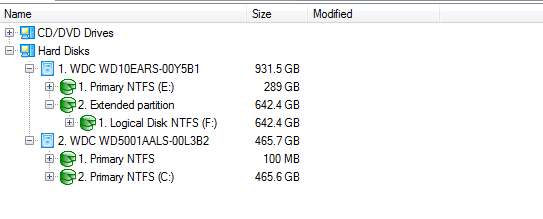
Can't find the Disk Manager under Administrator tools in Control Panel. Made these following examples from Paragon.
Hope they help you more than they do me. Also notice how the first drive is the 1 TB and the C: drive 500 GB is listed second. That is an old problem that maybe I might figure out the primary, logical, extended etc: thing.
Thanks Gentlemen
glennc
Last edited by glennc; 22 Feb 2011 at 04:22 AM..
| My System Specs | | System Manufacturer/Model Number Self-Built OS Windows 7 Ultimate CPU AMD Phenom-II X4 965 Motherboard Gigabyte GA-MA785GM-US2H Memory 8192 MB DDR2-SDRAM Graphics Card ATI Radeon HD 4200 Sound Card ATI Radeon HD 4200 High Definition Audo Monitor(s) Displays LG Electronics W1943 Screen Resolution 1360 X 768 Keyboard Acer Mouse Logitech PSU Ultra LSP 750 Case Ultra XBlaster Cooling 2 Fans, CPU Fan, PS Fan Hard Drives C: 500 GB Caviar Black SATA
E: 1 TB Caviar Green SATA Internet Speed 6 MB |
22 Feb 2011
|
#7 | | Windows 7 SP1, Home Premium, 64-bit |
Type disk management in the start button search box and you will find it.
I don't see anything wrong in the 2 pictures you did post. F is a logical partition inside an extended partition. You have the 100 mb reserved partition on Disk 2, which is your boot drive. | My System Specs | | System Manufacturer/Model Number Ignatz Special; 4 speed manual gearbox; factory air conditioning; one of one OS Windows 7 SP1, Home Premium, 64-bit CPU Intel Sandy Bridge i5-2500, not overclocked Motherboard Gigabyte H67A-UD3H-B3, full ATX Memory 4 GB Crucial DDR3-1333 Graphics Card none; graphics are integrated on CPU Sound Card onboard: Realtek ALC892; external: USB Behringer UF0-202 Monitor(s) Displays NEC 90GX2-BK 19" LCD Screen Resolution 800 x 640 Keyboard Leopold Tenkeyless with Cherry Blue switches, USB Mouse Logitech or Microsoft optical wired; either USB or PS 2 PSU Seasonic SS-560KM, modular Case Antec Solo II Cooling CPU: Scythe Big Shuriken; Case: Scythe Slipstream 800 & 500 Hard Drives System: Intel 320 Series SSD, 80 GB;
Data: Samsung Spinpoint 103SJ, 1 TB;
Backup: WD Caviar Green WD15EADS-00P8B0, 1.5TB Other Info Power consumption of this system, including monitor: 68 watts at idle; 144 watts at full load |
22 Feb 2011
|
#8 | | ME/XP/Vista/Win7 uk Hampshire |

Quote: Originally Posted by glennc Hello to all,
Can't find the Disk Manager under Administrator tools in Control Panel. Made these following examples from Paragon. Attachment 139721 Attachment 139722
Hope they help you more than they do me. Also notice how the first drive is the 1 TB and the C: drive 500 GB is listed second. That is an old problem that maybe I might figure out the primary, logical, extended etc: thing.
Thanks Gentlemen
glennc You posted a screenshot of Disk management in post 7 of Strange Intermittent reassignment of Hardrives
How did you do that one? | My System Specs | | |
22 Feb 2011
|
#9 | | Windows 7 SP1, Home Premium, 64-bit |
The drives shown as 1 and 2 in Paragon would presumably appear as 0 and 1 in disk management.
I've operated for years with my boot drive shown as disk 1 in disk management.
If you prefer it to show as disk 0, you could probably do that by switching just swapping cables, but I don't know that I would bother. I seem to recall someone saying on these forums a month or so ago that switching cables like that can occasionally cause problems. | My System Specs | | System Manufacturer/Model Number Ignatz Special; 4 speed manual gearbox; factory air conditioning; one of one OS Windows 7 SP1, Home Premium, 64-bit CPU Intel Sandy Bridge i5-2500, not overclocked Motherboard Gigabyte H67A-UD3H-B3, full ATX Memory 4 GB Crucial DDR3-1333 Graphics Card none; graphics are integrated on CPU Sound Card onboard: Realtek ALC892; external: USB Behringer UF0-202 Monitor(s) Displays NEC 90GX2-BK 19" LCD Screen Resolution 800 x 640 Keyboard Leopold Tenkeyless with Cherry Blue switches, USB Mouse Logitech or Microsoft optical wired; either USB or PS 2 PSU Seasonic SS-560KM, modular Case Antec Solo II Cooling CPU: Scythe Big Shuriken; Case: Scythe Slipstream 800 & 500 Hard Drives System: Intel 320 Series SSD, 80 GB;
Data: Samsung Spinpoint 103SJ, 1 TB;
Backup: WD Caviar Green WD15EADS-00P8B0, 1.5TB Other Info Power consumption of this system, including monitor: 68 watts at idle; 144 watts at full load |
22 Feb 2011
|
#10 | | |

Quote: Originally Posted by ignatzatsonic Type disk management in the start button search box and you will find it.
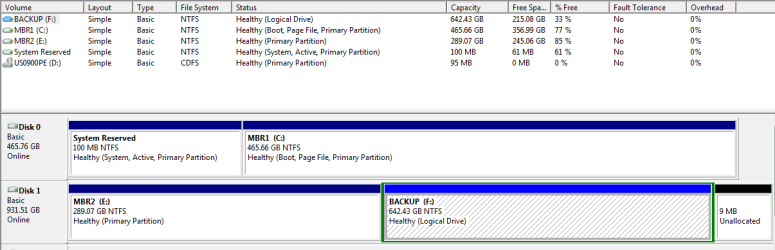
I don't see anything wrong in the 2 pictures you did post. F is a logical partition inside an extended partition. You have the 100 mb reserved partition on Disk 2, which is your boot drive. Hello ignatzatsonic,
Well duh, on me!! Thought I was getting the hang of running from a standard user account. Disk Management did not appear there! Back as quasi-Admin account, runs just fine. See below.
Notice, as a secondary problem that this shows the C: Drive 500 MB as disk 0 and the 1 TB drive as disk 1.
Thanks
glennc | My System Specs | | System Manufacturer/Model Number Self-Built OS Windows 7 Ultimate CPU AMD Phenom-II X4 965 Motherboard Gigabyte GA-MA785GM-US2H Memory 8192 MB DDR2-SDRAM Graphics Card ATI Radeon HD 4200 Sound Card ATI Radeon HD 4200 High Definition Audo Monitor(s) Displays LG Electronics W1943 Screen Resolution 1360 X 768 Keyboard Acer Mouse Logitech PSU Ultra LSP 750 Case Ultra XBlaster Cooling 2 Fans, CPU Fan, PS Fan Hard Drives C: 500 GB Caviar Black SATA
E: 1 TB Caviar Green SATA Internet Speed 6 MB Multiple Drive and Partition Question problems? All times are GMT -5. The time now is 04:11 PM. | |