
 |
Welcome to Windows 7 Forums. Our forum is dedicated to helping you find solutions with any problems, errors or issues you are experiencing with Windows 7. The Windows 7 forum also covers news and updates and has an extensive Windows 7 tutorial section that covers a wide range of tips and tricks.
Windows 7 - Help with Partitioning My Hard Drive |
06-16-2011
|
#1 | | |
Help with Partitioning My Hard Drive 
Quote: Originally Posted by whs Quote: The question I have is once I am ready to image my hard drive (C drive and D drive) do I also make images of "RECOVERY" and "39 MB Healthy (OEM Partition)"? If so do I include the C drive, "RECOVERY" and "39 MB Healthy (OEM Partition)" in one image (if thats even possible) or separate? 1. The 39MB partition I would not image on a regular basis - maybe once just to have it. That is most likely the tools partition for the BIOS tools.
2. In your case, the recovery partition is iffy because it contains the bootmgr. That I would also image once. Make sure you do not declare the C partition as active when you restore the image of C. Also do not replace the MBR.
Maybe at one point in time you want to fix the C partition so that it is active and deactivate the recovery partition. For guidance I suggest you start a different thread.
3. You can image several partitions in one shot. That does not mean that you have to restore them all together. In your case though, I would suggest that you create one definition where you image the 39MB partition and the recovery partition together - and stick those into a seperate folder.
Then make another definition (which creates an XML file) for the C partition and stick those images into another folder. If you want to schedule the imaging of the C partition, right click on that XML file (in the Macrium control window) and go to "Schedule".
If you ever want to delete the definitions, do not do it in the Macrium control window but in Documents > Reflect. That is a better way.
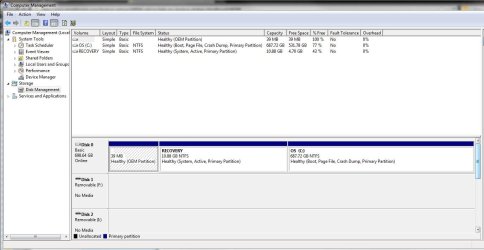
I am starting a new thread as I was getting off topic in my other thread. I want to image my hard drive and I want to go about doing it the right way. I noticed that my current drive is broken up into 3 partitions (the computer came this way) and I am curious as to which parts I should image and if I should image them separately or together.
Member whs stated that I should make my OS (C) drive active and deactivate my recovery drive. I need helping on doing this, and some advice on properly imaging my drive. Please see attachment below
Thanks | My System Specs | | System Manufacturer/Model Number Dell XPS 8100 OS Windows 7 64 bit CPU Intel Core i5 650 Memory 6 GB RAM |
06-16-2011
|
#2 | | Windows 7 X64 Professional/Windows 8 |
Many here may disagree, but I Imaged my Dell which is set up like yours. I imaged each partition seperately and then imaged the entire drive. That way I have it any way I need it. | My System Specs | | System Manufacturer/Model Number Home Brew - Always under construction OS Windows 7 X64 Professional/Windows 8 CPU intel i7-2600K Motherboard Asus P8Z68 V-Pro/GEN 3 Memory 8GB G.Skill Sniper DDR3-2133 (2X4GB) Graphics Card EVGA 670 2GB Sound Card Asus Xonar Monitor(s) Displays Asus 24" LCD VW246H Screen Resolution 1920X1080 Keyboard Logitech G510 Mouse Logitech G500/Logitech Wireless PSU CORSAIR HX850W Case Cooler Master HAF X Cooling Corsair H100 w/ 4 noctua fans in push/pull. Hard Drives Crucial M4 128GB,Crucial M4 64GB,Samsung HD103SJ 1TB, 1TB WD FAEX,Samsung 1.5TB, EXTERNAL HD- 2X Rosewill case esata w/ 1TB Samsung spinpoints & Black X esata 1TB Spinpoint, Rosewill USB 3.0 dock 1TB Spinpoint, Seagate GOFlex Pro 500GB & 750GB USB Internet Speed Foot Messenger speed Other Info 2nd Computer- Samsung RF711-SO1 17" Laptop i5-2310M, 8GB DDR3-1333, Crucial M4 and OCZ vertex2, Nvidia GT540M.Win 7 HP X64. |
06-16-2011
|
#3 | | Windows 7 SP1, Home Premium, 64-bit |
You can make a partition active in disk management by right clicking the partition and choosing "mark partition as active".
I looked through your other long thread and agree that data should be backed up without imaging. Imaging is not foolproof and you don't want a non-foolproof method for something as critical as data. This forum has a lot of posts from people who simply were unable to restore an image---for whatever reason and regardless of application. Any backup method can fail, but it's a good idea to tilt the odds in your favor whenever possible.
I use Second Copy. It is $30, with a free 30 day trial. You can think of it as robocopy with a graphical interface. You just make a "profile" for each backup task, which can be as simple as backing up one file or as detailed as backing up all files. You can pick and choose which folders and files to include or exclude. You can include or exclude by file extension. It has been in development for over 10 years and has never caused me a problem--I've used it for over 10 years.
I use 5 profiles:
data and text files
mp3
pictures and video
email
bookmarks
I run these profiles manually, but they can be scheduled as well.
Regarding imaging:
I use Macrium Reflect Free Edition and Acronis, alternating, about every month or two. I image only my C partition. I built my own PC so I don't have a tools or recovery partition and don't need them. I keep the 2 most recent images and have never had to do a restore. I hope they work when needed, but don't count on it. My worst case scenario is that I have to reinstall Windows manually. | My System Specs | | System Manufacturer/Model Number Ignatz Special; 4 speed manual gearbox; factory air conditioning; one of one OS Windows 7 SP1, Home Premium, 64-bit CPU Intel Sandy Bridge i5-2500, not overclocked Motherboard Gigabyte H67A-UD3H-B3, full ATX Memory 4 GB Crucial DDR3-1333 Graphics Card none; graphics are integrated on CPU Sound Card onboard: Realtek ALC892; external: USB Behringer UF0-202 Monitor(s) Displays NEC 90GX2-BK 19" LCD Screen Resolution 800 x 640 Keyboard Leopold Tenkeyless with Cherry Blue switches, USB Mouse Logitech or Microsoft optical wired; either USB or PS 2 PSU Seasonic SS-560KM, modular Case Antec Solo II Cooling CPU: Scythe Big Shuriken; Case: Scythe Slipstream 800 & 500 Hard Drives System: Intel 320 Series SSD, 80 GB;
Data: Samsung Spinpoint 103SJ, 1 TB;
Backup: WD Caviar Green WD15EADS-00P8B0, 1.5TB Other Info Power consumption of this system, including monitor: 68 watts at idle; 144 watts at full load |
06-16-2011
|
#4 | | Windows 7x64 Home Premium SP1 x 2 |
I haven't read the previous thread.
However, as it stands I would leave your Dell system as it is and image each partition with Macrium.
As you recognise Dell appear to use the recovery partition for both recovery and the "system reserved" function. So inside there I would expect to see a bootsector, bootmgr and a Boot folder containing the BCD. Most of the time you would only need to image and reimage your OS partition. Macrium keeps a copy of the MBR with each image.
I don't know to what extent Dell factory recovery relies on the recovery partition being active.
{As an aside I would expect Windows imaging to require you include the system/recovery partition - does it?} | My System Specs | | System Manufacturer/Model Number Own build (+ Recased Acer Aspire x1800) OS Windows 7x64 Home Premium SP1 x 2 CPU Intel i7 2600k Motherboard ASUS P8Z68 Deluxe Memory G.Skill Ripjaws (DDR3-1600) 2x4GB Graphics Card Nvidia GeForce GTS 450; Intel HD Graphics 3000(GT2+) Monitor(s) Displays Dell Ultrasharp IPS panel U2311H, Samsung SyncMaster P2350 Screen Resolution 1920x1080 Keyboard Logitech MK520 (wireless) Mouse Logitech MK520 PSU Seasonic M12II 520W Case Lian Li Lancool PC-K60 Cooling Case: 1x120mm, 3x140mm CPU: Hyper 212+ Hard Drives Crucial M4 128GB (0309), Seagates 1TB Barracuda ST31000528AS + Internet Speed 6-7 Mbps Other Info Audio: Logitech Z523 2.1 |
06-17-2011
|
#5 | | MS Windows 7 Ultimate SP1 64-bit |
jetablack,
What is the size of the drive to which you will be backing up?
If you ask 5 people how to backup and how to partition, you will get 7 answers.
Here's what I do.
One I have a partition for my operating system.
Two I have a partition for date.
Three I use Win 7 Backup and Restore to make an image backup of the partitions.
Incidentally, my os partition is 50 GB with nearly 30 GB free. | My System Specs | | System Manufacturer/Model Number Toshiba Satellite L305D laptop OS MS Windows 7 Ultimate SP1 64-bit CPU AMD Athlon X2 Dual-Core QL-64, 2100 Mhz, 2 Cores Motherboard TOSHIBA Portable PC (Socket M2/S1G1) Memory 4.0GB (2x2GB) DDR2 @ 333MHz 5-5-5-15 Graphics Card ATI Radeon 3100 Graphics (Toshiba) Sound Card Realtek High Definition Audio Monitor(s) Displays Generic PnP Monitor @ 1280x800 Screen Resolution 1280 x 800 Keyboard standard PS/2 Keyboard Mouse HP Wireless Optical Mobile Mouse Model FHA-3410 Hard Drives 125.03GB Corsair CSSD-V128GB2 ATA Device (IDE)
Depending upon testing, organized as 1,2, or 3 partitions with/without a 100mb system partition at the front. Internet Speed What the local pub, local coffee shop offers. Other Info Optical Drives HL-DT-ST DVDRAM GSA-T50N ATA Device
Synaptics PS/2 Port TouchPad
Speakers (Realtek High Definition Audio)
Atheros AR5007EG Wireless Network Adapter
Also have an Asus ha1002xp netbook with Win 7 Ultimate installed. |
06-17-2011
|
#6 | | Windows 7 Ultimate SP1 64-Bit |
Having a separate partition for you personal data makes sense, because your personal files are at less risk if your operating system goes walkabout.
I've created a system image for my operating system and applications, and then use Robocopy to back up my personal data, music and digital photos, which are all on a separate partition to Windows. | My System Specs | | System Manufacturer/Model Number HP Pavilion Elite 495UK OS Windows 7 Ultimate SP1 64-Bit CPU Intel Core i7 870 @ 2.93GHz Motherboard MSI 2A9C (CPU1) Memory 8Gb Dual-Channel DDR3 @ 664MHz Graphics Card nVidia GeForce GTX 460 1024MB dedicated RAM Sound Card Realtek HD Audio Monitor(s) Displays HP2310i Screen Resolution 1920 x 1080 Keyboard Logitech K750 solar-powered keyboard Mouse Logitech Wireless M180 mouse PSU 460W Case HP Elite Cooling Air cooled Hard Drives 1x1954GB Hitachi HDS22020ALA 330 (RAID), 1x1954GB Hitachi External for backup and storage Internet Speed 2Mb Other Info Pure Avanti Flow Internet Radio with iPod Dock, 64Gb iPod, HP USB Speakers, Sony MDR-V500 Headphones, Sony Vaio F-Series Laptop |
06-17-2011
|
#7 | | |
Thanks all for the responses.
I do plan on creating another partition for my data and labeling it my D drive. Creating a new a partition seems straight forward enough and I don't see that being a problem, however, I am very new to imaging and have only created images through Windows 7 backup. Since at this point I only have 1 Hard drive along with the tools and recovery partition I am assuming that Windows 7 backed up all 3 partitions but I have no idea.
Thats what i find so confusing, I don't which parts I should back up (I will back them all up just in case) but then I would not know how to go about properly restoring them. The c drive first or the tools and recovery?? And then whs in the other thread was telling me to make my c drive active - this all gets very confusing. But at least I am learning a lot and once I get this straightened out I am sure I will be very grateful if my system ever crashes.
As ignatzatsonic and pparks1 (from the other thread) have stated about creating backups of these files separate from and image, I total agree with. I am currently working with Robocopy and trying to get it to fully work, although, I am running into some errors with some files and folders - so I am may look into that program you have mentioned. Second Copy simply copies files to another destination and they are not in a container file like the backups that windows, acronis or macrium offer correct? | My System Specs | | System Manufacturer/Model Number Dell XPS 8100 OS Windows 7 64 bit CPU Intel Core i5 650 Memory 6 GB RAM |
06-17-2011
|
#9 | | |

Quote: Originally Posted by theog I have the dell discs that my computer came with - but I do not plan on using dell's backup and recovery, so I do not think making a dell recovery disc would be of use to me. Instead I will be using Macrium | My System Specs | | System Manufacturer/Model Number Dell XPS 8100 OS Windows 7 64 bit CPU Intel Core i5 650 Memory 6 GB RAM |
06-17-2011
|
#10 | | Windows 7 Ultimate SP1 64-Bit |

Quote: Originally Posted by jetablack4 Thanks all for the responses.
I do plan on creating another partition for my data and labeling it my D drive. Creating a new a partition seems straight forward enough and I don't see that being a problem, however, I am very new to imaging and have only created images through Windows 7 backup. Since at this point I only have 1 Hard drive along with the tools and recovery partition I am assuming that Windows 7 backed up all 3 partitions but I have no idea.
Thats what i find so confusing, I don't which parts I should back up (I will back them all up just in case) but then I would not know how to go about properly restoring them. The c drive first or the tools and recovery?? And then whs in the other thread was telling me to make my c drive active - this all gets very confusing. But at least I am learning a lot and once I get this straightened out I am sure I will be very grateful if my system ever crashes.
As ignatzatsonic and pparks1 (from the other thread) have stated about creating backups of these files separate from and image, I total agree with. I am currently working with Robocopy and trying to get it to fully work, although, I am running into some errors with some files and folders - so I am may look into that program you have mentioned. Second Copy simply copies files to another destination and they are not in a container file like the backups that windows, acronis or macrium offer correct? I kept this information from my Vista days and hope it helps you get to grips with Robocopy: Windows Robocopy File Backup Use Robocopy, which is built into Vista. Go to command prompt and type robocopy /? This will show you the settings. I use two main switches: /mir and /e
/MIR mirrors the destination to be the same as the source. So in your source location, if you move, delete, add anything, the destination will be mirrored. If you delete something in the source, it gets deleted in the destination. If you move a file from one folder to another in the source, it also gets moved in the destination. If you update a file and it is newer then the destination file will be overwritten with the newer one.
/E will copy any file that is newer or doesn't exist but doesn't remove files that have been moved or deleted in the source. So if you delete a file from the source, it will remain in the destination. If you move a file from one folder to another in the source, then the destination will contain two copies of the file, one in the old location and one in the new.
The /E switch is pretty much the same an incremental backup. Depending on what you are doing you might want to use the /MIR option. On my machine, I use /E for documents and pictures in case I accidentally delete something, since documents and pictures can be important. However, for my music directory, since WMP11 is constantly moving and renaming files as I organize my music, I don't want a bunch of extra files everywhere, so I use the /MIR switch just to mirror the backup to the source.
In my case, I have a batch file that runs every night and it looks like this:
robocopy "e:\Documents" "f:\Backup\Documents" /e
robocopy "e:\Pictures" "f:\Backup\Pictures" /e
robocopy "e:\Contacts" "f:\Backup\Contacts" /e
robocopy "e:\Favorites" "f:\Backup\Favorites" /mir
robocopy "e:\Mail" "f:\Backup\Mail" /mir
robocopy "e:\Music" "f:\Backup\Music" /mir
robocopy "e:\Videos" "d:\Backup\Videos" /mir | My System Specs | | System Manufacturer/Model Number HP Pavilion Elite 495UK OS Windows 7 Ultimate SP1 64-Bit CPU Intel Core i7 870 @ 2.93GHz Motherboard MSI 2A9C (CPU1) Memory 8Gb Dual-Channel DDR3 @ 664MHz Graphics Card nVidia GeForce GTX 460 1024MB dedicated RAM Sound Card Realtek HD Audio Monitor(s) Displays HP2310i Screen Resolution 1920 x 1080 Keyboard Logitech K750 solar-powered keyboard Mouse Logitech Wireless M180 mouse PSU 460W Case HP Elite Cooling Air cooled Hard Drives 1x1954GB Hitachi HDS22020ALA 330 (RAID), 1x1954GB Hitachi External for backup and storage Internet Speed 2Mb Other Info Pure Avanti Flow Internet Radio with iPod Dock, 64Gb iPod, HP USB Speakers, Sony MDR-V500 Headphones, Sony Vaio F-Series Laptop Help with Partitioning My Hard Drive problems? All times are GMT -5. The time now is 06:58 AM. |  |