Windows 7 Forums Search
Welcome to Windows 7 Forums. Our forum is dedicated to helping you find solutions with any problems, errors or issues you are experiencing with Windows 7. The Windows 7 forum also covers news and updates and has an extensive Windows 7 tutorial section that covers a wide range of tips and tricks.


Windows 7 - WoWLAN - Allow this device to wake up the computer is grayed out

 
07-26-2011   #1


Windows 7 64bit


WoWLAN - Allow this device to wake up the computer is grayed out

Hello!

I'm trying to setup WoWLAN (Wake on WLAN), but I'm stuck at part where i have to enable waking in device manager.

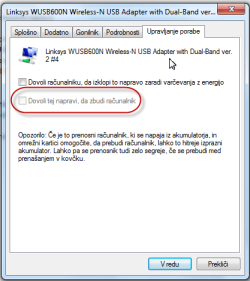
I have to enable "Allow this device to wake up the computer" on my WLAN adapter, but It's grayed out.

Adapter is Linksys WUSB600N with latest driver from their website.

I have also tried to use powercfg method, but it will tell me that i do not have permissions. UAC is turned off and cmd is running as admin.

Any ideas?

Attached Thumbnails
WoWLAN - Allow this device to wake up the computer is grayed out-26-7-2011-20-49-22.png   WoWLAN - Allow this device to wake up the computer is grayed out-26-7-2011-21-03-36.png  
My System SpecsSystem Spec
07-26-2011   #2


Operating System : Windows 7 Home Premium Edition 6.01.7600 SP1 (x64)


hi
mine is the same ? have you had a look in the bios settings?
Attached Thumbnails
WoWLAN - Allow this device to wake up the computer is grayed out-brys-snap-26-july-2011-20h01m18s-01.png  
My System SpecsSystem Spec
07-26-2011   #3


Operating System : Windows 7 Home Premium Edition 6.01.7600 SP1 (x64)


ah found this for you it may help Configure Wake on Wireless LAN (WoWLAN) >>> Configure Wake on Wireless LAN (WoWLAN)


Quote:
In Windows® 7, to enable support for Wake on Wireless LAN (WoWLAN) Group Temporal Key (GTK) Rekey, and Extensible Authentication Protocol (EAP) power-management scenarios, you must modify a registry key. GTK is used to encrypt and decrypt network traffic. EAP is an authentication framework that can be used over wired and wireless networks.

GTK Rekey and EAP wakeup are disabled by default, because not all devices support these options. A computer that is currently sleeping will not wake up on GTK or EAP actions, even if the network adapter supports them.

To enable WoWLAN support for GTK and EAP scenarios

To enable WoWLAN support for GTK and EAP scenarios, create or modify the following registry key:

Key Name: EnableWoWLAN

Type: DWORD

Path: HKEY_LOCAL_MACHINE\SYSTEM\CurrentControlSet\Services\NativeWifiP\Parameters

Value: 1

In addition to modifying this registry key, you must also configure the network device in the Device Manager.

Open Device Manager.

Right-click the network card you want to configure and select Device Properties.

In the Power Management tab, select the Allow this device to wake up the computer check box.

After configuring this registry key, the computer will respond to requests on GTK rekeying and to an EAP request-identity p
My System SpecsSystem Spec
.


07-26-2011   #4


Windows 7 64bit


Quote   Quote: Originally Posted by brianzion View Post
hi
mine is the same ? have you had a look in the bios settings?
I have checked and only option that might be relevant is "Onboard LAN Power On", which is enabled.

Quote   Quote: Originally Posted by brianzion View Post
ah found this for you it may help Configure Wake on Wireless LAN (WoWLAN) >>> Configure Wake on Wireless LAN (WoWLAN)
I have already done registry part, but i cannot do second part because option is grayed out.
My System SpecsSystem Spec
07-26-2011   #5


Operating System : Windows 7 Home Premium Edition 6.01.7600 SP1 (x64)


GTK Rekey and EAP wakeup are disabled by default, because not all devices support these options. A computer that is currently sleeping will not wake up on GTK or EAP actions, even if the network adapter supports them
My System SpecsSystem Spec
07-26-2011   #6


Operating System : Windows 7 Home Premium Edition 6.01.7600 SP1 (x64)


have a look here and look for a setting in the adapter for waking pc Guide Me
My System SpecsSystem Spec
07-26-2011   #7


Windows 7 64bit


Quote   Quote: Originally Posted by brianzion View Post
GTK Rekey and EAP wakeup are disabled by default, because not all devices support these options. A computer that is currently sleeping will not wake up on GTK or EAP actions, even if the network adapter supports them
So this network card or machine does not support WoWLAN? I thought support for this this is normal just like regular WOL. I guess not then .

Quote   Quote: Originally Posted by brianzion View Post
have a look here and look for a setting in the adapter for waking pc Guide Me
There is nothing related to power in advanced section of my adapter.
My System SpecsSystem Spec
07-26-2011   #8


Operating System : Windows 7 Home Premium Edition 6.01.7600 SP1 (x64)


can you search here Linksys by Cisco - WUSB600N Support and fire your questions to linksys
My System SpecsSystem Spec
07-26-2011   #9


Operating System : Windows 7 Home Premium Edition 6.01.7600 SP1 (x64)


i know in my bios settings im sure i have a setting wake on wlan?
My System SpecsSystem Spec
07-26-2011   #10


Windows 7 64bit


Already doing that. Thanks anyway

In BIOS i only have "Onboard LAN turn on" (or something like that) setting, which is enabled.
My System SpecsSystem Spec
Reply

 WoWLAN - Allow this device to wake up the computer is grayed out problems?


Thread Tools


Similar Threads for: WoWLAN - Allow this device to wake up the computer is grayed out
Thread Forum
Computer wake up problem Performance & Maintenance
Solved need to wake my computer Hardware & Devices
Solved Cannot wake up computer Windows Updates & Activation
Wake the computer General Discussion
"Allow computer to turn off this device" is grayed General Discussion


All times are GMT -5. The time now is 10:34 AM.


Windows 7 Forums is an independent web site and has not been authorized,
sponsored, or otherwise approved by Microsoft Corporation.
"Windows 7" and related materials are trademarks of Microsoft Corp.
© Designer Media Ltd
  

1 2 3 4 5 6 7 8 9 10 11 12 13 14 15 16 17 18 19 20 21 22 23 24 25 26 27 28 29 30