Windows 7 Forums Search
Welcome to Windows 7 Forums. Our forum is dedicated to helping you find solutions with any problems, errors or issues you are experiencing with Windows 7. The Windows 7 forum also covers news and updates and has an extensive Windows 7 tutorial section that covers a wide range of tips and tricks.


Windows 7 - 1/2 the ram showing up in system info

 
07-30-2011   #1


W7 premium 64


1/2 the ram showing up in system info

Mobo asus f1a75, cpu amd a8-3850, ram g-skill 2 x 4 gig ...2 sticks each, total 8 gig. Brand new build, freshly installed W7HP. Went into system display to ck the amount of ram showing, and shows total 4. Sticks inserted in blue slots, as suggested by manual of asus mobo. Why is it not showing 8 G?


Last edited by drmax; 07-30-2011 at 02:26 PM.. Reason: ram i.d.
My System SpecsSystem Spec
07-30-2011   #2


Windows 7 Ultimate 32-bit & 64-bit both SP1


Before we go any further, how much RAM is shown in the BIOS POST ?
My System SpecsSystem Spec
07-30-2011   #3


W7 premium 64


Quote   Quote: Originally Posted by Dwarf View Post
Before we go any further, how much RAM is shown in the BIOS POST ?
it'll be a bit b-f i can ck. keyboard being used for another pc.
My System SpecsSystem Spec
.


07-30-2011   #4


Windows 7 Ultimate 32-bit & 64-bit both SP1


No problem. We'll wait for you. The reason I'm asking this is if the memory is not being detected by the BIOS, it's not going to be by the OS.
My System SpecsSystem Spec
07-30-2011   #5


Windows 7 Pro x64 / WinXP Pro x86 on (1), Win7 Pro X64 / WinXP Pro x86 on (2)


Quote   Quote: Originally Posted by drmax View Post
Quote   Quote: Originally Posted by Dwarf View Post
Before we go any further, how much RAM is shown in the BIOS POST ?
it'll be a bit b-f i can ck. keyboard being used for another pc.
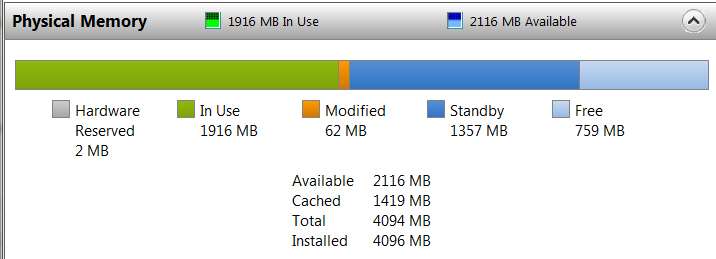
Also, when you do come back can you please post a screenshot of the lower part of the Resource Monitor -> Memory display?

Start -> Run -> TASKMGR -> Performance tab -> push RESOURCE MONITOR button at the bottom. This will open a second window for Resource Monitor.

Then push the Memory tab on the second Resource Monitor window, and at the bottom of the screen will appear the "Physical Memory" layout. That's what would be very helpful to see. If you need to move the horizontal separator between the upper "Processes" list and the lower "Physical Memory" graphic so that we can see the whole thing, please do.

It will look something like this:


Also, If you can download and install CPU-Z (download links on right side of that page), and post the screenshots of the following tabs: CPU, Mainboard, Memory, Graphics, and SPD (all that are populated, one screenshot for each of your slot#'s) that would also be extremely useful for us to help you explain what's going on.
My System SpecsSystem Spec
07-30-2011   #6


W7 premium 64


[QUOTE=drmax;1513353]
Quote   Quote: Originally Posted by Dwarf View Post
Before we go any further, how much RAM is shown in the BIOS POST ?
in bios, total memory 4096 ddr3 1600 mhz and is pc3 12800
My System SpecsSystem Spec
07-30-2011   #7


Win 7 Ultimate x64


Supports up to 64 GB,

ASUSTeK Computer Inc. - Motherboards- ASUS F1A75

Make sure that both sticks are seated properly in the slots and the locking levers are fully in.
My System SpecsSystem Spec
07-30-2011   #8


W7 premium 64


Quote   Quote: Originally Posted by dsperber View Post
Quote   Quote: Originally Posted by drmax View Post
Quote   Quote: Originally Posted by Dwarf View Post
Before we go any further, how much RAM is shown in the BIOS POST ?
it'll be a bit b-f i can ck. keyboard being used for another pc.
Also, when you do come back can you please post a screenshot of the lower part of the Resource Monitor -> Memory display?

Start -> Run -> TASKMGR -> Performance tab -> push RESOURCE MONITOR button at the bottom. This will open a second window for Resource Monitor.

Then push the Memory tab on the second Resource Monitor window, and at the bottom of the screen will appear the "Physical Memory" layout. That's what would be very helpful to see. If you need to move the horizontal separator between the upper "Processes" list and the lower "Physical Memory" graphic so that we can see the whole thing, please do.

It will look something like this:


Also, If you can download and install CPU-Z (download links on right side of that page), and post the screenshots of the following tabs: CPU, Mainboard, Memory, Graphics, and SPD (all that are populated, one screenshot for each of your slot#'s) that would also be extremely useful for us to help you explain what's going on.
say, this pc isn't even hooked up to the internet at the moment. i can only relay what info you're after. sorry
My System SpecsSystem Spec
07-30-2011   #9


W7 premium 64


pull up the monitor under performance tab...4096 installed, 3333 available, 485 cached, 4072 total
My System SpecsSystem Spec
07-30-2011   #10


Windows 7 Ultimate 32-bit & 64-bit both SP1


Let me clarify this. You say that you have 4 x 2GB sticks of RAM installed, making 8GB, but the BIOS is only detecting ½ that amount, i.e. 4GB. Correct? What is the full part number of the RAM modules?
My System SpecsSystem Spec
Reply

 1/2 the ram showing up in system info problems?


Thread Tools


Similar Threads for: 1/2 the ram showing up in system info
Thread Forum
System Info - See Your System Specs Tutorials
Solved need someone to look up some system info on your PC General Discussion
System Image info, shadow/system restore storage - internal workings Backup and Restore
DirextX diag showing wrong VGA card info.. Graphic Cards
system info says i have SP3? Windows Updates & Activation


All times are GMT -5. The time now is 10:37 AM.


Windows 7 Forums is an independent web site and has not been authorized,
sponsored, or otherwise approved by Microsoft Corporation.
"Windows 7" and related materials are trademarks of Microsoft Corp.
© Designer Media Ltd
  

1 2 3 4 5 6 7 8 9 10 11 12 13 14 15 16 17 18 19 20 21 22 23 24 25 26 27 28 29 30