Since this morning when I turned on my pc I have been experiencing some strange issues and wondered if anyone had any advice or suggestions.
When moving the mouse around in a figure of eight with nothing open, every few seconds it skips for about 1/10th second. This is a brand new issue, but I was also having trouble with my wireless internet speed last night, for which I use a usb netgear wna1100 stick.
It seems my pc is dieing in some way but I'm unsure how to identify whats causing the problem as I don't have lots of spare bits to put in.
Things I've tried so far:
Checked mobo + graphics card temps, both ~40-50C idle.
Malware Bytes found nothing
Full AVG scan found nothing
SeaTools hard drive scan found nothing
This leaves me to suspect a hardware fault somewhere else.
My system specs:
Windows 7 64-Bit Home Edition
Sapphire Radeon 4870 2GB
AMD Athlon 64 X2 6400+
Gigabyte M57SLI-S4
Microsoft Sidewinder Mouse
The stuttering is fairly random, but always present and it never goes for longer than about 10 seconds without doing it.
Any ideas? Dieing motherboard or HD? How can i tell without replacing them?
When moving the mouse around in a figure of eight with nothing open, every few seconds it skips for about 1/10th second. This is a brand new issue, but I was also having trouble with my wireless internet speed last night, for which I use a usb netgear wna1100 stick.
It seems my pc is dieing in some way but I'm unsure how to identify whats causing the problem as I don't have lots of spare bits to put in.
Things I've tried so far:
Checked mobo + graphics card temps, both ~40-50C idle.
Malware Bytes found nothing
Full AVG scan found nothing
SeaTools hard drive scan found nothing
This leaves me to suspect a hardware fault somewhere else.
My system specs:
Windows 7 64-Bit Home Edition
Sapphire Radeon 4870 2GB
AMD Athlon 64 X2 6400+
Gigabyte M57SLI-S4
Microsoft Sidewinder Mouse
The stuttering is fairly random, but always present and it never goes for longer than about 10 seconds without doing it.
Any ideas? Dieing motherboard or HD? How can i tell without replacing them?
My Computer
At a glance
Windows 7 x64Athlon 64 X2 6400+ Black Edition2 x 1GB Crucial Ballistix PC-6400 DDR2Sapphire Vapor-X 4870 1GB
- OS
- Windows 7 x64
- CPU
- Athlon 64 X2 6400+ Black Edition
- Motherboard
- Gigabyte GA-M57-SLI
- Memory
- 2 x 1GB Crucial Ballistix PC-6400 DDR2
- Graphics Card(s)
- Sapphire Vapor-X 4870 1GB
- Monitor(s) Displays
- Samsung SyncMaster 225MW
- PSU
- OCZ 600W StealthXStream
- Case
- Antec 900


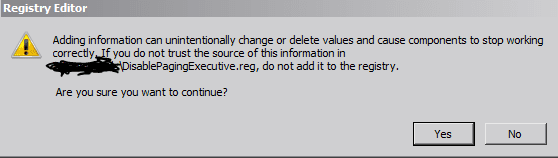
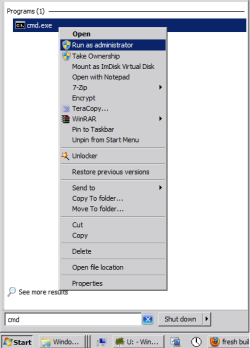
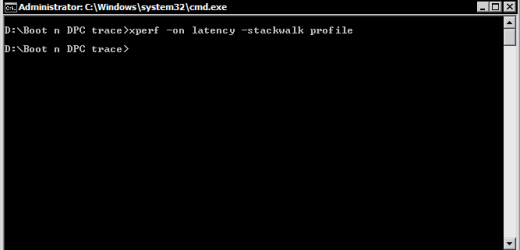
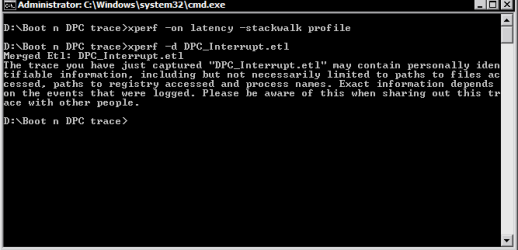
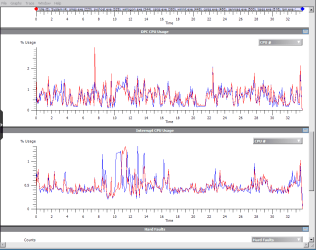
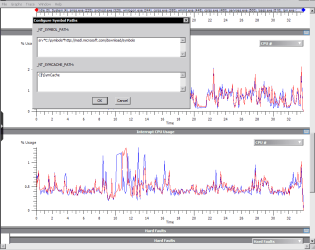


 ) Will upload the txt file in the next reply! Thanks for bearing with me!
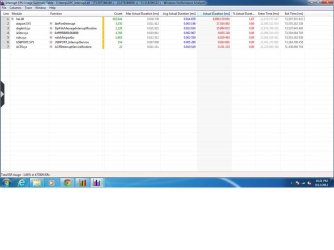
 Only trouble is, I am too lazy to open my pc up twice, so it could either be the amount of dust I removed from around the HD and front intake fan, the fact I swapped it from SATA 1 to SATA 2 or just disconnecting and reconnecting the cables. Ran a quick check using that xperf thing you told me about and DPC only reached 4% max during 1 minute, with the highest reading coming from USBPORT and nvstor about halfway down the list. Could have been overheating, as I only read GPU and CPU temps which both have their own fan. Thanks a bunch for helping me track it down to the HD, I'm one happy guy now +++rep.