Windows 7 Forums Search
Welcome to Windows 7 Forums. Our forum is dedicated to helping you find solutions with any problems, errors or issues you are experiencing with Windows 7. The Windows 7 forum also covers news and updates and has an extensive Windows 7 tutorial section that covers a wide range of tips and tricks.


Windows 7 - Adding a Clip Art

 
01-27-2009   #1


Windows 7 beta


Adding a Clip Art

hello
i need to add a clip art to some of my mp3s in wmp 12
how can i do so please..

My System SpecsSystem Spec
01-27-2009   #2


windows 7


You can add album art through the WMP 12 interface. Simply open Windows Media Player and located the file you want to add art to and drag and drop the artwork file from your hard drive onto the album art square next to the file.

Alternatively you can right-click the album art square and go to "Find Album Info" and Media Player will attempt to locate information including album art for your file.
My System SpecsSystem Spec
01-29-2009   #3


Windows 7 beta


thanks alot
but actually the art shows up in WMP but it doesn't appear as a thumbnail in it's own floder, still appears mp3 icon without an art...
My System SpecsSystem Spec
.


01-29-2009   #4


windows 7


Try right-clicking inside your music folder inside windows explorer and clicking "customize.."

Then set the contents of that folder to Music and include all subfolders.
My System SpecsSystem Spec
01-29-2009   #5


Windows Se7en Ultimate x64


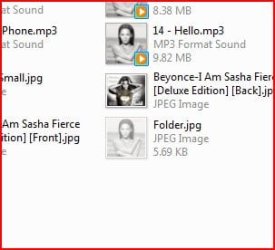
You mean like this?

like this, you mean?

(ps it's Englishman)
Attached Thumbnails
Adding a Clip Art-album-art-1-.jpg  
My System SpecsSystem Spec
01-29-2009   #6


Windows 7 beta


ok i've tried to customize the folder but it still a regular mp3 icon with no art

Bellerophon
no i'm talking about the icon of the mp3 file itself, although it appears with an art in WMP but it appears without it inside windows explorer.
and thanks for the Englishman tip
Attached Images
 
My System SpecsSystem Spec
01-29-2009   #7


Windows Se7en Ultimate x64


Like this?

Like this...
Attached Thumbnails
Adding a Clip Art-album-art-2-.jpg  
My System SpecsSystem Spec
01-29-2009   #8


windows 7


ok, try this. Launch Windows Media Player then right-click at the top or bottom areas to bring up the menu. Then navigate to "Tools > Apply Media Information Changes". I think it should save the info from WMP to the files at that point.
My System SpecsSystem Spec
01-29-2009   #9


Windows 7 beta


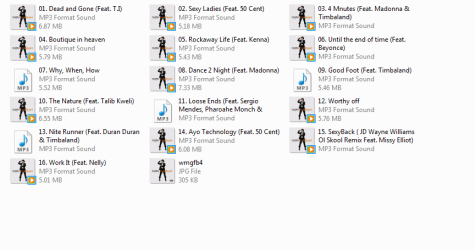
ok i did what you told me
but the thumbnails appeared on some files and some did not
take a look
Attached Thumbnails
Adding a Clip Art-pp.png  
My System SpecsSystem Spec
01-30-2009   #10


Windows Se7en Ultimate x64


Did you sort this?

Quote   Quote: Originally Posted by Starhunter View Post
ok i did what you told me
but the thumbnails appeared on some files and some did not
take a look
Was just wondering whether or not you sorted this?

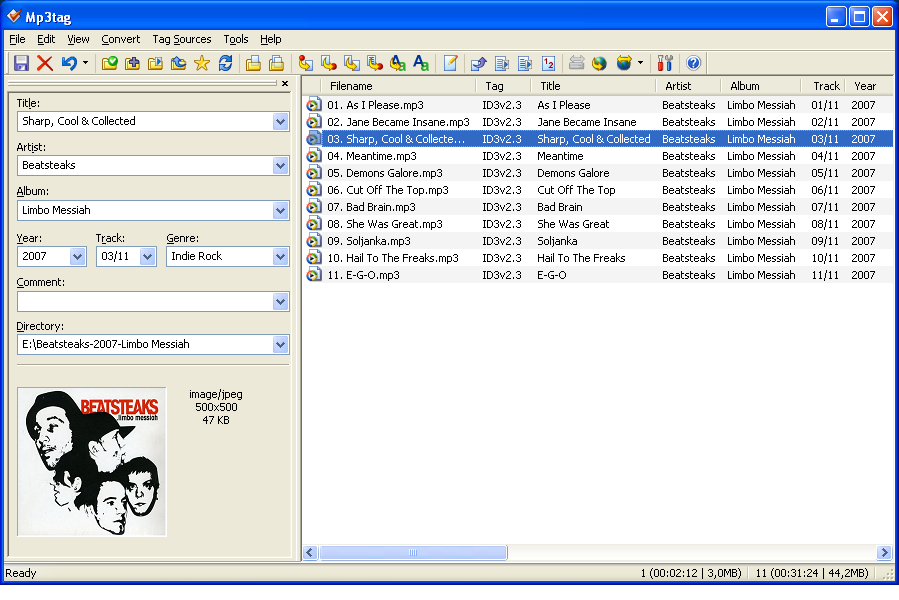
If you are in to tagging then I use a very good bit of software called mp3tag you can download it here. This will sort your problem out.

It looks like the songs without the album art have not recognised the album art save/associtaion, try associating this again either through wmp (looking at wmp12 not sure how you now do this in Windows 7, used to be advanced tag editor?!) or you can use the mp3tag bit of software.


more general info here


Last edited by Bellerophon; 01-30-2009 at 10:06 AM.. Reason: edit
My System SpecsSystem Spec
Reply

 Adding a Clip Art problems?


Thread Tools


Similar Threads for: Adding a Clip Art
Thread Forum
Clip Art General Discussion
Adding sound clip to WIndows Voice Recognition? Software
add vid clip Chillout Room
funny clip Chillout Room
Clip Board General Discussion


All times are GMT -5. The time now is 05:05 PM.


Windows 7 Forums is an independent web site and has not been authorized,
sponsored, or otherwise approved by Microsoft Corporation.
"Windows 7" and related materials are trademarks of Microsoft Corp.
© Designer Media Ltd
  

1 2 3 4 5 6 7 8 9 10 11 12 13 14 15 16 17 18 19 20 21 22 23 24 25 26 27 28 29 30