Windows 7 Forums


Windows 7: How to make bullets work in Microsoft Word 2007

28 Sep 2010   #1

Windows 7 Home Premium x86
 
 
How to make bullets work in Microsoft Word 2007

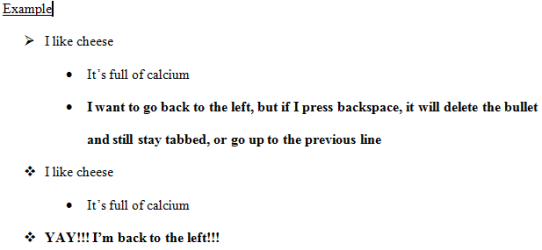
I know how to use bullets, but if you tab in the bullets, it will stay tabbed throughout the entire document unless you set up tabbed bullets again. When I try to backspace to go back to left alignment, it will delete the bullet and still stay tabbed. Basically what I am asking is after you do a tabbed bullet, how do you go back to aligning the bullets left again?

Attached Thumbnails
How to make bullets work in Microsoft Word 2007-word-example.png  
My System SpecsSystem Spec

28 Sep 2010   #2

Win 7 Ultimate (64-bit), Win 7 Pro (32-bit)
N. Calif


Try shift-tab instead of Backspace to shift the tab to the left.
My System SpecsSystem Spec
28 Sep 2010   #3

Windows 7 Enterprise x64
North Somerset, UK


If you just highlight the line in question then left-click the Bullet button on the ribbon (in the Paragraph pane), it will turn off bullets for that line and revert to normal left-justified text. Is that what you mean?
My System SpecsSystem Spec
.


28 Sep 2010   #4

Windows 7 Home Premium x86


I figured it out. You just hit enter in the new line and it will push the tab back one. Now I am having trouble creating a tab within a tab. When I hit tab, it just tabs out and doesn't bring the bullet with it.
My System SpecsSystem Spec
29 Sep 2010   #5

Windows 7 Enterprise x64
North Somerset, UK


It seems that you have your bullets set up in a strange way - hitting Enter should just give you a new bulleted line, with the bullet identical to the one above it. I think you may have some residual formatting in your document that is making the bullets behave atypically.

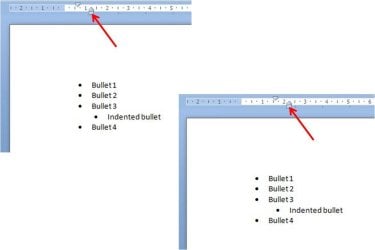
If you want to indent the bullet, the easiest way is to highlight the line in question then slide the tab stops on the ruler, by grabbing the little box below the tab stop and dragging it to where you want it to be (see screenshot).
Attached Thumbnails
How to make bullets work in Microsoft Word 2007-picture1.jpg  
My System SpecsSystem Spec
29 Sep 2010   #6

Windows 7 Home Premium x86


Quote   Quote: Originally Posted by strollin View Post
Try shift-tab instead of Backspace to shift the tab to the left.
Okay, my Word is messed up. It doesn't do what tutorials say to do or anything. But I tried strollin's method in powerpoint and it worked, so thank you!
My System SpecsSystem Spec
04 Jan 2011   #7

64bit XP Pro
 
 
Solution

Click on the office button->word options->proofing->auto correct options->auto format as you type --> and select the check box “set left and first indents with tabs and back spaces” under automatically as you type section at the bottom.
My System SpecsSystem Spec
09 Jan 2011   #8

Windows 7 Home Premium x86


Quote   Quote: Originally Posted by bherrera87 View Post
Click on the office button->word options->proofing->auto correct options->auto format as you type --> and select the check box “set left and first indents with tabs and back spaces” under automatically as you type section at the bottom.
Thank you so much! Such a little problem caused me so much frustration.
My System SpecsSystem Spec
Reply

 How to make bullets work in Microsoft Word 2007 problems?


Thread Tools


Similar help and support threads for: How to make bullets work in Microsoft Word 2007
Thread Forum
Office 2007 Bullets Showing as Asian Characters in Win 7 only Microsoft Office
Word 2007 Error Message: "Word could not create the work file." Microsoft Office
Microsoft Word 2007 Microsoft Office
Microsoft word 2007 (problem) Microsoft Office
Microsoft Word 2007 Microsoft Office


All times are GMT -5. The time now is 11:43 AM.


Seven Forums Android App Seven Forums IOS App Follow us on Facebook

Windows 7 Forums is an independent web site and has not been authorized,
sponsored, or otherwise approved by Microsoft Corporation.
"Windows 7" and related materials are trademarks of Microsoft Corp.
© Designer Media Ltd
  

1 2 3 4 5 6 7 8 9 10 11 12 13 14 15 16 17 18 19 20 21 22 23 24 25 26 27 28 29 30 31 32