All excel files opening in read only mode in Windows 7
in windows 7, when i open any excel file from any folder (network & desktop both), it opens as read only..
but when i open the excel file by going to open option in the Menu Bar in MS Excel, it opens correctly.. but that takes hell lot of time everytime i wanna open a excel file..
Computer type Laptop System Manufacturer/Model Number Toshiba Laptop Qosimo X870 OS Windows 7 Pro x64 SP1 CPU Intel Core I7 Motherboard Toshiba Memory 16 Gigs Graphics Card NVIDIA GeForce GTX 670M Monitor(s) Displays 17.7" laptop Screen Resolution 1600 x 900
Hard Drives 256 Gig SanDisk SSD for C
256 Gig Intel SSD for D Internet Speed 50/25 FIOS Antivirus Vipre (all you can eat for 10 machines) Browser IE and FF Other Info I have dos 6.22, wfwg 3.11, win98, 2000 and xp VHD's available for testing. MS's Virtual PC works great.
few of the files are of 2007 version whereas few of them are of 2003 version.
i have recd almost all files thru mails.. but i am having the same problem for the files created by me..!!
dont know wat xactly is the problem - but similar problem doesnt exist for word / powerpoint.. its only excel.. once i have opened any excel file & then i go to some folder and open excel file from there by double clicking it, then it opens in read-only mode.. but if i open the same file from the Open option in File Menu, then i dont have this problem..!! strange yet true..
but i cant keep on opening every excel file thru File->Open option.. it takes hell lot of time as the files are in different folders..!!
The only thing I can think of is that the 1's downloaded need to be 'Unblocked'. Right-click and select Properties and there should be an 'Unblock' button, just click it.
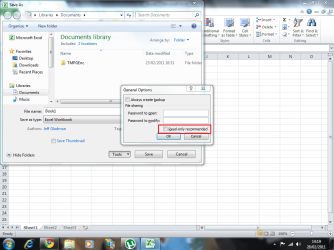
Also, when you're saving files they may have accidentally been set to save as read only. Try the following...
1, Open an Excel Spreadsheet
2, Click File > Save As
3, Click the Tools dropdown then General Options...
Check to see that the 'Read-Only Recommended' hasn't been selected by accident...
Computer type PC/Desktop System Manufacturer/Model Number Packard Bell OS Windows 7 Home Premium 64bit CPU Intel(R) Core(TM) i3-2120 CPU @ 3.30GHz Motherboard Packard Bell IPISB-AG Memory 3.00 GB Graphics Card (1) Intel(R) HD Graphics (2) VNC Mirror Driver Sound Card Realtek High Definition Audio Monitor(s) Displays AIO LCD Screen Resolution 1920 x 1080
Keyboard Wireless Mouse Wireless Hard Drives WDC WD10EADX-22TDHB0 ATA Device
Fixed hard disk media
4 partitions
931.51 GB Antivirus Microsoft Security Essentials Browser IE; Firefox Other Info Also:
Samsung N220 Plus Netbook - Windows 7 Home
HP laptop
iPad 5
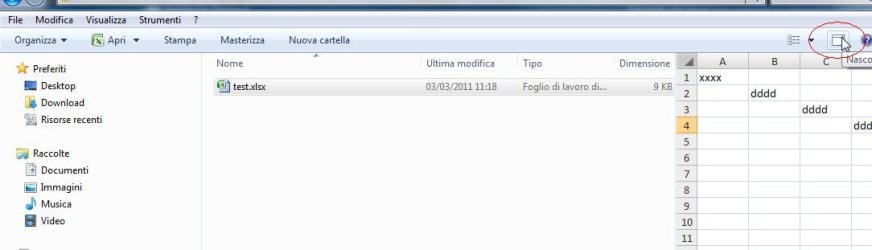
I also had the same problem, try disable file preview from Explorer, see attachment...
It seems for some reason the file is "locked" or something similar when preview is enabled, in any case disabling this feature solved the problem for me, no more Excel file opened in read-only mode.
If you put the email message into Edit mode you can edit the attachment and save changes back to the original attachment on the email message. You need to remember to save the attachment when closing AND save changes to the email message as the copy in the securetemp folder will be deleted when you close Outlook.
If you add the Edit Message button to the QAT or Ribbon, its very easy to get into Edit mode. To add the command to the QAT (or ribbon):
Open a message
Go to File, Options, then choose either Customize Ribbon or Quick Access Toolbar
Select All Commands from the Choose command dropdown
Click in the list of commands then press E on your keyboard to jump down to the Edit commands.
Find Edit Message and double click on it or use the Add button to add it to the QAT or Ribbon.
Click OK to return to the message.
The next time you need to edit an attachment and save the changes back to the message, open the email message, click the Edit Message button then open the attachment. Remember: you need to save and close the attachment then save and close the email message for the edits to be saved. If you don't want changes saved (such as when rotating images), close without saving.
Quote:
Solution - Disable Attachment Preview
You can make many attachments readable if you disable Attachment Preview. With this disabled you will lose the ability to view attachments in the Reading pane or open messages - you will need to double click to open them in their application.
Go to File tab, Options, Trust Center:
Click the Trust Center Settings button
Select Attachment Handling
Add a check to the "Turn off attachment preview" option.
Note: this disables preview for all attachments. If you like the attachment preview feature, use the Edit message method.
Quote:
Solution - Images viewed with Windows Photo Viewer
A workaround for those using Photo Viewer exists: in Photo viewer, click on File, Properties, General tab then clear the Read only check. Repeat for each image.
Computer type PC/Desktop System Manufacturer/Model Number Packard Bell OS Windows 7 Home Premium 64bit CPU Intel(R) Core(TM) i3-2120 CPU @ 3.30GHz Motherboard Packard Bell IPISB-AG Memory 3.00 GB Graphics Card (1) Intel(R) HD Graphics (2) VNC Mirror Driver Sound Card Realtek High Definition Audio Monitor(s) Displays AIO LCD Screen Resolution 1920 x 1080
Keyboard Wireless Mouse Wireless Hard Drives WDC WD10EADX-22TDHB0 ATA Device
Fixed hard disk media
4 partitions
931.51 GB Antivirus Microsoft Security Essentials Browser IE; Firefox Other Info Also:
Samsung N220 Plus Netbook - Windows 7 Home
HP laptop
iPad 5