Windows 7 Forums Search
Welcome to Windows 7 Forums. Our forum is dedicated to helping you find solutions with any problems, errors or issues you are experiencing with Windows 7. The Windows 7 forum also covers news and updates and has an extensive Windows 7 tutorial section that covers a wide range of tips and tricks.


Windows 7 - How I print Custom Paper and Custom Margin

 
11-23-2011   #1


windows 7 x86


How I print Custom Paper and Custom Margin

hellow...

I use microsoft office 2010, My first first install.
I can print my document with the custom paper.

govertment legal size paper choice is not available in ms office
The height is 33cm and not 35cm.

Now I set the print custom1 with 21.5 width and height 33cm. with each of the top margin, left, right, bottom 2cm.

when i print dialog box appears to [fix] [ignore] after I ignore. document that I printed out with the bottom margin of 4 cm (terpotong. ...)

please anyone can help me ..


My System SpecsSystem Spec
11-23-2011   #2


Windows 7 x86 since December 2008


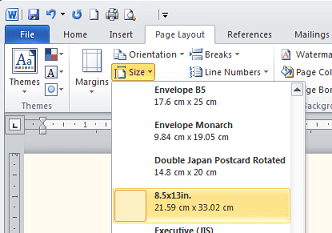
Your paper size is called 8.5x13in.
Go to Page Layout tab - Size and scroll down to 8.5x13in and select it (see first screenshot attached).

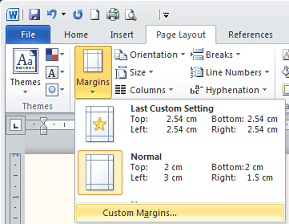
Then on the same tab go to Margins and click Custom margins (see second screenshot attached). In the new window change margins to desired size.
Attached Thumbnails
How I print Custom Paper and Custom Margin-8.5x13.png  
Attached Images
 
My System SpecsSystem Spec
Reply

 How I print Custom Paper and Custom Margin problems?


Thread Tools


Similar Threads for: How I print Custom Paper and Custom Margin
Thread Forum
Print Custom Range- MS Office 2010 Microsoft Office
Easy Custom image + custom recovery OEM like system? Backup and Restore
Print Your Own Custom Book from Wikipedia Chillout Room
How to add a custom icon to a custom library? Customization


All times are GMT -5. The time now is 05:47 PM.


Windows 7 Forums is an independent web site and has not been authorized,
sponsored, or otherwise approved by Microsoft Corporation.
"Windows 7" and related materials are trademarks of Microsoft Corp.
© Designer Media Ltd
  

1 2 3 4 5 6 7 8 9 10 11 12 13 14 15 16 17 18 19 20 21 22 23 24 25 26 27 28 29 30