| Windows 7: Video file question |
12 Aug 2010
|
#1 | | |
Video file question Hi folks I dont know if this is the right place to post this but maybe you all can help me. I am new to video processing and I am trying to get my dvd that I have a vid camera recordings converted to use on Camtasia. I have Allok video file converter program. I have converted the VOB files on the camera disk to many different file types but when I play them on Camtasia they have lots of lines in the playback. Could it be my converter program? if so what is a good converter program to get? Could it be my file formats that I am trying in Camtasia? if so then what file format should I try and at what settings?
Another note is that when I play the camera disk files directly using windows media player the videos play just fine.
I just want to know just how to work simply with videos so that I can share them on the web and friends and family
Thanks in advance for any info.
~James | My System Specs |
| OS Windows 7 64 bit CPU AMD Dual Core 2,2 GHZ Motherboard dunno...its a laptop Memory 4GB, upgrading to 8GB Graphics Card integrated Sound Card does it need one? Monitor(s) Displays built in Screen Resolution lots Keyboard finger operated Mouse cat got it PSU wall outlet Case plastic Cooling swamp cooler Hard Drives 2 x 250 GB Internet Speed 1 meg |
12 Aug 2010
|
#2 | | Windows 7 Profesional x86, Mac OS X 10.6 Snow Leopard England |
Hi James.
This sounds like your converter is causing the problem.
I have never used Camtasia but would say if you want to convert VOB files that you hav a look at this old newsgroup How to Convert VOB Files for use with Windows Movie Maker - Vista Forums.
I would personally suggest installing Windows Movie Maker 6 on your PC (if that's available to you) using this tutorial Windows Movie Maker 6.0 - Install on Windows 7.
Another alternative if you are looking to upload your videos to youtube (or not) you may want to take a look at http://www.youtube.com/editor?popart=681928. It's very basic but I don't know what you went to do with your videos  .
I hope this is useful.
Oli | My System Specs | | System Manufacturer/Model Number Apple MacBook 5,1 OS Windows 7 Profesional x86, Mac OS X 10.6 Snow Leopard CPU Intel Core 2 Duo 2.4Ghz Memory 4GB DDR3 Graphics Card Nvidia 9400m Monitor(s) Displays 13.3" Internal + 22" DVI + 21.5" USB Screen Resolution 1280x800 + 1920x1080 + 1920x1080 Keyboard Apple Late 2009 Wireless Keyboard (US) Mouse Apple Magic Mouse Case Aluminium Unibody Hard Drives Internal SATA 2.5" 500GB (395GB Mac HFS+, 105GB Windows NTFS)
2.48TB RAID consisting of 5 disks (HFS+) Internet Speed 6.33Mb/s up. 0.36Mb/s down. Other Info Harman Kardon Soundsticks II Speakers |
12 Aug 2010
|
#3 | | Windows 7 Home Premium 64 Bit SP 1 |
The best video format I have ever used till date is Matroska
And the best way to convert from vob to matroska is HandBrake
It uses x264, man
Edit : If you use MeGui ofr FFmpeg, you will get x264 there. All the three may be free to use, but produces output far far better than that is done by a paid app . | My System Specs | | Computer type PC/Desktop System Manufacturer/Model Number Self Assembled OS Windows 7 Home Premium 64 Bit SP 1 CPU Intel Core i3 2120 @ 3.30GHz Motherboard Gigabyte Technology Co., Ltd. H61M-DS2 DVI Memory Corsair 2GB x2 (Single-Channel DDR3 @ 665MHz) Graphics Card 2047MB GeForce GTS 450 (ZOTAC International) Sound Card Onboard (Realtek High Definition Audio) Monitor(s) Displays LG Flatron E2040T Screen Resolution 1600x900 Keyboard Logitech MK220 Mouse Logitech MK220 PSU uMAX 750 watt. Case iBall Cooling Air/ Fans Hard Drives Western Digital 1 TB
Seagate 500 GB Internet Speed BSNL Broadband Antivirus Microsoft Security Essentials Browser Waterfox Other Info Dell Studio 15" Laptop |
12 Aug 2010
|
#4 | | |
These are all great ideas and I have tried them all but no matter which converter program I try I even see the lines in the preview window player as well but when I just play the clips straight in windows media player or even HP media player i get good picture, if I go ahead and convert the files and play them in media player I get the lines. | My System Specs | | OS Windows 7 64 bit CPU AMD Dual Core 2,2 GHZ Motherboard dunno...its a laptop Memory 4GB, upgrading to 8GB Graphics Card integrated Sound Card does it need one? Monitor(s) Displays built in Screen Resolution lots Keyboard finger operated Mouse cat got it PSU wall outlet Case plastic Cooling swamp cooler Hard Drives 2 x 250 GB Internet Speed 1 meg |
12 Aug 2010
|
#5 | | Windows 7 Home Premium 64 Bit SP 1 |

Quote: Originally Posted by Birddude007 These are all great ideas and I have tried them all but no matter which converter program I try I even see the lines in the preview window player as well but when I just play the clips straight in windows media player or even HP media player i get good picture, if I go ahead and convert the files and play them in media player I get the lines. Lines in the preview window, you mean the preview window of the converter ? Use handbrake, it doesnot have a preview window (unless you have QuickTime Pro installed). If the input file is clear , the output file must be a clear one . | My System Specs | | Computer type PC/Desktop System Manufacturer/Model Number Self Assembled OS Windows 7 Home Premium 64 Bit SP 1 CPU Intel Core i3 2120 @ 3.30GHz Motherboard Gigabyte Technology Co., Ltd. H61M-DS2 DVI Memory Corsair 2GB x2 (Single-Channel DDR3 @ 665MHz) Graphics Card 2047MB GeForce GTS 450 (ZOTAC International) Sound Card Onboard (Realtek High Definition Audio) Monitor(s) Displays LG Flatron E2040T Screen Resolution 1600x900 Keyboard Logitech MK220 Mouse Logitech MK220 PSU uMAX 750 watt. Case iBall Cooling Air/ Fans Hard Drives Western Digital 1 TB
Seagate 500 GB Internet Speed BSNL Broadband Antivirus Microsoft Security Essentials Browser Waterfox Other Info Dell Studio 15" Laptop |
12 Aug 2010
|
#6 | | |

Quote: Originally Posted by Arc 
Quote: Originally Posted by Birddude007 These are all great ideas and I have tried them all but no matter which converter program I try I even see the lines in the preview window player as well but when I just play the clips straight in windows media player or even HP media player i get good picture, if I go ahead and convert the files and play them in media player I get the lines. Lines in the preview window, you mean the preview window of the converter ? Use handbrake, it doesnot have a preview window (unless you have QuickTime Pro installed). If the input file is clear , the output file must be a clear one . I have the Handbrake now and cannot figure it out, like I said I am not very good a t video
I am converting a file right now to ffmpeg but i am not sure if Camtasia will recognize the format | My System Specs | | OS Windows 7 64 bit CPU AMD Dual Core 2,2 GHZ Motherboard dunno...its a laptop Memory 4GB, upgrading to 8GB Graphics Card integrated Sound Card does it need one? Monitor(s) Displays built in Screen Resolution lots Keyboard finger operated Mouse cat got it PSU wall outlet Case plastic Cooling swamp cooler Hard Drives 2 x 250 GB Internet Speed 1 meg |
12 Aug 2010
|
#7 | | Microsoft Windows 7 Home Premium 64-bit 7601 Multiprocessor Free Service Pack 1 Cornwall UK |
You have no need to convert the VOB files at all. Take a copy of the VOB file and change the file extension to mpg. Don't worry about the warning you might get, ignore it. (You've still got the original VOB file.) Then use the MPG file to upload to You Tube or burn to a disc so that your friends can play it on a PC. If you want to create a DVD to play on a DVD player through a TV post here and I will give you the workflow, it's quite straightforward! | My System Specs | | OS Microsoft Windows 7 Home Premium 64-bit 7601 Multiprocessor Free Service Pack 1 CPU Intel(R) Core(TM) i7-3770 CPU @ 3.40GHz Motherboard ASUSTeK COMPUTER INC. P8H77-M Memory 8.00 GB Graphics Card Intel(R) HD Graphics 4000 Sound Card On Board Monitor(s) Displays Dell 24" Hard Drives (1) INTEL SSDSC2CT180A3 ATA Device (2) ST500DM002-1BD142 ATA Device (3) WDC WD3200AAKS-75L9A0 ATA Device (4) Generic- Compact Flash USB Device (5) Generic- MS/MS-Pro USB Device (6) Generic- SD/MMC USB Device (7) Generic- SM/xD-Picture USB Internet Speed 20Mb |
12 Aug 2010
|
#8 | | Windows 7 Home Premium 64 Bit SP 1 |

Quote: Originally Posted by Birddude007 I have the Handbrake now and cannot figure it out, like I said I am not very good a t video
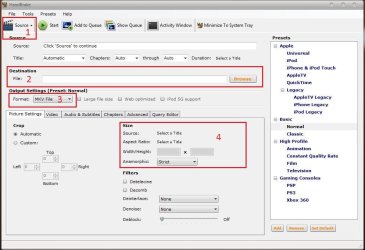
I am converting a file right now to ffmpeg but i am not sure if Camtasia will recognize the format Four steps 
1. Open the program. Inthe main window, first select source (Click on source, and browse) ; select destination (broese to desktop, give the filenake such as vid.mkv) select format (mkv) and set aspect ratio (if you want to change the default, click on anamorphic and select custom)
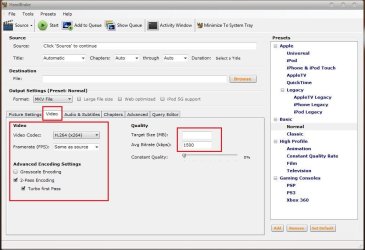
2. Click on videos tab , select codec x264, advanced options is two pass and turbo first pass both checked; and select the bitrate (try not to reduce below 1000)
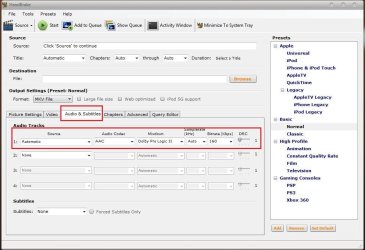
3. Click Audios tab, and accept the default, if the default is like the shot
4. Now click on start. A command prompt window will appear, and everything will be done in it | My System Specs | | Computer type PC/Desktop System Manufacturer/Model Number Self Assembled OS Windows 7 Home Premium 64 Bit SP 1 CPU Intel Core i3 2120 @ 3.30GHz Motherboard Gigabyte Technology Co., Ltd. H61M-DS2 DVI Memory Corsair 2GB x2 (Single-Channel DDR3 @ 665MHz) Graphics Card 2047MB GeForce GTS 450 (ZOTAC International) Sound Card Onboard (Realtek High Definition Audio) Monitor(s) Displays LG Flatron E2040T Screen Resolution 1600x900 Keyboard Logitech MK220 Mouse Logitech MK220 PSU uMAX 750 watt. Case iBall Cooling Air/ Fans Hard Drives Western Digital 1 TB
Seagate 500 GB Internet Speed BSNL Broadband Antivirus Microsoft Security Essentials Browser Waterfox Other Info Dell Studio 15" Laptop |
12 Aug 2010
|
#9 | | Windows 7 Home Premium 64bit Southern Ohio |
Im wondering if the lines you see are Interlace lines, or other file corruption.
If it is interlaced, the player may need to de-interlace for playback. Otherwise there will be lines.
Im not sure what Camtasia is, but if it is not capale, turn on hardware acceleration and let the graphics card do it.
Alternatively, you can de-interlace the files yourself when encoding and just encode it progressive. | My System Specs | | System Manufacturer/Model Number Custom (Self Build) OS Windows 7 Home Premium 64bit CPU Intel Core i7 2700k Motherboard eVGA P67 SLI Memory 8GB Mushkin Redline Ridgebacks @1866 Graphics Card EVGA GTX570 SC Sound Card XiFi Titanium HD Monitor(s) Displays LG W2453V Screen Resolution 1920x1080 Keyboard Saitek Cyborg PSU Seasonic x750 Case Corsair 600T SE White Cooling eVGA Superclocked CPU Cooler Hard Drives Intel 320 80GB -- Intel X25-V 40GB --WD Black 1TB x2 -- WD Blue 640GB Antivirus Kaspersky Browser IE Other Info LG BD/DVD |
12 Aug 2010
|
#10 | | |
Cool! i figured it out but I have to take an extra step in order for Camtasia would accept it. I was right about Camtasia not accepting it but all I did was reconvert the output file from handbrake to AVI and Camtasia accepted it and it plays beautifully without those stupid lines and now it comes out awesome, thanks so much. | My System Specs | | OS Windows 7 64 bit CPU AMD Dual Core 2,2 GHZ Motherboard dunno...its a laptop Memory 4GB, upgrading to 8GB Graphics Card integrated Sound Card does it need one? Monitor(s) Displays built in Screen Resolution lots Keyboard finger operated Mouse cat got it PSU wall outlet Case plastic Cooling swamp cooler Hard Drives 2 x 250 GB Internet Speed 1 meg Video file question problems? All times are GMT -5. The time now is 01:55 AM. | |