| Windows 7: I need some help on searching for a specific .avi file |
18 Jan 2013
|
#1 | | Windows 7 Home Premium 32bit |
I need some help on searching for a specific .avi file Ok, just this morning I tried doing some stuffs on my computer. My sister wants me to convert the Project Diva Extend Opening video to the computer, so tried ripping the .pmf from my UMD and found out that there were no audio for it. So I searched and searched until I found this [HTML=http://www.pspmod.com/forums/off-topic-discussion/25338-convert-pmf-avi.html#post670789]thread[/HTML]. As you can see, I already posted here that the .avi files are missing. I need to delete them or locate them somehow, it's not on my c: or anything. But it is accessible via mplayer.exe
I need help ASAP >.< thanks as well on the advance~ | My System Specs |
| OS Windows 7 Home Premium 32bit |
19 Jan 2013
|
#2 | | Win 7 Pro 64-bit South Central Texas |
Hello shi0n and welcoem to Seven Forums.
Just for my own clarification, when you say the .avi files are missing but "...accessible via mplayer.exe", is mplayer.exe accessing the .avi files from your hard drive or someplace else? If from the hard drive, have you tried doing a wildcard search? In the Start Menu search box try searching for *.avi and every .avi file on the hard drive should be located along with its file path (if you right-click and select properties.) Other search techniques are explained here: Search in Windows 7 Windows 7 Search - wildcards and search codes
If I misunderstood your question I sincerely apologize. | My System Specs | | Computer type Laptop System Manufacturer/Model Number Sony Vaio VPCEB47GM Laptop OS Win 7 Pro 64-bit CPU Intel i5 2.4 Ghz Memory 8GB DDR3 Graphics Card Intel HD 3000 Sound Card IDT High Definition Monitor(s) Displays 15.6 WGXA Anti-Glare LED Screen Resolution 1280x800 Hard Drives 640Gb 7200rpm Antivirus MSE Browser Opera (primary) with IE9 backup |
19 Jan 2013
|
#3 | | Windows 7 Home Premium 32bit |

Quote: Originally Posted by marsmimar Hello shi0n and welcoem to Seven Forums.
Just for my own clarification, when you say the .avi files are missing but "...accessible via mplayer.exe", is mplayer.exe accessing the .avi files from your hard drive or someplace else? If from the hard drive, have you tried doing a wildcard search? In the Start Menu search box try searching for *.avi and every .avi file on the hard drive should be located along with its file path (if you right-click and select properties.) Other search techniques are explained here: Search in Windows 7 Windows 7 Search - wildcards and search codes
If I misunderstood your question I sincerely apologize. I already tried this, since I've been searching here and there for some answers. What I recently did was to put some files in my external harddrive so I wouldn't need to worry about the memory thing. But it would really be great if someone knows this kind of problem. I already tried searching using the Date, ext., filename, only .avis, still, those two files are nowhere to be found but they're playable by mplayer.exe using this command on cmd.
First open cmd, then type cd c:\ then enter
next type mplayer convert.avi
it would play the convert.avi which is found in C:\ right? I tried showing every hidden folders and files, it's still missing. | My System Specs | | OS Windows 7 Home Premium 32bit |
19 Jan 2013
|
#4 | | Windows 7 x64 Ultimate A Finnish immigrant in Leipzig, Germany |
And you are sure you have searched for avi extension on whole computer, Explorer window on Computer view?
Kari | My System Specs | | Computer type Laptop System Manufacturer/Model Number HP ENVY 17-1150eg OS Windows 7 x64 Ultimate CPU 1.6 GHz Intel Core i7-720QM Processor Memory 6 GB Graphics Card ATI Mobility Radeon HD 5850 Graphics Sound Card Beats sound system with integrated subwoofer Monitor(s) Displays 17" laptop display, 22" LCD and 32" Full HD TV through HDMI Screen Resolution 1600*900, 1680*1050 and 1920*1080 Keyboard Logitech diNovo Media Desktop Laser (bluetooth) Mouse Logitech MX1000 Laser (Bluetooth) Hard Drives Internal: 2 x 500 GB SATA Hard Disk Drive 7200 rpm
External: 2TB for backups, 3TB USB3 network drive for media Internet Speed 50/10 Mbps VDSL Antivirus MSE, Windows Defender Browser Maxthon 3.5.2. Other Info Windows 7 Ultimate Retail Full in English, additional Guest-user accounts in Finnish, German and Swedish (Working languages English & Swedish, Family language German, my own language, mother tongue, Finnish. I really need Ultimate to get to use Language Packs!) |
19 Jan 2013
|
#5 | | Windows 7 Home Premium 32bit |
| My System Specs | | OS Windows 7 Home Premium 32bit |
19 Jan 2013
|
#6 | | Windows 7 Home Premium 32bit |

Quote: Originally Posted by Kari And you are sure you have searched for avi extension on whole computer, Explorer window on Computer view?
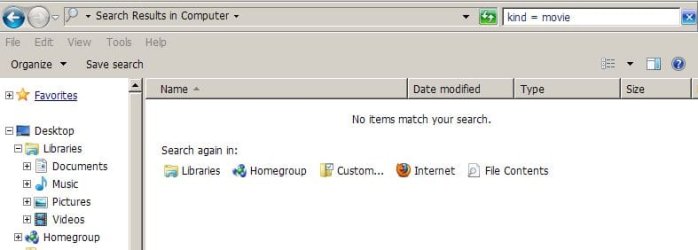
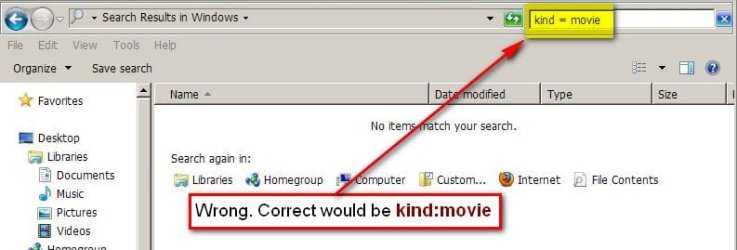
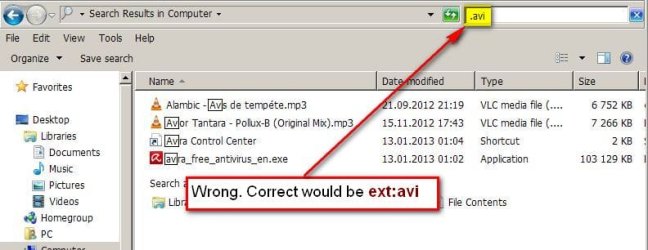
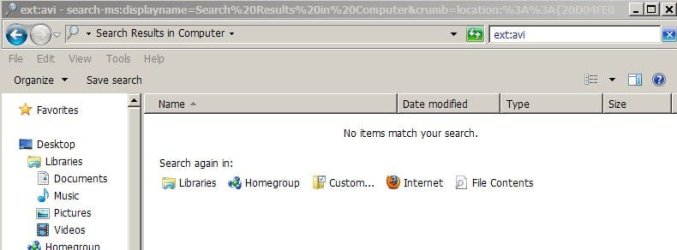
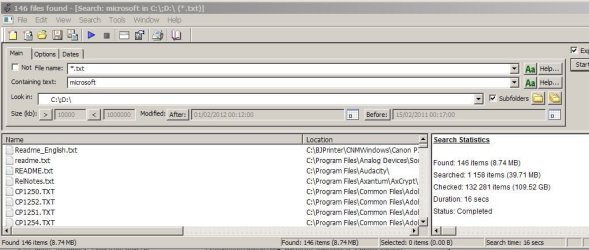
Kari Attachment 251049 Finished doing that, I posted some screenshots so it would be more accurate for the problem >.< | My System Specs | | OS Windows 7 Home Premium 32bit |
19 Jan 2013
|
#7 | | Windows 7 x64 Ultimate A Finnish immigrant in Leipzig, Germany |

Quote: Originally Posted by shi0n I posted some screenshots so it would be more accurate for the problem >.<  More accurate? Your post was most confusing I have seen, with screenshots of no value showing absolutely nothing worth to know, except the fact that you do not really know what and how you should search.
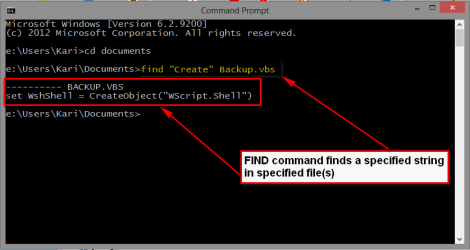
To start, a short command line tip about FIND command which you seem to have tried: it is not used to search files, it is used to search a (text)string IN files. Following example for instance searches string Some text in all .txt files in target folder: Code: find "Some text" *.txt This one searches string Create in file Backup.vbs (a Visual Basic Script): Code: find "Create" Backup.vbs If found, the full text row containing the searched string will be shown:
Using Command Prompt, the search is done with DIR command. It only searches the current folder, with switch /s current folder and all its subfolders.
An example:
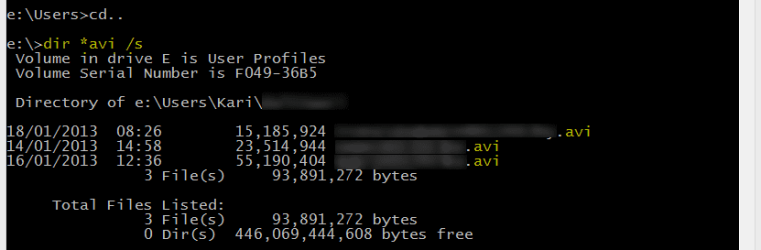
Search all AVI files in current folder and its all subfolders: When you remember that cd\ command always takes you to the root of the current drive, you can search your whole computer with a few commands. Following command sequence (commands in that order you would give them on Command Prompt) would first search .avi files on C:, then on D: and finally on E:, always starting from the drive root: Code: - C:
- cd\
- dir *.avi /s
- Here would appear a list of found *.avi files on C:
- D:
- cd\
- dir *.avi /s
- Here would appear a list of found *.avi files on D:
- E:
- cd\
- dir *.avi /s
- Here would appear a list of found *.avi files on E:
The screenshot below shows search of .avi files on my User Profile drive E: and its subfolders, and then shows all folders (in this example just one) containing .avi files listing the found files:
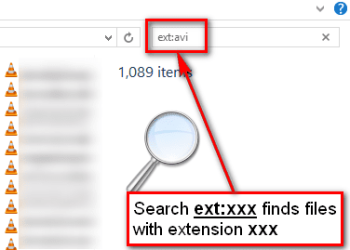
You screenshots show no searching and explain absolutely nothing. Did you do what I asked you to do in my previous post, search .avi files on Windows Explorer opened to Computer view. See the screenshot below, it's from Windows 8 but search is exactly the same in Windows 7:
Kari | My System Specs | | Computer type Laptop System Manufacturer/Model Number HP ENVY 17-1150eg OS Windows 7 x64 Ultimate CPU 1.6 GHz Intel Core i7-720QM Processor Memory 6 GB Graphics Card ATI Mobility Radeon HD 5850 Graphics Sound Card Beats sound system with integrated subwoofer Monitor(s) Displays 17" laptop display, 22" LCD and 32" Full HD TV through HDMI Screen Resolution 1600*900, 1680*1050 and 1920*1080 Keyboard Logitech diNovo Media Desktop Laser (bluetooth) Mouse Logitech MX1000 Laser (Bluetooth) Hard Drives Internal: 2 x 500 GB SATA Hard Disk Drive 7200 rpm
External: 2TB for backups, 3TB USB3 network drive for media Internet Speed 50/10 Mbps VDSL Antivirus MSE, Windows Defender Browser Maxthon 3.5.2. Other Info Windows 7 Ultimate Retail Full in English, additional Guest-user accounts in Finnish, German and Swedish (Working languages English & Swedish, Family language German, my own language, mother tongue, Finnish. I really need Ultimate to get to use Language Packs!) |
19 Jan 2013
|
#8 | | W7 pro 64bit, ult 32bit, hp 32bit, XP pro 32bit, W8 pro 32bit |
 jeez, once upon a time searching for lost files was a simple, easy and failsafe task i windows.
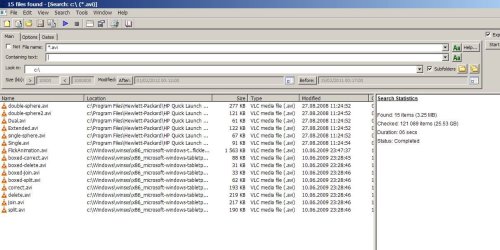
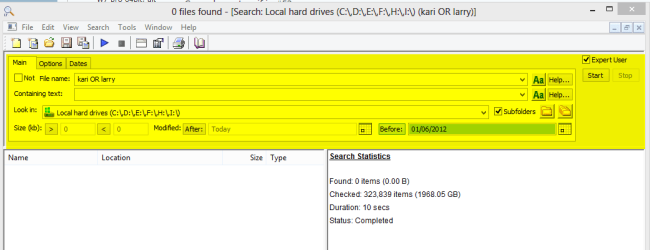
Try Agent Ransack - Free File Searching Utility
Easy job: enter *.avi + the drive (letter) you want to search (alt. use the dropdown menu to choose the whole pc). If the file exists, it will be found.
Optional, enter some dates and\or size to narrow down the search. | My System Specs | | System Manufacturer/Model Number HP 6570b, 6730b, 6735b, 311c OS W7 pro 64bit, ult 32bit, hp 32bit, XP pro 32bit, W8 pro 32bit |
19 Jan 2013
|
#9 | | Windows 7 Home Premium 32bit |

Quote: Originally Posted by Kari 
Quote: Originally Posted by shi0n I posted some screenshots so it would be more accurate for the problem >.<  More accurate? Your post was most confusing I have seen, with screenshots of no value showing absolutely nothing worth to know, except the fact that you do not really know what and how you should search.
To start, a short command line tip about FIND command which you seem to have tried: it is not used to search files, it is used to search a (text)string IN files. Following example for instance searches string Some text in all .txt files in target folder: Code: find "Some text" *.txt This one searches string Create in file Backup.vbs (a Visual Basic Script): Code: find "Create" Backup.vbs If found, the full text row containing the searched string will be shown: Attachment 251062
Using Command Prompt, the search is done with DIR command. It only searches the current folder, with switch /s current folder and all its subfolders.
An example:
Search all AVI files in current folder and its all subfolders: When you remember that cd\ command always takes you to the root of the current drive, you can search your whole computer with a few commands. Following command sequence (commands in that order you would give them on Command Prompt) would first search .avi files on C:, then on D: and finally on E:, always starting from the drive root: Code: - C:
- cd\
- dir *.avi /s
- Here would appear a list of found *.avi files on C:
- D:
- cd\
- dir *.avi /s
- Here would appear a list of found *.avi files on D:
- E:
- cd\
- dir *.avi /s
- Here would appear a list of found *.avi files on E:
The screenshot below shows search of .avi files on my User Profile drive E: and its subfolders, and then shows all folders (in this example just one) containing .avi files listing the found files: Attachment 251064
You screenshots show no searching and explain absolutely nothing. Did you do what I asked you to do in my previous post, search .avi files on Windows Explorer opened to Computer view. See the screenshot below, it's from Windows 8 but search is exactly the same in Windows 7: Attachment 251063
Kari well what I showed you guys there that the .avi was accessible via mplayer.exe on my c:\
And also I have done what you have said already on your previous post. Now let me do what you have just said, it might just work | My System Specs | | OS Windows 7 Home Premium 32bit |
19 Jan 2013
|
#10 | | Windows 7 Home Premium 64 bit. SP-1 Northern Ohio |
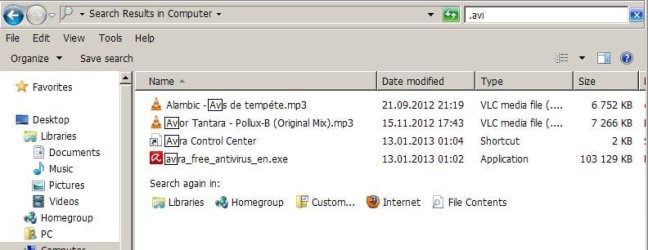
I have no idea what post #5 is all about. I just type in avi in the search libraries of expolrer and tick on computer and get this.
I'm I misunderstanding something?
Make sure indexing is active. | My System Specs | | Computer type PC/Desktop System Manufacturer/Model Number Home made Desktop OS Windows 7 Home Premium 64 bit. SP-1 CPU Intel i7-960-3.2 @ 4.25 Motherboard ASUS P6X58D-E Memory KINGSTON KHX2000C9, Hyper X,12 GIGS Graphics Card MSI/Nvidia/460GTX-Cyclone 1GD5/OC Monitor(s) Displays DYNEX 40 IN. Screen Resolution 1920-1080 or 1280-720 HDMI Keyboard M/S 3000 v 2.0 wireless Mouse M/S 5000 wireless PSU Corsair AX-850 Plus Gold Case Corsair 600T (Black) + side panel with 2 140 mm Noctua fans Cooling Corsair H50/2 Noctua NF-P12 (120 mm) Push/Pull- Hard Drives INTEL SSD 120GB-SER 510
Seagate 1TB SATA 600 7200 rpm Hard Drive Internet Speed 3.0 mb Antivirus Microsoft Security Eesentials Browser I.E. 10 default/Firefox Other Info LG BluRay-Read/Write
Sound system
KLipsch-THX
Asus Router RTN-12
2 Noctua 140 added on top of 600t case
Malwarebytes Anti Malware Professional
Windows 7 Firewall I need some help on searching for a specific .avi file problems? All times are GMT -5. The time now is 09:23 PM. | |