

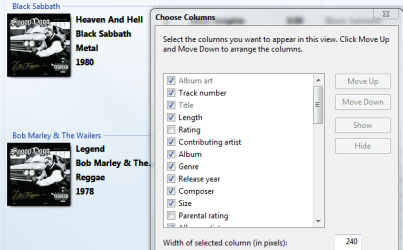
WMP is displaying the two "album art" covers for all albums. I only have two album covers and WMP has decided to display these two for all albums. When I go into "choose columns" to make WMP stop displaying album art altogether, "album art" is "grayed out" so I cannot un-check it. How could I either make it stop displaying the album art or delete the album art? Thanks.
My Computer
At a glance
Windows 7 Professional x64Intel Core i7 8604GB DDR3 Mushkin 1600Mhz @ 7-8-7-20MSI GTS250 1GB DDR3 Twin Frozr
- Computer Manufacturer/Model Number
- Keeps changing - (Custom)
- OS
- Windows 7 Professional x64
- CPU
- Intel Core i7 860
- Motherboard
- Gigabyte GA-P55-UD4P
- Memory
- 4GB DDR3 Mushkin 1600Mhz @ 7-8-7-20
- Graphics Card(s)
- MSI GTS250 1GB DDR3 Twin Frozr
- Sound Card
- Onboard realtek
- Monitor(s) Displays
- Samsung SyncMaster 24" P2450 + Samsung 20" 2033
- Screen Resolution
- 1920 X 1080 and 1600 X 900 (#2 system 1440 X 900)
- Hard Drives
- Patriot Inferno 120GB SSD + 3 WD Blue 640GB drives
- PSU
- Corsair 750 HX Modular
- Case
- Lancool PC-K62
- Cooling
- Cooler Master TX3 CPU cooler and 4-140mm and 1-120mm case
- Keyboard
- Gigabyte USB keyboard
- Mouse
- Microsoft wireless laser mouse 5000
- Internet Speed
- 7 Mb down 1.5 up
- Other Info
- System #2: AMD Phenom II X6 1055T (Freezer 7 Pro cooler) - Gigabyte 880GMA-UD2H - WD 500GB Black - 9500GT (1GB) 500W OCZ modular PSU - Antec 200 case. System #3 (LapTop) Core 2 Duo T6670 - 320GB 7200RPM HD - 4GB DDR3 RAM.


