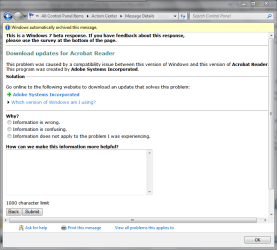
I went on Netgear website for latest drivers. Unfortunately the drivers aren't located individually. So I had to download then run whole setup/install for WPN111 adapter.
there is a way to extract the exe if you like... try this :
Universal Extractor | LegRoom.net
I then located driver files (mine were in c:\windows\system32\drivers\wpn111vx.sys) I then copied these drivers to folder elsewhere (I have hardware drivers folder in downloads in case of re-install issues).
Ok, for some testing purposes, is there any way you can put those drivers on a flash drive or something, and not have it connected to the pc after an uninstall/driver delete (everywhere)/reboot ? There's a method to my madness here.
Also, if you decide to do this, or even if not, try this -Pay attention to the specific driver for that device, name etc. go to explorer C:\windows\system32\drivers\yourdriver.sys- when you uinstall the adapter driver, either way- thru DM or uinstall programs and the driver is "deleted", tell me if you see it actually being deleted from that folder, in my case, it doesnt delete when i tell it to when uninstalling. This may be a bug i have found, need confirmation.
Then I uninstalled the netgear setup wizard (actually ran setup again and it uninstalled). Then I removed adapter>rebooted then plugged adapter back in and if windows didn't locate driver I browsed towards my copy location (i.e. my hardware driver folders in downloads).
try opening up the DM before you pop in the adapter, and watch what goes on.
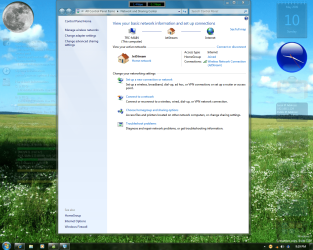
Adapter appears to work but with this stupid icon.
Hope this was useful.
PiMan
Have you not had any D/C issues with that adapter along with the asterix? My situation has varied, no real pattern for me as some others have reported.
But i think i have found another bug, need confirmation. From above when i ask you to try my little method of madness, try this, as it has worked, but i'm still testing it out to see if this is the problem/solution to just addressing the asterix problem, not actually a driver based problem. After you do the uninstall and totally delete, and during one of the repeated controlled field tests tries, after the driver installs go to your network and connect. Next, go to the properties of your connecting network. Connection Tab. Take out the checkmark for connect to network automatically.
Looking like this

Now, i did this after i D/C'd from the network while connected with the asterix showing still, then i rebooted. Then back to Desktop go to connect to my network
(when usually/previously i never had to, since the checkmark. tho in 7000, this was not needed as i always auto connected and still do btw) and voila, manually connected and no asterix. But then i tested again, rebooted
WHILE CONNECTED TO NETWORK, at desktop and asterix showing tho also reporting not connected - i manually connect and good stuff, no asterix. Do a double check, and notice that the adapter still pulls the same IP from the network. Therefore it wasnt an issue as the network wasnt allowing the release of the DHCP from the adapter or vice versa, and then if network/router was the problem, the adapter would have pulled a different IP.
so give this a shot, i believe it may cure your asterix woes. The ONLY PROBLEM with doing this is, in my case which i havent yet tested, but remoting into this pc from laptop with the pc on a cold boot, no active user accounts logged in - therefore not allowing the enabling/connecting manually to the network to get a connection. Therefore no RDP conn. So would have to go to the pc manually and fire up an account to have any connection to and from this pc. I also have the options were its used so when logging or switching back and forth between users it wont lose connection, like in XP. Nice feature that is... if only this problem was NOT around.