Hi,
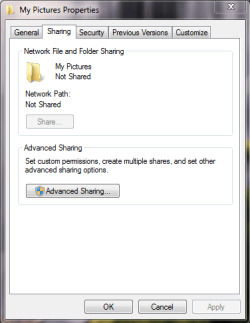
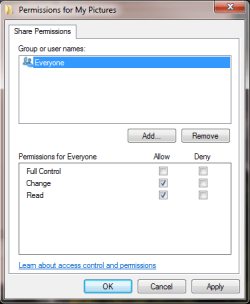
I need some help in connecting my two laptops together using my home wifi network.
I have tried to find a tutorial on how to do this but I couldn't find a good one.
Could anyone explain how to connect two win 7 computers using wifi, or point me in the direction of a proper walk trough.
Also is it possible to have an ongoing sync between two computers? My ideal situation would be to have two identically (content wise) computers whom both synced up to a external hard drive connected to one of those computers. So e.g. every time a picture was added to the picture folder on one computer the picture would be synced to the hard drive and then to computer nr 2 automatically.
Is anything like this possible?
Thank you
I need some help in connecting my two laptops together using my home wifi network.
I have tried to find a tutorial on how to do this but I couldn't find a good one.
Could anyone explain how to connect two win 7 computers using wifi, or point me in the direction of a proper walk trough.
Also is it possible to have an ongoing sync between two computers? My ideal situation would be to have two identically (content wise) computers whom both synced up to a external hard drive connected to one of those computers. So e.g. every time a picture was added to the picture folder on one computer the picture would be synced to the hard drive and then to computer nr 2 automatically.
Is anything like this possible?
Thank you
My Computer
At a glance
Windows 7
- OS
- Windows 7