Windows 7 Forums Search
Welcome to Windows 7 Forums. Our forum is dedicated to helping you find solutions with any problems, errors or issues you are experiencing with Windows 7. The Windows 7 forum also covers news and updates and has an extensive Windows 7 tutorial section that covers a wide range of tips and tricks.


Windows 7 - Deleting Files and Multiple Hard Drives

 
11-26-2009   #1


Windows 7 Professional x64


Deleting Files and Multiple Hard Drives

I have discovered an issue with Windows 7 that has become quite annoying. I have tested it with many scenarios and the issue continues to exist.

If you try to delete a file off an additional hard drive (meaning not the primary drive) the system will delete it permanently. It will not ask you to move it to the Recycle Bin, it will just ask if you want to permanently delete the file. Any file on the drive will move to the Recycle Bin with no problem.

Also, files within archives (zip files) will permanently delete even if the archive is on the primary drive.

My System SpecsSystem Spec
11-26-2009   #2


That is simply not true.

You can set the size of the Recycle Bin for each of your HD's, internal and external, in Recycle Bin properties. When you then want to delete the file and its size is smaller than Recycle Bin, it is moved there. Actually, the file remains where it was, it's just made non-accessible by renaming and hiding it. Windows keeps list of the real file names of everything in Recycle Bin to let you restore the file, i.e. renaming it back to the original name and making it again accessible.

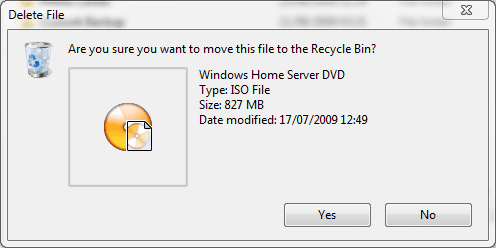
Here's an example. I want to delete a file in my external I: hard drive. Its size is smaller than the 25000MB I've reserved for Recycle Bin on that drive, so it is moved there and I can restore it whenever I want.

Deleting Files and Multiple Hard Drives-recycle5.png
Deleting Files and Multiple Hard Drives-recycle1.png
Deleting Files and Multiple Hard Drives-recycle2.png

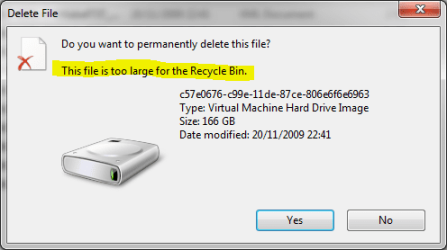
Second example: On my external J: drive is a file that I want to delete. First I get a dialog box asking if I want to delete it. I click Yes, Windows starts the process only to discover the file is too large, bigger than the 25000MB reserved to Recycle Bin. I get another dialog, asking if I want to permanently delete the file because it is too big to put in Recycle Bin.

Deleting Files and Multiple Hard Drives-recycle3.png
Deleting Files and Multiple Hard Drives-recycle4.png

Exception: The files and folders deleted from network drives are deleted permanently, as well as those deleted from removable media (rewritable CD's & DVD's and memory cards etc.).

Kari

Last edited by Kari; 11-26-2009 at 08:12 PM..
My System SpecsSystem Spec
11-27-2009   #3


Operating System Microsoft Windows 7 Ultimate Build 7600


Quote:
Actually, the file remains where it was, it's just made non-accessible by renaming and hiding it. Windows keeps list of the real file names of everything in Recycle Bin to let you restore the file, i.e. renaming it back to the original name and making it again accessible.
Thanks for the above explanation Kari

I always wondered how that worked.....now I know!
My System SpecsSystem Spec
.


11-27-2009   #4


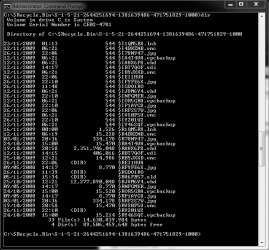
Here's a sample showing the content of the recycle bin. When user deletes a file or folder, Windows just changes the name of the deleted item by removing the first letter of the name and replacing it with $-sign, then giving a alphanumerical 'code' name (7 characters). The file extension is kept intact. The item is then hidden, shown only in recycle bin.

Recycle Bin then stores a list of original filenames; in case of user restoring the file, the matching name is picked and the file restored. The same name resolving process is also done every time the user opens Recycle Bin, to be able to show the right names.

Deleting Files and Multiple Hard Drives-recycle.png

Kari
My System SpecsSystem Spec
11-28-2009   #5


Windows 7 Professional x64


@ Kari

Everything you just said I already knew; however, it was a good explanation on how that process works for those who don't know.

Anyway, I'm away from my computer now so I cannot show screen shots at the moment but I checked the sizes of all the Recycle Bins for my drives and they all are well more than sufficient for the files I typically delete (music, pictures, documents).

Maybe this issue isn't widespread but it doesn't make it untrue. I have Windows 7 installed on two different drives and when I try to delete from the other drive it doesn't say anything about moving to the Recycle Bin. Even if I drag it to the Recycle Bin it asks me if I want to permanently delete the file.
My System SpecsSystem Spec
11-28-2009   #6


I have to say your issue is very strange. When Windows works as it is meant to work, only files and folders deleted from network drives and removable media are deleted permanently. Those items deleted from your computers HD's, internal or external, should always go to the Recycle Bin if they are not too big.

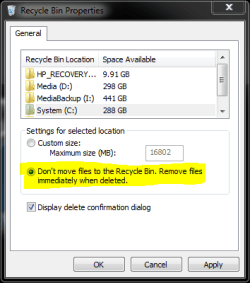
The dialog Are you sure you want to move this file to the Recycle bin? is bypassed only when you hold down the shift key when choosing Delete from the context menu (or when pressing Delete key on the keyboard), or when the option Don't move files to the Recycle Bin is chosen in the Recycle Bin properties.

Deleting Files and Multiple Hard Drives-recycle6.png

In your case, maybe a system restore to an earlier point or a repair installation would be the right solution. I honestly don't know; this issue sounds weird, I have never heard of it before.

Kari
My System SpecsSystem Spec
11-28-2009   #7


W7 RTM Ultimate x64


From my experience its not always delete completely, sometimes (possibly in this case) it deletes to the $Recycle Bin$ folder on the Drive.

The only way you can see it, is by enabling the "Hide protected operating system files" option in folder options.

That folder, if the deleted files does not display in the recycling bin of the host PC, the file should be in this folder.
My System SpecsSystem Spec
11-28-2009   #8


Windows 7 Pro & Vista Home Premium


There is a recycle bin on the other drive.

Many in fact. Look in the contents and you'll see the files deleted

Do not delete them all
My System SpecsSystem Spec
11-28-2009   #9


Windows 7 Professional x64


Yes it's very strange indeed. System restore doesn't solve the issue because it happens straight from the get-go of a new installation. I know the files are technically still on the drive until they are written over but having to go through a restore process is defeats the purpose of the Recycle Bin. The reason this is a slight issue for me is that I redirect all my personal folders to a second drive and reason it's only a slight issue is because I have Shadow Copy enabled for the drive so as long as the file isn't super new I can restore it through there.

Thanks for your help guys.
My System SpecsSystem Spec
11-28-2009   #10


Would be nice to know what is causing this. Please keep us posted if you find something.

Kari
My System SpecsSystem Spec
Reply

 Deleting Files and Multiple Hard Drives problems?


Thread Tools


Similar Threads for: Deleting Files and Multiple Hard Drives
Thread Forum
Solved Problem with multiple hard drives Hardware & Devices
BEST WAY TO? - Manage Multiple Hard Drives - Win 7 64-bit General Discussion
Encrypted Files - Find All on the Local Hard Drives Tutorials
How to copy files between two hard drives faster? Performance & Maintenance
Copy files between hard drives - Please need help! Hardware & Devices


All times are GMT -5. The time now is 09:32 PM.


Windows 7 Forums is an independent web site and has not been authorized,
sponsored, or otherwise approved by Microsoft Corporation.
"Windows 7" and related materials are trademarks of Microsoft Corp.
© Designer Media Ltd
  

1 2 3 4 5 6 7 8 9 10 11 12 13 14 15 16 17 18 19 20 21 22 23 24 25 26 27 28 29 30