Japanese keyboard in English Windows

eagled2

New member
Local time
11:47 AM
Messages
4
I am currently in japan so naturally when I bought a new keyboard it is a japanese keyboard. It has romanji and kana on the keys. When I first installed it the system treated it like a normal us keyboard. Also the extra keys that allow you to switch between input modes do not work. I did some searching and found how to get most of the layout correct. However the yen key still does not work. Also the extra japanese keys do not work at all. I have the logicool k200 media keyboard and as I said it is the japanese version. It has 3 extra keys next to the space bar and the key left of 1 which tilde on a normal us keyboard also has japanese symbols on it. Also I used the lang bar after switching the keyboard layout to japanese to switch to kana. After doing this it did type kana symbols but they did not match the kana symbol on the key. I don`t know much japanese yet but I would like to be able to use my keyboard as designed so when I do want to type in japanese I can use the buttons on the keyboard to switch modes and also type the yen character.
 

My Computer My Computer

At a glance

Windows 7 Ultimate 64bit
OS
Windows 7 Ultimate 64bit
Hi eagled2, welcome to the forums :)


You may have already tried but here goes anyway ;)

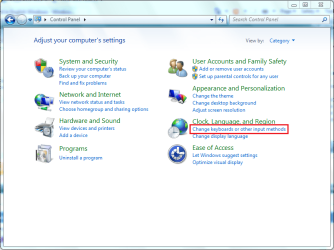
1, Open up control panel and click 'Change keyboards or other input methods'
1 control panel.PNG

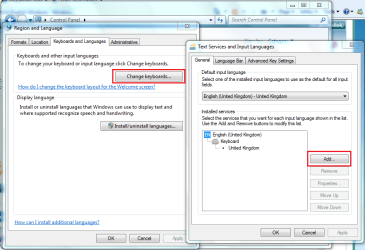
2, Click 'Change keyboards' followed by 'Add'
2 keyboard settings.PNG

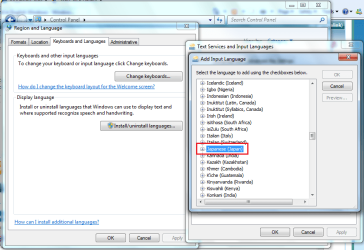
3, Select 'Japanese' from the dropdown list and click OK
3 add japanese.PNG

This should no install the driver & layout for the japanese keyboard

Hope it helps :)


OS
 

My Computer My Computer

At a glance

Windows 7 Ultimate x64AMD Sempron Dual Core3GBNVIDIA GeForce 6150SE nForce 430
Computer Manufacturer/Model Number
Compaq Desktop
OS
Windows 7 Ultimate x64
CPU
AMD Sempron Dual Core
Memory
3GB
Graphics Card(s)
NVIDIA GeForce 6150SE nForce 430
Screen Resolution
1024x768
Hard Drives
150GB Sata
Thank you for the quick reply. I have tried that and now the @ symbol among others is in the correct place. The problem now is that the yen symbol, which is left of the backspace key, types a backslash. Also the extra keys for switching input modes don`t do anything.
 

My Computer My Computer

At a glance

Windows 7 Ultimate 64bit
OS
Windows 7 Ultimate 64bit
Windows seven mistakenly identify some Japanese keyboard as 101-key.

You will need to edit the registry to make it 106-key.

HKEY_LOCAL_MACHINE\SYSTEM\CurrentControlSet\Services\i8042prt\Parameters

change this entries:

LayerDriver JPN REG_SZ kbd106.dll
OverrideKeyboardIdentifier REG_SZ PCAT_106KEY
OverrideKeyboardSubtype DWORD 2
OverrideKeyboardType DWORD 7

You can check the source if you are still having problems: Japanese Keyboard Not Functioning Correctly After Installing Windows 7
 

My Computer My Computer

At a glance

Windows 7 Ultimate 32bit
OS
Windows 7 Ultimate 32bit
Following the directions from the first reply actually edited those registry settings to match the values you suggested. In addition I have manually set it to those settings in the past. Following those steps does fix the layout. And except for the 2 exceptions I mentioned previously the keys now work as they should. My yen key still is looked at as a backslash as well as my backslash key. Also the buttons for switching input methods to non roman characters do not do anything. Any other ideas to fix this problem?
 

My Computer My Computer

At a glance

Windows 7 Ultimate 64bit
OS
Windows 7 Ultimate 64bit
maybe a dumb question but did the keyboard come with specific drivers, on a cd or something?
 

My Computer My Computer

At a glance

Windows 7 64-bit HomeIntel Core i7-870 Lynnfield 2.93 Ghz8GB 4x2 A-Data 1333 MhzHIS Radeon HD 5850 1GB
Computer type
PC/Desktop
Computer Manufacturer/Model Number
My First Build
OS
Windows 7 64-bit Home
CPU
Intel Core i7-870 Lynnfield 2.93 Ghz
Motherboard
Asus P7P55D-E Pro
Memory
8GB 4x2 A-Data 1333 Mhz
Graphics Card(s)
HIS Radeon HD 5850 1GB
Sound Card
Onboard
Monitor(s) Displays
Dell S2440L 24"
Screen Resolution
1080p
Hard Drives
120 GB Intel X25-M SATA Solid State Drive ///
1 TB Western Digital Caviar Black SATA 6gb/s 7200rpm Drive
PSU
Corsair 650TX 650 Watt
Case
Antec Three Hundred
Cooling
Stock Intel /// 4 Antec Case Fans /// NZXT Sentry-2
Keyboard
Logitech LX 710
Mouse
Logitech LX 710
Other Info
LG Blu-Ray Drive
That is a good question actually. It did not come with any drivers. Naturally my first idea was to check online for a better driver. I checked the manufacturers website and they say no drivers are needed as it uses the built in drivers.
 

My Computer My Computer

At a glance

Windows 7 Ultimate 64bit
OS
Windows 7 Ultimate 64bit
ehhhhhh worth a shot, im sure someone here will come up with the solution eventually
 

My Computer My Computer

At a glance

Windows 7 64-bit HomeIntel Core i7-870 Lynnfield 2.93 Ghz8GB 4x2 A-Data 1333 MhzHIS Radeon HD 5850 1GB
Computer type
PC/Desktop
Computer Manufacturer/Model Number
My First Build
OS
Windows 7 64-bit Home
CPU
Intel Core i7-870 Lynnfield 2.93 Ghz
Motherboard
Asus P7P55D-E Pro
Memory
8GB 4x2 A-Data 1333 Mhz
Graphics Card(s)
HIS Radeon HD 5850 1GB
Sound Card
Onboard
Monitor(s) Displays
Dell S2440L 24"
Screen Resolution
1080p
Hard Drives
120 GB Intel X25-M SATA Solid State Drive ///
1 TB Western Digital Caviar Black SATA 6gb/s 7200rpm Drive
PSU
Corsair 650TX 650 Watt
Case
Antec Three Hundred
Cooling
Stock Intel /// 4 Antec Case Fans /// NZXT Sentry-2
Keyboard
Logitech LX 710
Mouse
Logitech LX 710
Other Info
LG Blu-Ray Drive

My Computer My Computer

At a glance

Windos 7 Ultimate 32-biti5-3570kCurcial DDR3-1600 (4GB x 2)On-board, Intel HD4000
OS
Windos 7 Ultimate 32-bit
CPU
i5-3570k
Motherboard
ASUS P8H77-I
Memory
Curcial DDR3-1600 (4GB x 2)
Graphics Card(s)
On-board, Intel HD4000
Sound Card
On-board
Monitor(s) Displays
Sony Bravia (HDMI)
Hard Drives
Western Digital Cavier Green 2TB
Plexter 3M 64GB
PSU
300W
Case
SG05
Back
Top