
How to Turn On or Off Pop-up Blocker in Internet Explorer
Information
A pop-up is a small web browser window that appears on top of the website you're viewing. Pop-up windows often open as soon as you visit a website and are usually created by advertisers.
Pop-up Blocker is a feature in Internet Explorer that lets you limit or block most pop-ups. You can choose the level of blocking you prefer, from blocking all pop-up windows to allowing the pop-ups that you want to see.
This tutorial will show you how to turn Pop-up Blocker on or off in Internet Explorer.
Pop-up Blocker is a feature in Internet Explorer that lets you limit or block most pop-ups. You can choose the level of blocking you prefer, from blocking all pop-up windows to allowing the pop-ups that you want to see.
This tutorial will show you how to turn Pop-up Blocker on or off in Internet Explorer.
Note
When Pop-up Blocker is turned on, the blue Information bar (if also turned on) displays a message saying "Pop-up blocked. To see this pop-up or additional options click here." under the tabs bar in Internet Explorer.
OPTION ONE
Turn Pop-up Blocker On or Off using IE "Tools" Menu or Command Bar
NOTE: In Windows 8, this would only apply to the IE10 desktop version, and not the IE10 Metro (Windows UI) version.
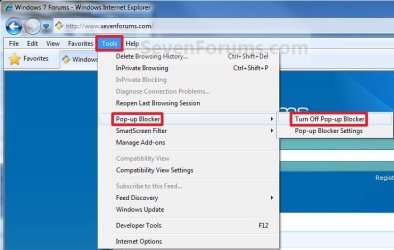
2. Click/tap on the Tools Menu Bar item. (See screenshot below)
OR
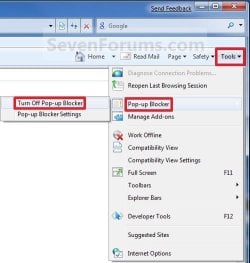
3. Click/tap on the Tools Command Bar icon button. (See screenshot below)
4. To Turn On Pop-up Blocker in Internet Explorer
NOTE: This is the default setting. A) Click/tap on Pop-up Blocker and Turn On Pop-Up Blocker. (See screenshot below step 2 or 3)
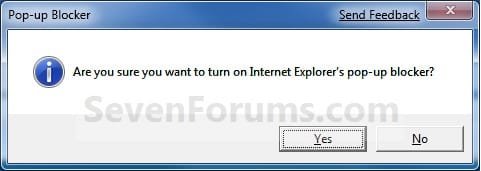
B) Click/tap on Yes to apply. (See screenshot below)
5. To Turn Off Pop-up Blocker in Internet Explorer A) Click/tap on Pop-up Blocker and Turn Off Pop-Up Blocker. (See screenshot below step 2 or 3)
B) Click/tap on Yes to apply. (See screenshot below)

OPTION TWO
Turn Pop-up Blocker On or Off in IE using Internet Options
NOTE: In Windows 8, this would only apply to the IE10 desktop version, and not the IE10 Metro (Windows UI) version.
OR
2. Open the Control Panel (icons view).
3. Click/tap on Internet Options.
4. Click/tap on the Privacy tab. (See screenshot below)

5. To Turn On Pop-up Blocker in Internet Explorer
NOTE: This is the default setting. A) Check/tap the Turn on Pop-up Blocker box. (See screenshot above)
B) Go to step 7.
6. To Turn Off Pop-up Blocker in Internet Explorer A) Uncheck the Turn on Pop-up Blocker box. (See screenshot below step 4)
7. Click/tap on OK. (See screenshot below step 4)
OPTION THREE
Turn Pop-up Blocker On or Off in IE using a REG File Download
NOTE: This is the default setting. A) Click/tap on the Download button below to download the file below, and go to step 3 below. Turn_On_Pop-up_Blocker_in_Internet_Explorer.reg
Download
2. To Turn Off Pop-up Blocker in Internet Explorer A) Click/tap on the Download button below to download the file below, and go to step 3 below. Turn_Off_Pop-up_Blocker_in_Internet_Explorer.reg
Download
3. Save the .reg file to the desktop.
4. Double click/tap on the downloaded .reg file to merge it.
5. When prompted, click/tap on Run, Yes (UAC-Windows 7) or Continue (UAC-Vista), Yes, and OK to approve merging the .reg file.
6. You can now delete the downloaded .reg file if you like.
That's it,
Shawn
Related Tutorials
- How to Allow Pop-ups from a Website in Internet Explorer
- How to Turn InPrivate Filtering On or Off in Internet Explorer 8
- How to Turn SmartScreen Filter On or Off in Internet Explorer
- How to Open an InPrivate Browsing Window in Internet Explorer
- How to Turn Protected Mode On or Off in Internet Explorer
- How to Turn On or Off Enhanced Protected Mode in IE10 and IE11
- How to Import and Export Pop-up Blocker Settings in Internet Explorer
- How to Turn "ActiveX Filtering" On or Off in IE9 and IE10
- How to Allow or Block Cookies in Internet Explorer in Vista and Windows 7
- How to Allow or Block Cookies in IE10 and IE11 in Windows 8 and 8.1
- How to Enable or Disable DOM Storage "Cookies" in Internet Explorer and Firefox
- How to Allow or Prevent Websites to Request Your Location in IE9, IE10, and Firefox
- How to Turn On or Off Location Sharing in IE10 and IE11 in Windows 8 and 8.1
- How to Turn the Cross-site Scripting (XSS) Filter On or Off in IE8 and IE9
Attachments
Last edited:


