Start Menu Context Menus and Dragging and Dropping - Disable or Enable

How to Disable or Enable Context Menus and Dragging and Dropping in the Start Menu

   Information
This will show you how to enable or disable the right click context menus and dragging and dropping in only your Windows 7 and Vista Start Menu.

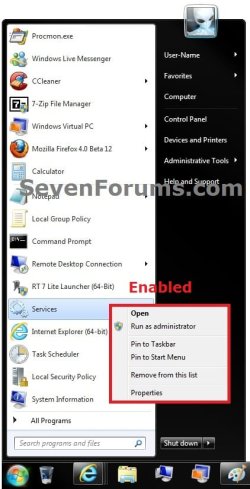
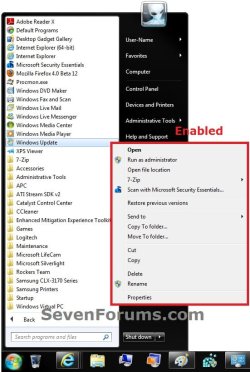
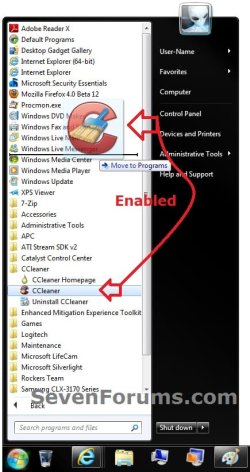
EXAMPLE: Start Menu "Context Menus" and "Dragging and Dropping" Enabled
Button_Context_Menus.jpgRecent_and_Pinned_Context_Menus.jpg
All_Programs_Context_Menus.jpgDrag_and_Drop.jpg


OPTION ONE

Using "Customize Start Menu" Properties Page


NOTE: This option will only affect the current user account that is logged in on your computer.
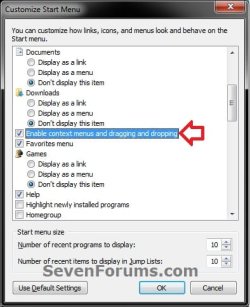
1. Open Customize Start Menu in the Start Menu properties page. (see screenshot below)
Step1.jpg
2. Enable Start Menu "Context Menus" and "Dragging and Dropping"
NOTE: This is the default setting.
A) Check the Enable context menus and dragging and dropping box, and click on OK. (see screenshot above)

B) Go to step 4.
3. Disable Start Menu "Context Menus" and "Dragging and Dropping"
NOTE: This is the default setting.
A) Uncheck the Enable context menus and dragging and dropping box, and click on OK. (see screenshot above)

B) Continue on to step 4.
4. Click on OK. (see screenshot below)
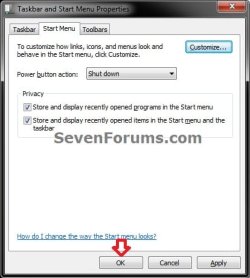
Step2.jpg


OPTION TWO

Using a REG File Download


1. Enable Start Menu "Context Menus" and "Dragging and Dropping" for All Users
NOTE: This is the default setting.
A) Click on the Download button below to download the file below.
Enable_All_Users_Start_Menu_Context_Menus_and_Dragging_and_Dropping.reg


Download


B) Go to step 4.
2. Disable Start Menu "Context Menus" and "Dragging and Dropping" for Only Current User
A) Click on the Download button below to download the file below.
Disable_Current_User_Start_Menu_Context_Menus_and_Dragging_and_Dropping.reg


Download


B) Go to step 4.
3. Disable Start Menu "Context Menus" and "Dragging and Dropping" for All Users
A) Click on the Download button below to download the file below.
Disable_All_Users_Start_Menu_Context_Menus_and_Dragging_and_Dropping.reg


Download


4. Click on Save, and save the .reg file to the desktop.

5. Right click on the downloaded .reg file and click on Merge.

6. Click on Run, Continue (UAC-Vista) or Yes (UAC-Windows 7), Yes, and OK when prompted.

7. Log off and log on, or restart the computer to fully apply.

8. When done, you can delete the downloaded .reg file if you like.


OPTION THREE

Through the Local Group Policy Editor


NOTE: This option will affect all users on the computer.
1. Open the all users, specific users or groups, or all users except administrators Local Group Policy Editor for how you want this policy applied.

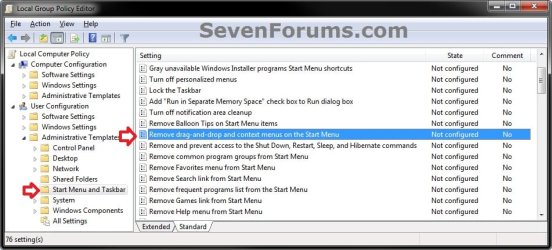
2. In the left pane, click on to expand User Configuration, Administrative Templates, Windows Components, and Start Menu and Taskbar. (see screenshot below)
GPEDIT-1.jpg
3. In the right pane, double click on Remove drag-and-drop and context menus on the Start Menu. (see screenshot above)

4. Enable Start Menu "Context Menus" and "Dragging and Dropping"
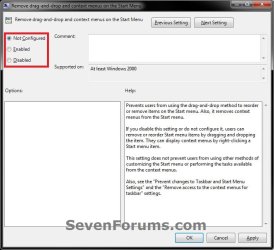
A) Select (dot) either Not Configured or Disabled, and click on OK. (see screenshot below)
NOTE: Not Configured is the default setting.
GPEDIT-2.jpg
B) Do step 2 in OPTION ONE.

C) Go to step 6.
5. Disable Start Menu "Context Menus" and "Dragging and Dropping
A) Select (dot) Enabled. (see screenshot below step 4A)
6. Close the Local Group Policy Editor window.
That's it,
Shawn


Attachments

Last edited:
Another nicely put together tutorial. :cool:

On a side note, what screen capture utility do you use? I have found no way as of yet to capture items such as the start menu with the snipping tool.
 

My Computer

Computer Manufacturer/Model Number
Samsung Chronos 7
OS
windows 7 Pro 64Bit
CPU
2.2 GHz Intel Core i7-2675QM
Memory
8GB
Graphics Card(s)
Intel HD Graphics 3000/Radeon HD 6490M
Sound Card
Realtek High Definition Audio
Monitor(s) Displays
Built in LCD and external Dell 22 inch LCD
Screen Resolution
1600x900
Hard Drives
1 TB HDD
Internet Speed
20 MBPS Down 1500 KBPS Up

My Computer

Computer type
PC/Desktop
Computer Manufacturer/Model Number
Self built custom
OS
64-bit Windows 11 Pro for Workstations
CPU
Intel i7-8700K OC'd to 5 GHz
Motherboard
ASUS ROG Maximus XI Formula Z390
Memory
64 GB (4x16GB) G.SKILL TridentZ RGB DDR4 3600 MHz
Graphics Card(s)
ASUS ROG-STRIX-GTX1080TI-O11G-GAMING
Sound Card
Integrated
Monitor(s) Displays
2 x Samsung Odyssey G7 27"
Screen Resolution
2560x1440
Hard Drives
1TB Samsung 990 PRO M.2,
4TB Samsung 990 PRO PRO M.2,
TerraMaster F8 SSD Plus NAS
PSU
Seasonic Prime Titanium 850W
Case
Thermaltake Core P3
Cooling
Corsair Hydro H115i
Keyboard
Logitech wireless K800
Mouse
Logitech MX Master 4
Internet Speed
2 Gb/s Download and 100 Mb/s Upload
Antivirus
Malwarebyte Anti-Malware Premium
Browser
Google Chrome
Other Info
Logitech Z625 speaker system,
Logitech BRIO 4K Pro webcam,
HP Color LaserJet Pro MFP M477fdn,
APC SMART-UPS RT 1000 XL - SURT1000XLI,
Galaxy S23 Plus phone

My Computer

Computer Manufacturer/Model Number
Samsung Chronos 7
OS
windows 7 Pro 64Bit
CPU
2.2 GHz Intel Core i7-2675QM
Memory
8GB
Graphics Card(s)
Intel HD Graphics 3000/Radeon HD 6490M
Sound Card
Realtek High Definition Audio
Monitor(s) Displays
Built in LCD and external Dell 22 inch LCD
Screen Resolution
1600x900
Hard Drives
1 TB HDD
Internet Speed
20 MBPS Down 1500 KBPS Up
Brink hi....This is a fantastic tutorial.. !!!!... I love it .
Thank you very much.. this should make it very easy for those of us who need drawing.. lol ( graphics) :)
 

My Computer

Computer type
Laptop
Computer Manufacturer/Model Number
Gateway 17.3" LCD Intel Dual-Core, 8GB RAM 1TB HDD Windows 8 Laptop
OS
Windows 8 - 64-bit
CPU
2.2GHz Intel Pentium dual-core B960 processor with 2MB L3 ca
Memory
8GB DDR3
Graphics Card(s)
Intel HD Graphics with 128MB of dedicated system memory
Monitor(s) Displays
17.3" Ultrabright HD widescreen LED-backlit LCD
Screen Resolution
1280 X 1024
Hard Drives
1TB hard drive-1000 GB HDD
DVD-Super Multi DL drive
PSU
Intel B960 processor
Case
XXXXX
Cooling
XXXXX
Keyboard
Multi Gesture Touchpad
Mouse
USB - portable mouse... I added this
Antivirus
Avast
Browser
I E 10
Other Info
I see nothing about Motherboard info.
I'm not sure about Sound Card
Ports :(3) USB 2.0, (1) HDMI, (1) VGA, (1) Headphone out, (1) Microphone in, (1) Ethernet LAN

•Fast Wi-Fi wireless and wired Gigabit Ethernet networking
•HDMI output
•Kensington lock slot
I have no idea what all this actually means
Thank you Nitroman. :)

I just used the PrtScn key along with Paint to create the screenshots.

http://www.sevenforums.com/tutorials/9717-screenshot-paint.html

Of course, it was right under my nose. No wonder I couldn't figure it out. Thanks for the tip.

LOL, those always seem to be the hardest ones to find. :D


Brink hi....This is a fantastic tutorial.. !!!!... I love it .
Thank you very much.. this should make it very easy for those of us who need drawing.. lol ( graphics) :)

You're most welcome LPT. Thank you. :)
 

My Computer

Computer type
PC/Desktop
Computer Manufacturer/Model Number
Self built custom
OS
64-bit Windows 11 Pro for Workstations
CPU
Intel i7-8700K OC'd to 5 GHz
Motherboard
ASUS ROG Maximus XI Formula Z390
Memory
64 GB (4x16GB) G.SKILL TridentZ RGB DDR4 3600 MHz
Graphics Card(s)
ASUS ROG-STRIX-GTX1080TI-O11G-GAMING
Sound Card
Integrated
Monitor(s) Displays
2 x Samsung Odyssey G7 27"
Screen Resolution
2560x1440
Hard Drives
1TB Samsung 990 PRO M.2,
4TB Samsung 990 PRO PRO M.2,
TerraMaster F8 SSD Plus NAS
PSU
Seasonic Prime Titanium 850W
Case
Thermaltake Core P3
Cooling
Corsair Hydro H115i
Keyboard
Logitech wireless K800
Mouse
Logitech MX Master 4
Internet Speed
2 Gb/s Download and 100 Mb/s Upload
Antivirus
Malwarebyte Anti-Malware Premium
Browser
Google Chrome
Other Info
Logitech Z625 speaker system,
Logitech BRIO 4K Pro webcam,
HP Color LaserJet Pro MFP M477fdn,
APC SMART-UPS RT 1000 XL - SURT1000XLI,
Galaxy S23 Plus phone
Back
Top