
A twist on Win 7 plus Win 7 dual boot

hypertexas

New member
My adventure is similar to merlincorp in his thread: "Win 7 plus Win 7 on 2 partitions?"

The biggest difference is that I want to stay with Dual Boot indefinitely.

I do a lot of beta testing and my plan is to create an image (Macrium Reflect) and periodically restore a "new" Win 7 partition to clean out "beta rot".

From the snap, here is how my Disks/Partitions lay out:
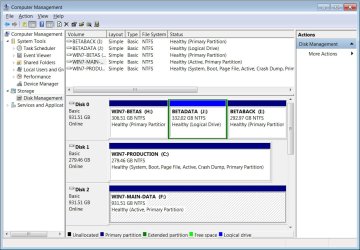
ComputerManagement-DiskManagement.jpg

Disk 1 is my existing Win 7 64-bit OS and will be the "default" boot option in my dual boot scenario.

Disk 2 is purely Data

Disk 0 is a virgin drive (no OS or Data yet) and is merely partitioned (not Active yet). This will be my second dual boot drive alternative. It is here that I want to install a second licensed copy of Win 7 Pro 64 bit on the Win7-Betas (H:) partition.

There is a partition labeled BetaBack (I:) which is where I intend to store an Image of Win7-Betas which I will use to periodically restore Win7-Betas (H:) from time to time.

Questions:

  1. I presume I should make my Disk 0 Win7-Betas partition "Active", right?
  2. I read about disconnecting the SATA cable from the existing Disk 1 before installing the "new" Win 7 to Disk 0. Is this applicable to my scenario? I'm hoping not, but what are the consequences one way or another?
  3. When I insert the Win 7 install DVD will it "discover" my existing Win 7 installation and ask me what I want to do? If I just tell it which Drive partition to install, will that suffice?
  4. During the usual install restarts, is there some built-in dual boot menu enabled automatically?
  5. During the customary restart process, does the install routine know *not* to boot my "old" Win 7? Or, is that why I should disconnect the old Win 7 SATA cable?
  6. How do I prevent inadvertently corrupting my existing Win 7 setup boot files which some folks seem to report?
  7. Do I need to mess with a "System Reserved" partition as described in merlincorp's thread or can I skip that step if it doesn't apply in my case?

Thanks so much guys for your incredible patience! I really learned a lot from that "Win 7 plus Win 7" thread and hope mine is as successful. :cool:

John Daigle
Evergreen, Colorado
 

My Computer

OS
Windows 7 64 bit
CPU
AMD Phenom II X3 2.8 GHz
Motherboard
ASUS
Memory
8 gig
Graphics Card(s)
Geforce
Hard Drives
WD Velociraptor
The cleanest way to Dual Boot with separate HD's is via the BIOS, setting the preferred HD to boot first in BIOS setup, then using the one-time BIOS Boot Menu key which on Asus' is F8 to boot the other HD when needed.

This keeps the HD's independent to come and go as you please, whereas a Windows-managed Dual Boot will interlock them by placing the boot files for both HD's on the first installed HD, requiring repair in order to remove the last-installed HD.

To achieve this, unplug the existing Win7 HD during install of new Win7, making sure it is set first to boot in BIOS setup. After install, plug back in the other OS HD, set preferred as first HD to boot, boot other using Asus' F8 BIOS Boot Menu key.

If this isn't to your liking, keep both HD's plugged in during install to let Win7 configure a Windows-managed Dual Boot, or later add EasyBCD 2.02 to primary Win7 to add the other to Boot menu.
 
Thanks for the quick reply!

So just to be clear:

  1. I could see rebooting to a different OS several times a day, so the term "one time" BIOS Boot Menu key is confusing. Probably not that difficult, but I've never used that and I guess I just need to look at it.
  2. "unplug the existing Win7 HD during install of new Win7, making sure it is set first to boot in BIOS setup." So, it refers to the existing Win7 HD, right?
Thanks again!
john
 

My Computer

OS
Windows 7 64 bit
CPU
AMD Phenom II X3 2.8 GHz
Motherboard
ASUS
Memory
8 gig
Graphics Card(s)
Geforce
Hard Drives
WD Velociraptor
If you are doing testing with an OS that might lead to a frequent restore, it makes no sense to do so with a multi-boot system. I'm not sure why so many people are avoiding a free solution to this very setup....virtualization. Why mess with boot records, boot orders, etc? Simplify.
 

My Computer

OS
Windows 7 Ultimate x64 SP1
CPU
Intel Core i7-2600
Motherboard
Gigabyte GA-P67A-UD3P-B3
Memory
12 GB Patriot Extreme DDR3-1333
Graphics Card(s)
Nvidia GTX 470
Monitor(s) Displays
Dell UltraSharp 2209WA
Hard Drives
OCZ Agility3 240 GB, WD5001AALS, WD7501AALS
PSU
OCZ ModStream 700W
Case
CoolerMaster HAF 912 Advanced
Cooling
CoolerMaster Hyper 212 Plus
Thanks for the quick reply!

So just to be clear:

  1. I could see rebooting to a different OS several times a day, so the term "one time" BIOS Boot Menu key is confusing. Probably not that difficult, but I've never used that and I guess I just need to look at it.
  2. "unplug the existing Win7 HD during install of new Win7, making sure it is set first to boot in BIOS setup." So, it refers to the existing Win7 HD, right?
Thanks again!
john

It is called "one-time" Boot Menu to differentiate it from BIOS setup Boot order. Other times it's referred to as BBS (Bios Boot Screen).

Unplug all but the HD being installed upon during install.
 
Are you planning to install by booting the dvd ?

Go ahead - just point the installer at your H partition.

That's all.

Restarts during installation will restart the o/s you in the midst of installing automatically - you will see a boot menu - top entry highlighted will reboot in 30 secs - if you can't be bothered waiting, just press enter.

When done , you will boot thru the same partition you are now - you will simply have another entry - allowing you to choose the existing, or new win7.

You might want to change the description on the boot menu - to see easily which is which - go to msconfig boot tab and sort that out in a couple of secs.

Piece of cake.

You could have done it by now.LOL
 

My Computers

System One System Two

  • Computer type
    PC/Desktop
    OS
    7 X64
    CPU
    i5 8400
    Motherboard
    gigabyte b365m ds3h
    Memory
    2x8gb 3200mhz
    Hard Drives
    various
    PSU
    pure power 11 400w cm
    Case
    Coolermaster
    Cooling
    cryorig m9i
  • Computer type
    PC/Desktop
    OS
    7x64
    CPU
    g5400
    Motherboard
    ga b365m ds3h
    Memory
    8gb ddr4 2400
    PSU
    xfx pro 450w
Thanks everyone! Works like a charm. Not one hiccup. I used the unplug HD trick. I'm using the BIOS one time boot menu approach rather than the Windows boot manager or EasyBCD at this point.
Thanks
john
 

My Computer

OS
Windows 7 64 bit
CPU
AMD Phenom II X3 2.8 GHz
Motherboard
ASUS
Memory
8 gig
Graphics Card(s)
Geforce
Hard Drives
WD Velociraptor
Back
Top