Removing Vista drive from a dual boot with Windows 7 on seperate drive

silps

New member
Local time
7:14 AM
Messages
1
Hi, I installed Windows 7 on a second hard drive (WD 500GB c) to create a dual boot with Vista (OS d). This has been working great and I have fully transferred over to Windows 7.

Now I want to remove the Vista drive (OS d) and format it to use for data only or in future purchase a larger capacity hd for data. I think my MBR is on the Vista drive so how can I do this safely and easily?

I have attached a screenshot from disc manager.
 

Attachments

  • Disc Management.JPG
    Disc Management.JPG
    119.6 KB · Views: 202

My Computer My Computer

At a glance

Windows 7 32bit
OS
Windows 7 32bit
Unplug Disk 0 , and then run http://www.sevenforums.com/tutorials/105541-startup-repair-run-3-separate-times.html . It will add the Windows 7 boot files in the WD 500 GB disk 1.

(But if you want to make the boot files in a separate partition (which is a usual situation with a clean install), you may see http://www.sevenforums.com/tutorials/119151-system-reserved-create-using-disk-management.html?ltr=S .)

Now you are able to Boot up windows 7 directly .... so you may easily format the Vista disk, if you want, either using the option three of the tutorial http://www.sevenforums.com/tutorials/93322-partition-wizard-use-bootable-cd.html?ltr=P , or http://www.sevenforums.com/tutorials/52129-disk-clean-clean-all-diskpart-command.html or http://www.sevenforums.com/tutorials/91339-ssd-hdd-optimize-windows-reinstallation.html .

Hope it helps .

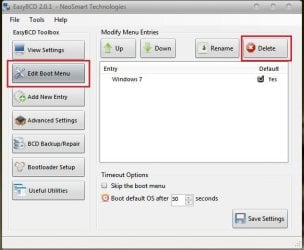
EDIT : If you dont want to format the vista drive, you will need to delete the windows 7 boot entry from it . Download and install EasyBCD , Click on the "Edit Boot Menu" button and Click on delete , and save .
Capture.JPG

Now , you can use the either OS using the boot menu key of your computer, selecting which disk is to boo up during start up the computer.
 

My Computer My Computer

At a glance

Microsoft Windows 10 Pro Insider Preview 64-bitIntel(R) Core(TM) i3-4130 CPU @ 3.40GHzCorsair Vengence 4GB x2 (8.00GB Dual-Channel ...2047MB GeForce GTS 450 (ZOTAC International)
Computer type
PC/Desktop
Computer Manufacturer/Model Number
Self Assembled
OS
Microsoft Windows 10 Pro Insider Preview 64-bit
CPU
Intel(R) Core(TM) i3-4130 CPU @ 3.40GHz
Motherboard
Gigabyte Technology Co., Ltd. B85M-D3H
Memory
Corsair Vengence 4GB x2 (8.00GB Dual-Channel DDR3 @ 798MHz)
Graphics Card(s)
2047MB GeForce GTS 450 (ZOTAC International)
Sound Card
Onboard (Realtek High Definition Audio)
Monitor(s) Displays
LG Flatron E2040T
Screen Resolution
1600x900
Hard Drives
Western Digital 1 TB
Seagate 500 GB
PSU
Corsair VS550
Case
Cooler Master K380
Cooling
Cooler Master Seidon 120V Plus
Keyboard
Logitech MK260r
Mouse
Logitech MK260r
Internet Speed
PMPL Broadband
Antivirus
Windows Defender + MBAM
Browser
Firefox
Other Info
Dell Studio 15" Laptop
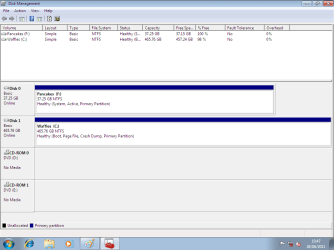
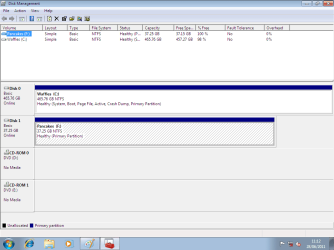
You must make the Windows 7 HD disk0 & Vista HD disk1, as below.

Move boot 001.png

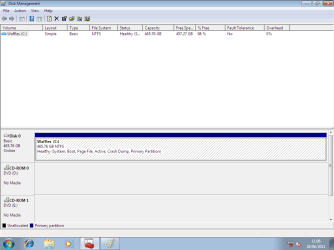
Do Startup Repair with only the Windiws 7 HD plugged in.
Move boot 002.png

Move boot 003.png
 

My Computer My Computer

At a glance

ME/XP/Vista/Win7
OS
ME/XP/Vista/Win7
  • Like
Reactions: Arc
Mark Win7 partition Active in Disk Management or using Diskpart from DVD: Partition - Mark as Active (Method Two)

Unplug Vista HD and swap its cable to Win7 HD, making sure Win7 HD is set first to boot in BIOS setup.

Boot the WIn7 DVD or Repair CD, accept any offered repair. If Win7 doesn't start boot back into repair to run Startup REpair up to 3 separate times with reboots until Win7 starts.

You can now plug Vista HD back into Disk1 slot to boot it using one-time BIOS Boot Menu key, wipe HD or delete partitions with Diskpart:
Clean and Clean All with Diskpart Command
DiskPart Command-Line Options
 
Back
Top