
How to Change the Product Key Number in Windows 7
Information
This will show you how to change the product key number in Windows 7 so that you can use another product key number to activate your Windows 7 with instead.
This can be helpful if you have entered the incorrect or no product key number during installation, or you just wanted to use a different product key number instead.
You must be logged in as an administrator to be able to change the product key number.
This can be helpful if you have entered the incorrect or no product key number during installation, or you just wanted to use a different product key number instead.
You must be logged in as an administrator to be able to change the product key number.
Note
You can only use a product key number for the same Windows 7 edition that you currently have installed. For example, you cannot change the product key number in Windows 7 Home Premium with a Windows 7 Ultimate product key number.
OPTION ONE
To Change Product Key Number in "Windows Activation" Wizard
1. Do step 2, 3, or 4 below for how you would like to open Windows Activation wizard.
2. Open an elevated command prompt, type the command below, and go to step 6 below.
slui.exe 3
3. Open the Control Panel (icons view), click on the System icon, and go to step 5 below.
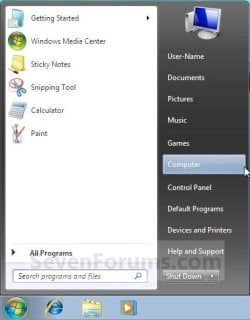
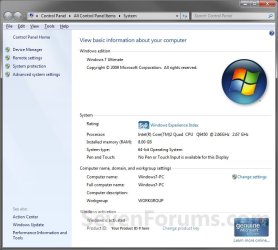
4. Open the Start Menu, right click on the Computer button, click on Properties, and go to step 5 below. (See screenshot below)
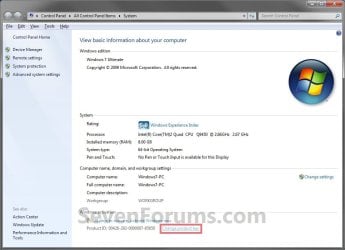
5. Under the Windows activation section at the bottom, click on the Change product key link. (See screenshot below)
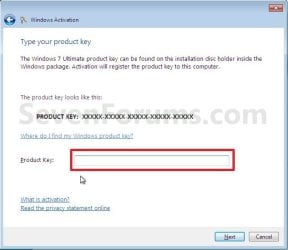
6. Type in your new valid Windows 7 product key number that you want to change it to, and click on the Next button. (See screenshot below)
7. If activation was successful, then click on the Close button. (See screenshot below)
Note
If the product key is found to be non-genuine, or not valid, it's likely that the product key is either being used on another computer or is counterfeit. For more information about genuine Windows, go to the genuine Windows website.
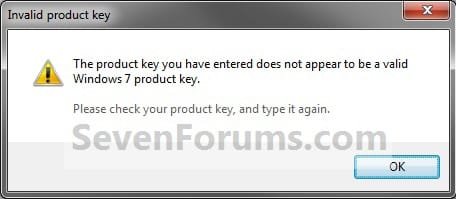
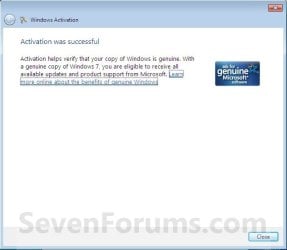
8. Windows 7 is now activated and genuine with the new product key number. (See screenshot below)
OPTION TWO
To Change Product Key Number in a Command Prompt
1. Open an elevated command prompt.
2. In the elevated command prompt, type in the command below and press enter.
NOTE: Substitute XXXXX-XXXXX-XXXXX-XXXXX-XXXXX in ths command below with your actual product key number with dashes instead.
slmgr.vbs /ipk XXXXX-XXXXX-XXXXX-XXXXX-XXXXX
3. In the elevated command prompt, type in the command below to activate your Windows 7 with this new product key number and press enter.
slmgr.vbs /ato
4. Close the elevated command prompt.
That's it,
Shawn
Related Tutorials
- How to Activate Windows 7 Online
- How to Activate Windows 7 by Phone
- How to Find and See the Windows 7 Product Key Number
- How to Uninstall the Product Key Number and Deactivate Vista, Windows 7, or Windows 8
- Windows Genuine and Activation Issue Posting Instructions
- How to Clear Product Key from Registry in Windows
Last edited:


