I installed Windows 7 on 2 different partitions and they both work fine, but I use one much more than the other. I was wondering if there was a way to have the computer boot to the preferred partition automatically, because as of now I have to keep choosing which is booted every time I start the computer.
Additional Information : My computer is a HP Compaq 8200 Elite Small Form Factor.
The easy way to do this is by downloading and installing EasyBCD from Download EasyBCD 2.1.1 - NeoSmart Technologies (don't let the "buy it" button distract you, you can download it for free at the bottom of the page).
EasyBCD manages the boot manager entries and allows you to choose an OS as the default boot option, decide whether you want the boot menu shown at all, and if yes, set how long it will wait for a user choice before booting to the selected default.
If you prefer not to download a third-party app and you're comfortable with using the bcdedit command in a DOS window, I'll be happy to help you along with that instead.
My Computer
At a glance
Windows 7 Professional SP1 32-bitIntel Core 2 Duo E6600 2.4GHz4GB DDR2-667 (4x1GB in dual-channel config)nVidia GeForce 9800 GT
Computer type
PC/Desktop
Computer Manufacturer/Model Number
Custom-built
OS
Windows 7 Professional SP1 32-bit
CPU
Intel Core 2 Duo E6600 2.4GHz
Motherboard
Asus PL5D2
Memory
4GB DDR2-667 (4x1GB in dual-channel config)
Graphics Card(s)
nVidia GeForce 9800 GT
Sound Card
Creative X-Fi XtremeMusic
Monitor(s) Displays
Acer P236H
Screen Resolution
1920x1200 (DVI)
Hard Drives
OCZ SSD Vertex Plus 60GB SATA (Firmware 3.55), 64MB cache
Hitachi HD321KJ SATA, 320GB, 7200rpm, 16MB cache
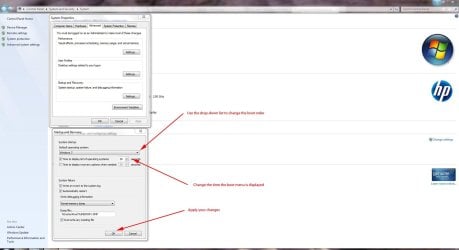
You can also change the boot order in System Properties.
Click the Settings button under Startup & Recovery in System Properties as shown below.
If you then want to edit the boot name for each operating system:
1.Boot into the first Windows 7 installation whose boot entry you wish to change. 2.Click Start. 3.Type cmd in the Search field. 4.Look under the Programs list, right-click cmd and choose Run as Administrator. 5.At the command prompt window type bcdedit to produce the boot text. 6.In the Windows Boot Loader section you will see the name for the current Windows 7 boot menu entry. 7.To change this boot menu entry for this installation of Windows 7, enter the following command: bcdedit /set description “boot menu text” where “boot menu text” is a description of your choosing e.g. “Windows 7 Professional”. 8.Press Enter to run the command. 9.Type Exit then press Enter to close the command prompt. 10.Close the Command Prompt Window. 11.Repeat steps 1 to 10 for each boot entry you wish to change.