
How to Change the Font on the Log On Screen in Windows 7
Information
This will show you how to change the font of specific items on the logon screen in Windows 7.
You must be logged in as an administrator to be able to do the steps in this tutorial.
You must be logged in as an administrator to be able to do the steps in this tutorial.
EXAMPLE: Log on screen

Here's How:
1. If you have not already, you will need to download and install Resource Hacker.
2. If you have not already, you will need to take ownership (Option Three at link) of and set permissions to "allow" the Administrators group "full control" of the authui.dll.mui file at the location below.
NOTE: If you do not have an English copy of Windows 7 installed, then you will need to open your language folder instead of en-US.
C:\Windows\System32\en-US\authui.dll.mui
3. Right click on the Resource Hacker shortcut, and click on Run as administrator.
4. If prompted by UAC, then click on Yes.
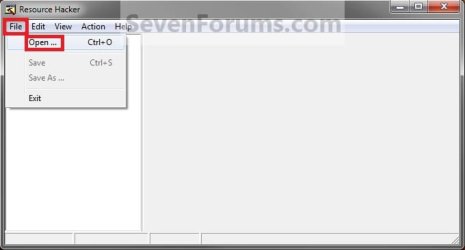
5. In Resource Hacker, click on File and Open. (see screenshot below)
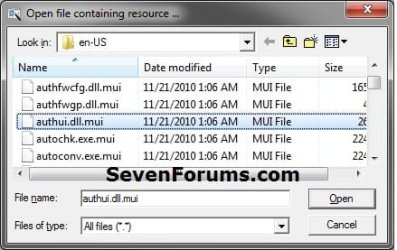
6. Select All files for "Files of type" at the bottom, navigate to and select the authui.dll.mui file below, and click on Open. (see screenshot below)
NOTE: If you do not have an English copy of Windows 7 installed, then you will need to open your language folder instead of en-US.
C:\Windows\System32\en-US\authui.dll.mui
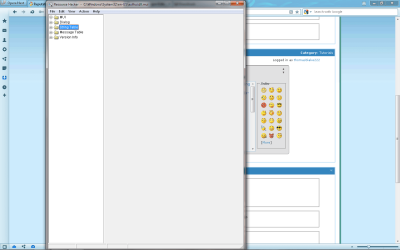
7. In the left pane of Resource Hacker, expand String Table, and 738, to 1033. (see screenshot below)
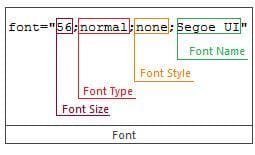
8. This is how the fonts work.
9. The numbers below in Resource Hacker represent the sentences used in Windows 7 log on screens. (see table and screenshot below)
11800|Message, Short Message, Label, Locked Sub Message, Small Text, LargeText
11801|Link, Label, Security Information, Command Links
11802|Label, Security Information, Command Links
11803|Message Caption, Connect Message
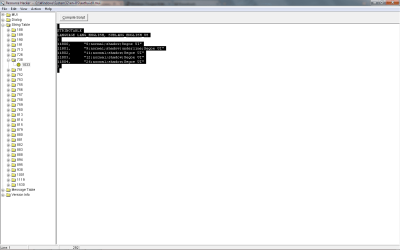
10. To edit one font, use the guide in step 8 to help. (see screenshot below)
NOTE: You can change any of the info like the size, the type, the style, and the font.
For example:
11800, "Size;type;style;Font name"
11800, "9;normal;shadow;Segoe UI"
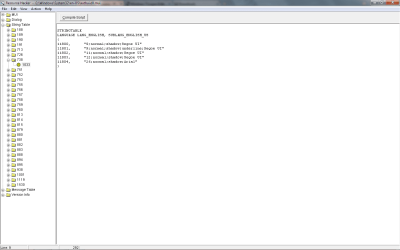
11. When finshed, click on the Compile Script button. (see screenshot below)
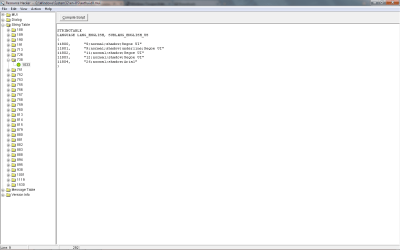
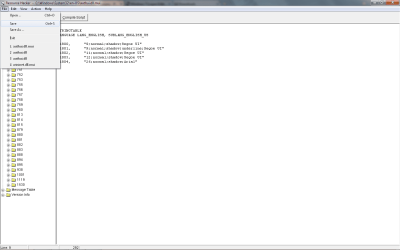
12. Click on File and Save, then close Resource Hacker. (see screenshot below)
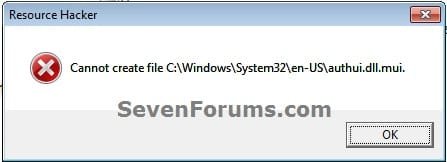
13. Rename the authui.dll.original.mui file at the location below to prevent getting the Resource Hacker error below at step 12 if you do this tutorial again in the future.
NOTE: If you do not have an English copy of Windows 7 installed, then you will need to open your language folder instead of en-US.
C:\Windows\System32\en-US\authui.dll.original.mui
Enjoy!
Related Tutorials
- How to Change the Windows 7 Log On Screen Text Shadow
- How to Change the Windows 7 Log On Screen Background
- How To Change or Remove the Windows 7 Log On Screen Text Branding
- How to Add or Remove Ease of Access Center from Windows 7 Log On Screen
- How to Display a Log on Screen Title and Text Message in Vista and Windows 7
- How to Fix Windows 7 Logon Screen Showing Only "Other User" and Last Logged On User Icon
- How to Change the Logon Screen Text Color in Vista and Windows 7
Attachments

Last edited by a moderator:


