Welcome to the Seven Forums, Tiffany.
Hopefully I will not swing the pendulum too far towards speaking simply and insult you

I'll call the software that you are using to get to these e-mail accounts a
browser. There are lots of browsers that you could be using and the instructions from clearing the temporary files (and cookies) vary from browser to browser. But don't worry, we can probably figure out what browser you are using.
For now, I'll assume that you are using a browser called Internet Explorer version 9 (IE9) to get to those e-mail accounts. If you happen to be using something other than IE9, then we can deal with that later.
Let's clear the files that hang around after you close your IE9.
Please take a look a the picture under step #3 in this document:
(You can click on each image to make it bigger.)
http://www.sevenforums.com/tutorials/162582-internet-explorer-9-delete-browsing-history.html
If the upper right corner of your browser looks like that, then please complete steps 3, 3a and 4 thu 7. You can make the check marks like those shown for step 4. After completing those steps - test the results:
Close IE9
Wait a few seconds.
Open IE9
Visit and sign into both e-mail accounts
(remember to check the "keep me signed in" option)
Close IE9
Wait a few seconds.
Open IE9
Visit and both e-mail accounts and see if you are still signed in.
If this does not fix the problem, then visit this document again:
http://www.sevenforums.com/tutorials/162582-internet-explorer-9-delete-browsing-history.html
Complete steps 3, 3a and 4 thru 7.
But this time, uncheck the first option in the image shown for step 4.
If you do not see a little gear icon in the upper right corner of your browser, then you might be using a browser called Internet Explorer version 8 (IE8). The top part of IE8 might look something like this:
(Again, you can click on each image to make it bigger.)

If you press the key on your keyboard labeled "Alt" - you should see a menu appear like this:
(Sometimes that menu is set to always show.)
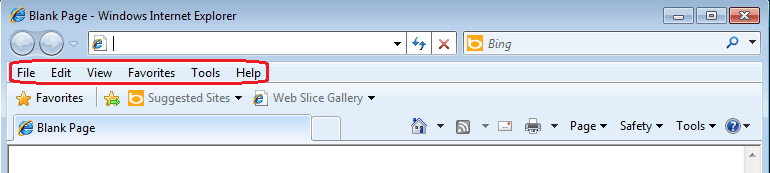
The goal is to get to and click on the menu option named "Tools" and then select "Internet Options"
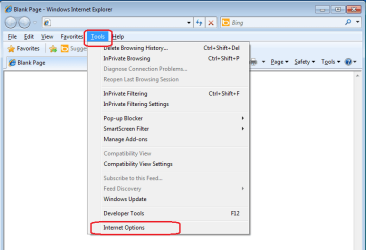
From there, the steps for clearing the temporary files are pretty much the same as detailed in the document that I linked to for IE9. The testing steps are the same too.
Let me know if your browser does not look like IE9 or IE8 - or if these steps failed to fix the issue.
It would also be helpful to know what antivirus software you are using. If you know, please let us know.



