Complete address to properties of photos

Dick Sell

New member
Local time
1:37 PM
Messages
4
I'm trying to get the complete address to photos. All I get is not complete and I'm finding it impossible to find some photos which have very long addresses.
 

My Computer My Computer

OS
Wnidows 7 Home Premium
Can you please let us know more information, I don't really understand your post?.

Are you wanting to know, how to find out the full file name and extension?.
 

My Computer My Computer

Computer Manufacturer/Model Number
Cooler Master
OS
Windows 7 Home Premium 64 Bit
CPU
Core I7 1155 3.4GHZ
Memory
8GB DDR 1600
Hard Drives
64 GB SSD - OS
1TB - DATA
PSU
340 Watt Corsair
Case
Cooler Master
Cooling
Cooler Master
I'm trying to find a photo with the name DSCN0190. I open the start window and in the search box I type DSCN0190. It finds the photo so I click on properties to get the address. It gives me:
C:\Users\Desktop\External HDD data backup ---- that's all the space there is for the address. But it's not all of the address, quite a bit is missing. How can I get the complete address?
 

My Computer My Computer

OS
Wnidows 7 Home Premium
Hi Dick.

Two ways to do this, the easy one and a bit more complicated ;).

The complicated one is what you are trying to do. It can be done but needs a steady hand with the mouse. First put cursor in the beginning of the file path (path = the address or location of a file or folder) in Properties window, press left mouse button and start dragging to right to select path:
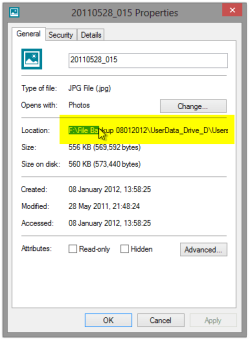
20110528_015 Properties.png

When your mouse pointer reaches the right border of the Properties window, just keep dragging and you'll notice the path starts scrolling to the left revealing the rest of it, continuing to the end of line. When there, release the left mouse button, right click the selected path to open context menu and select Copy:
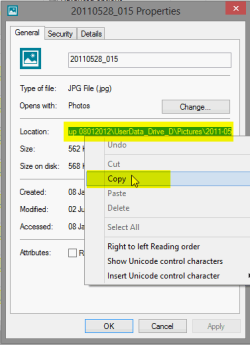
20110528_015 Properties_2.png

This copies the path with you can then paste to Windows Explorer:
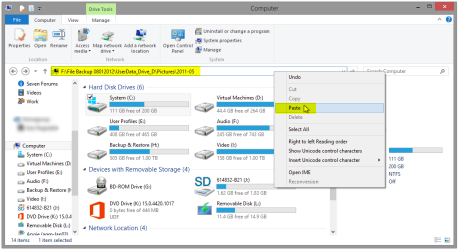
20110528_015 Properties_4.png

And the easy way: Right click the file in your search results to open context menu, select Open file location. This opens the folder where the file is located:
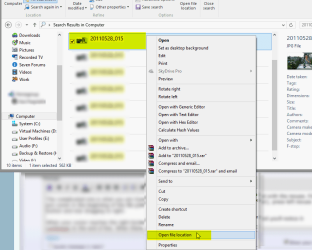
20110528_015 Properties_3.png
(Notice please your context menu might not look like the one in screenshot above, but the Open file location selection will be there!)

Kari

 
Last edited:

My Computer My Computer

Computer type
Laptop
Computer Manufacturer/Model Number
HP ENVY 17-1150eg
OS
Windows 10 Pro x64 EN-GB
CPU
1.6 GHz Intel Core i7-720QM Processor
Memory
6 GB
Graphics Card(s)
ATI Mobility Radeon HD 5850 Graphics
Sound Card
Beats sound system with integrated subwoofer
Monitor(s) Displays
17" laptop display, 22" LED and 32" Full HD TV through HDMI
Screen Resolution
1600*900 (1), 1920*1080 (2&3)
Hard Drives
Internal: 2 x 500 GB SATA Hard Disk Drive 7200 rpm
External: 2TB for backups, 3TB USB3 network drive for media
Cooling
As Envy runs a bit warm, I have it on a Cooler Master pad
Keyboard
Logitech diNovo Media Desktop Laser (bluetooth)
Mouse
Logitech Performance Mouse MX
Internet Speed
50/10 Mbps VDSL
Antivirus
Windows Defender 4.3.9431.0
Browser
Maxthon 3.5.2., IE11
Back
Top