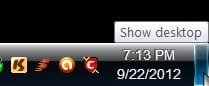
how to pin show desktop to the taskbar in windows 7 ?

NICK ADSL UK

MS MVP Consumer Security
Guru
Local time
10:03 AM
Messages
163
Location
London/Gatwick
It has come to my attention that there are many folk who wish to to be able to pin the desktop to the task bar to the left of there computer using windows 7 ?
For those of you who wish to do this there is a small utility available for you to do so.
As it stands at the moment the show /peek at the desktop is to the far right of the computer
As i say this unity will position back to the left hand side of your computer just like as in xp/vista
There are many tutorials going around on how to achieve this manually with various degree's of success and having evaluated on what's happening in many forums i felt it was time to put everyone out of there misery and post this link :D
enjoy

Green Point Software UK Ltd - Home of CD Box Labeler Pro and Image Converter Pro

I am aware of a tutorial on this subject but feel there may be some struggling so if anyone else gets stuck we have the link here :D

http://www.sevenforums.com/tutorials/26379-show-desktop-icon-taskbar.html
 
Last edited by a moderator:

My Computer My Computer

At a glance

windows 72.666GBATI
Computer Manufacturer/Model Number
acer 7720
OS
windows 7
CPU
2.66
Motherboard
intel
Memory
6GB
Graphics Card(s)
ATI
Sound Card
REALTEK
Monitor(s) Displays
SAMSUNG
Screen Resolution
1680 x 1050
Hard Drives
WD X 3 TB
PSU
1200
Case
ACER
Cooling
FAN
Keyboard
LOGITECH
Mouse
LOGITECH
Internet Speed
8MB
Thanks for the tip Nick... ;)
 

My Computer My Computer

At a glance

64-bit Windows 8.1 ProCore(TM) i5 CPU 4330 Haswell @ 3.20GHz12.00 GBIntel(R) HD Graphics
Computer type
PC/Desktop
Computer Manufacturer/Model Number
LENOVO K450 @3.0GHZ
OS
64-bit Windows 8.1 Pro
CPU
Core(TM) i5 CPU 4330 Haswell @ 3.20GHz
Motherboard
LENOVO
Memory
12.00 GB
Graphics Card(s)
Intel(R) HD Graphics
Sound Card
Intel HD integtrated
Monitor(s) Displays
HP 25' ISP Monitor
Screen Resolution
1900/1020
Hard Drives
(1) ST1000DM003-1CH162 (2) Generic STORAGE DEVICE USB Device (3) Generic STORAGE DEVICE USB Device
Internet Speed
100mb down/10mb up
Great Find. +rep.
 

My Computer My Computer

At a glance

Windows® 8 Pro (64-bit)Intel® Core™ i5 Processor 2467M (1.60GHz, 3MB...6GB DDR3 System Memory at 1,333MHz (on BD 4GB...AMD Radeon™ HD7550M 1GB DDR3 (Ext. Graphic)
Computer Manufacturer/Model Number
Samsung NP530U4B-S02IN
OS
Windows® 8 Pro (64-bit)
CPU
Intel® Core™ i5 Processor 2467M (1.60GHz, 3MB L3 Cache)
Motherboard
Samsung Electronics
Memory
6GB DDR3 System Memory at 1,333MHz (on BD 4GB + 2GB x 1)
Graphics Card(s)
AMD Radeon™ HD7550M 1GB DDR3 (Ext. Graphic)
Sound Card
Realtek High Definition Audio
Monitor(s) Displays
35.56cm (14.0) SuperBright 300nit HD LED Display
Screen Resolution
1366x768
Hard Drives
1TB S-ATA II Hard Drive (5400RPM) with ExpressCache 16GB SSD
Internet Speed
sucks
Antivirus
Microsoft Security Essentials
Browser
Google Chrome (Sync enabled)
Nice tip Nick, thanks :D
 

My Computer My Computer

At a glance

Windows 7 Ultimate x64AMD Sempron Dual Core3GBNVIDIA GeForce 6150SE nForce 430
Computer Manufacturer/Model Number
Compaq Desktop
OS
Windows 7 Ultimate x64
CPU
AMD Sempron Dual Core
Memory
3GB
Graphics Card(s)
NVIDIA GeForce 6150SE nForce 430
Screen Resolution
1024x768
Hard Drives
150GB Sata
Nice little application, Thanks. Think this should had been posted under "Customization."

Also, "Welcome to the Seven Forums." :thumbsup:
 

My Computer My Computer

At a glance

Win 7 Pro x64, VM Win XP, Win7 Pro Sandbox, K...AMD Athlon(tm) II X4 640 @ 3.0 Gbz12GB 1066MHz DDR3 SDRAM - 2x4GB, 2x2GBATI Radeon HD 4350 HD Graphics/Audio with 512MB
Computer Manufacturer/Model Number
HP Pavilion a4302f
OS
Win 7 Pro x64, VM Win XP, Win7 Pro Sandbox, Kubuntu 11
CPU
AMD Athlon(tm) II X4 640 @ 3.0 Gbz
Memory
12GB 1066MHz DDR3 SDRAM - 2x4GB, 2x2GB
Graphics Card(s)
ATI Radeon HD 4350 HD Graphics/Audio with 512MB
Sound Card
Realtek High Definition Audio
Monitor(s) Displays
1. Dell 23" SP2307, 2. Mitsublishi 40" HDTV, Hannspree 25"
Screen Resolution
1. 2048x1152, 2. 1920-1080, 3. 1920x1200
Hard Drives
Int: 1 120 Gig SSD i
1 - 2.5" 500 USB External HDD
1 -1 Tb USB External HDD
Case
Mid Tower
Cooling
Standard Fans - 5 fans (very quiet)
Keyboard
Microsoft Wireless 2000
Mouse
Microsoft Wireless Mouse 5000
Internet Speed
10 Mbit (realistically 500 Kbit - 1.2 Mbit)
Other Info
Speakers - Bose Desktop (Excellent Sound)
1 external CD|DVD\Blue-ray Recorders/Players (Sony)
your very welcome guys and nice to be here :)
 

My Computer My Computer

At a glance

windows 72.666GBATI
Computer Manufacturer/Model Number
acer 7720
OS
windows 7
CPU
2.66
Motherboard
intel
Memory
6GB
Graphics Card(s)
ATI
Sound Card
REALTEK
Monitor(s) Displays
SAMSUNG
Screen Resolution
1680 x 1050
Hard Drives
WD X 3 TB
PSU
1200
Case
ACER
Cooling
FAN
Keyboard
LOGITECH
Mouse
LOGITECH
Internet Speed
8MB
additional help needed

I am helping someone with Windows 7, although I use Windows XP 2002 SP3. On my computer, I've pinned "show desktop" icon to my task bar, which helps as provide instant privacy. No matter what I'm working on, I click the "show desktop" icon and all the person walking up sees is my desktop screen.

When I put the "show desktop" icon, following directions offered here (which were clear and correct and helpful!), clicking on the icon does NOT clear the screen and show the desktop.

Does anyone have advise as to what I can do to add this level of privacy on the Windows 7 machine?

Thank you.
 

My Computer My Computer

At a glance

Windows XP 2002 service pack 3
OS
Windows XP 2002 service pack 3
Welcome to Seven Forums Borza. Would a keyboard shortcut be as fast?

Win key (the key with the windows flag)+D

Or, just click on the show desktop button in lower left

Hide.jpg

The program in the original post only moves it to the left.

A Guy
 

My Computer My Computer

At a glance

Windows 10 Home x64INTEL Core i5-750 Quad-Core 3.37GHzHyperX Fury Black Series 8GB (2 x 4GB) 1866MhzEVGA GeForce GTX 750 Superclocked 1GB 128-Bit...
Computer type
PC/Desktop
OS
Windows 10 Home x64
CPU
INTEL Core i5-750 Quad-Core 3.37GHz
Motherboard
ASUS P7P55D
Memory
HyperX Fury Black Series 8GB (2 x 4GB) 1866Mhz
Graphics Card(s)
EVGA GeForce GTX 750 Superclocked 1GB 128-Bit GDDR5
Monitor(s) Displays
LG 32MA68HY 32" IPS
Screen Resolution
1920 x 1080
Hard Drives
Samsung 840 Evo 120GB, SEAGATE 500GB Barracuda® 7200.12, SATA 3 Gb/s, 7200 RPM, 16MB cache
PSU
ANTEC TruePower New TP-550, 80 PLUS, 550W
Case
ANTEC Three Hundred Illusion
Cooling
COOLER MASTER Hyper 212 Plus, 4 x 120mm 1 x 140mm Noctua's
Internet Speed
85 + Mbps
Antivirus
Avast
Browser
Vivaldi
I realize this is a rather old topic, but I found two variations that are rather interesting.

Variation #1

1. Using a notepad or text editor, create a script file with this content:
[Shell]
Command=2
IconFile=explorer.exe,3
[Taskbar]
Command=ToggleDesktop

2. Save it and name as "Desktop.scf".

3. Create a blank text file, then rename it "showdesktop.exe".

4. Create a new folder, under "documents" and call it whatever you wish (e.g. "custom").

5. Put that "showdesktop.exe" and "Desktop.scf" files in the new folder.

5. Now on the bottom task bar, right mouse click and select "Toolbars", then "New toolbar", and select the folder you just made. Also select to "unlock" the task bar.

6. The content of that folder, "showdesktop.exe", will appear as an icon when you click the ">>" to open. Select its properties and then change it to "Desktop.scf", preserving the proper path to it.

7. For the properties of this toolbar, uncheck the Show Text and Show Title. The show desktop shortcut icon will show now by default.

8. You can move this toolbar to the left of the pinned task bar icons and you're done.


Variation #2

You can simply go and get the Quick Launch toolbar. It's on your system as it was on Vista, just tucked away out of sight.

1. Right click on the taskbar, select "Toolbars" and then "New Toolbar".

2. For the folder, refer to the following path:
C:\Users\[username]\AppData\Roaming\Microsoft\Internet Explorer\Quick Launch. It will now appear on your task bar.

3. Right mouse click this new toolbar and uncheck "show text" and "show title".

4. You can now move this to the far left and you've got your Quick Launch back, complete with "Show Desktop" and "Switch between windows" shortcuts. You can customize it as you wish, of course. The only real drawback with the Quick Launch is that it doesn't highlight the shortcut when the application is active, as the pinned icons do.


While Microsoft introduced an interesting variation putting the Aero "show/peek desktop" button on the far right, it's idiotic that it wasn't put immediately to the left of the Start Menu, where your mouse cursor travels to most frequently. Tossing it to the far right means frequent left-right screen edge travel. Why make the user work harder? Nuts.

Also, the pinned task bar icons have too much space around them even when selected for the "small" size. The Quick Launch icons appear nicely compact. If the pinned icons appeared this way, there really wouldn't be a need to restore the Quick Launch.
 

My Computer My Computer

At a glance

Windows 7 Home Premium x64AMD Vision A8-3500M 4 Core8GbAMD Radeon HD 6620G
Computer type
Laptop
Computer Manufacturer/Model Number
HP Pavillion dv6 (dv6-6165dx)
OS
Windows 7 Home Premium x64
CPU
AMD Vision A8-3500M 4 Core
Motherboard
AMD
Memory
8Gb
Graphics Card(s)
AMD Radeon HD 6620G
Screen Resolution
1366x768
Hard Drives
Hitachi Travelstar 500Gb
Internet Speed
Realtek RTL8188CE 802.11b/g/n
Back
Top