Can Backup and Restore save to a subdirectory on an external drive?

delerious

New member
Local time
5:06 PM
Messages
26
I have multiple computers that I want to backup - a Windows 2000 computer, a Windows XP computer, and a Windows 7 computer. I have one external hard drive that I want to use for all 3 computers.

I would like to have 3 subdirectories on the external hard drive - one subdirectory for each computer's backups. I am going to use a third-party backup program for the Windows 2000 and XP machines, and I know that it can backup to a subdirectory on an external drive.

But I'm thinking about using Backup and Restore to backup my Windows 7 machine. Is it possible to tell Backup and Restore to store its backups within a subdirectory on the external drive, so that it doesn't affect the Windows 2000 and XP subdirectories? Or will it take over the entire external hard drive?
 

My Computer My Computer

At a glance

Windows 7 Ultimate x64
OS
Windows 7 Ultimate x64
Hi Delerious, welcome to the Seven Forums.

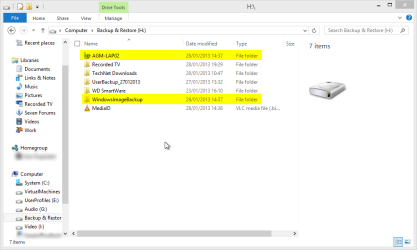
You get partly what you want to using native tools, Windows Backup & Restore creates independent folders for each computer using computer name. I just reinstalled Windows to this laptop today, the highlighted folders were created by system when doing initial backup after everything was installed.

Backup_Folders_1.png

You can't put these main folders, backup and image, into another folder. System creates them and does not let you to modify the path. Backup folders are located on root and named with PC's actual name, system images are located in image folder's subfolders with PC name.

Kari
 

My Computer My Computer

At a glance

Windows 10 Pro x64 EN-GB1.6 GHz Intel Core i7-720QM Processor6 GBATI Mobility Radeon HD 5850 Graphics
Computer type
Laptop
Computer Manufacturer/Model Number
HP ENVY 17-1150eg
OS
Windows 10 Pro x64 EN-GB
CPU
1.6 GHz Intel Core i7-720QM Processor
Memory
6 GB
Graphics Card(s)
ATI Mobility Radeon HD 5850 Graphics
Sound Card
Beats sound system with integrated subwoofer
Monitor(s) Displays
17" laptop display, 22" LED and 32" Full HD TV through HDMI
Screen Resolution
1600*900 (1), 1920*1080 (2&3)
Hard Drives
Internal: 2 x 500 GB SATA Hard Disk Drive 7200 rpm
External: 2TB for backups, 3TB USB3 network drive for media
Cooling
As Envy runs a bit warm, I have it on a Cooler Master pad
Keyboard
Logitech diNovo Media Desktop Laser (bluetooth)
Mouse
Logitech Performance Mouse MX
Internet Speed
50/10 Mbps VDSL
Antivirus
Windows Defender 4.3.9431.0
Browser
Maxthon 3.5.2., IE11
Thanks Kari, that's very helpful. So the backups are fully contained in a folder named after the Computer Name, and the system images are contained in a subdirectory of WindowsImageBackup named after the Computer Name, so neither of those will mess with any of the other files/folders on the external drive. That's good!
 

My Computer My Computer

At a glance

Windows 7 Ultimate x64
OS
Windows 7 Ultimate x64
Yes.

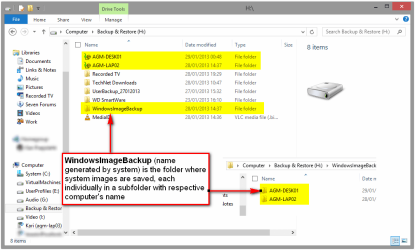
Just to clarify things, I did a full backup of another PC to same drive over network. See screenshot, it's quite self-explanatory:

Backup_Folders.png

Kari
 

My Computer My Computer

At a glance

Windows 10 Pro x64 EN-GB1.6 GHz Intel Core i7-720QM Processor6 GBATI Mobility Radeon HD 5850 Graphics
Computer type
Laptop
Computer Manufacturer/Model Number
HP ENVY 17-1150eg
OS
Windows 10 Pro x64 EN-GB
CPU
1.6 GHz Intel Core i7-720QM Processor
Memory
6 GB
Graphics Card(s)
ATI Mobility Radeon HD 5850 Graphics
Sound Card
Beats sound system with integrated subwoofer
Monitor(s) Displays
17" laptop display, 22" LED and 32" Full HD TV through HDMI
Screen Resolution
1600*900 (1), 1920*1080 (2&3)
Hard Drives
Internal: 2 x 500 GB SATA Hard Disk Drive 7200 rpm
External: 2TB for backups, 3TB USB3 network drive for media
Cooling
As Envy runs a bit warm, I have it on a Cooler Master pad
Keyboard
Logitech diNovo Media Desktop Laser (bluetooth)
Mouse
Logitech Performance Mouse MX
Internet Speed
50/10 Mbps VDSL
Antivirus
Windows Defender 4.3.9431.0
Browser
Maxthon 3.5.2., IE11
Noticed this thread at the bottom, listed as related posts; and while a bit aged, I was able to do what the OP was wanting. So I thought i would post in case it helps anyone else who happens upon it...
Instead of sharing the entire HDD, I shared a folder within in I called BACKUPS, inside of the folder I made a folder for each computer on my network (named accordingly, all of which are using various versions of Windows 7, and connected both via wireless and wired). During 'set up backup' process, I selected a 'save on a network', and directed it the folder I desired no problem. Now each folder only holds the contents for that computer, even the computer to which the hdd was attached.
 

My Computer My Computer

At a glance

Windows 7 Ultimate x64i3-32208GB DDR3 PC3-1600RADEON HD 7750 1GB
Computer type
PC/Desktop
Computer Manufacturer/Model Number
Custom Build
OS
Windows 7 Ultimate x64
CPU
i3-3220
Motherboard
ASUS Z-75 Pro
Memory
8GB DDR3 PC3-1600
Graphics Card(s)
RADEON HD 7750 1GB
Monitor(s) Displays
LG - LED Backlit IPS LCD
Screen Resolution
1920 x 1080
Hard Drives
Internal 2 TB
External 3 TB
Case
RAIDMAX Super Hurricane ATX-248NWU Black/Blue
Cooling
Coolermaster Hyper 212 EVO Cooling Fan
Internet Speed
FiOS
Antivirus
MSE
Browser
Chrome
Back
Top