Why aren't my USB Device Divers not working on my laptop?

MistaMonroe

New member
I have an HP G71 Notebook PC. Recently, some of my USB devices haven't been connecting because the drivers fail to download. It says they can't be found. I've tried to uninstall the driver in the Device Manager and plug it back in again to install it, and it does the same thing. Next to the drivers in the Device manager it has yellow caution signs saying something is wrong. It does this for my iPod Classic Generation 8 160GB and my WD My Passport 500GB External Hard Drive. It also is saying my CD driver has an error, and that won't work when I put a CD in it. Yet my mouse, printer and Gigaware 16GB pen drive work fine and there's nothing wrong with their drivers. I used them before this started happening, so i figured anything I used before now will continue to work, but anything new won't because the driver won't download. The devices work, I've tried them on another computer. Updating the drivers doesn't work either, I get the same error. I've also tried finding the drivers myself but I haven't had any luck. Any advice would be great, thank you!
 

My Computer

Computer Manufacturer/Model Number
HP G71 Notebook PC
OS
Windows 7 64bit
Hi Mista Monroe,

Welcome onboard.

The infcache.1 in C:Windows/System32/DriverStore might have been corrupted. Deleteing it and allowing Windows rebuild it may resolve the issue.

Do the following:

  1. Disconnect all USB devices except the keyboard and mouse. (Desktop only) (Remove all USB devices in a Laptop)
  2. Locate the INFCACHE.1 file in C:\Windows\System32\DriverStore , right click on it, and then click Properties.
  3. In the INFCACHE.1 Properties dialog box, click the Security tab, and then click Edit.
  4. In the User Account Control dialog box, click Continue.
  5. In the Permissions for INFCACHE.1 dialog box under the Group or user names section, click Add.
  6. In the Select Users or Groups dialog box in the Enter the object names to select text box, type Administrators, (plural) not just Administrator. Click OK.
  7. In the Permissions for INFCACHE.1 dialog box in the Permissions for Administrators section, select to allow Full Control, and then click OK.
  8. In the INFCACHE.1 Properties dialog box, click OK.
  9. In the Windows Explorer window, delete INFCACHE.1 (Instead of deleteing you can rename it as INFCACHE.1bak and keep it as a backup, just in case you need to go back.)
  10. Connect a USB device other than the one or all that Windows had trouble detecting. (That means that it has to be one that had not been connected to it earlier anytime.) This forces Windows to rebuild the INFCACHE.1 file.
This detection issue can happen several times in a row. If so, repeat steps 1-10 until the device is detected.
 

My Computer

OS
Windows 7 Home Premium 32 bit
Hi Mista Monroe,

Welcome onboard.

The infcache.1 in C:Windows/System32/DriverStore might have been corrupted. Deleteing it and allowing Windows rebuild it may resolve the issue.

Do the following:

  1. Disconnect all USB devices except the keyboard and mouse. (Desktop only) (Remove all USB devices in a Laptop)
  2. Locate the INFCACHE.1 file in C:\Windows\System32\DriverStore , right click on it, and then click Properties.
  3. In the INFCACHE.1 Properties dialog box, click the Security tab, and then click Edit.
  4. In the User Account Control dialog box, click Continue.
  5. In the Permissions for INFCACHE.1 dialog box under the Group or user names section, click Add.
  6. In the Select Users or Groups dialog box in the Enter the object names to select text box, type Administrators, (plural) not just Administrator. Click OK.
  7. In the Permissions for INFCACHE.1 dialog box in the Permissions for Administrators section, select to allow Full Control, and then click OK.
  8. In the INFCACHE.1 Properties dialog box, click OK.
  9. In the Windows Explorer window, delete INFCACHE.1 (Instead of deleteing you can rename it as INFCACHE.1bak and keep it as a backup, just in case you need to go back.)
  10. Connect a USB device other than the one or all that Windows had trouble detecting. (That means that it has to be one that had not been connected to it earlier anytime.) This forces Windows to rebuild the INFCACHE.1 file.
This detection issue can happen several times in a row. If so, repeat steps 1-10 until the device is detected.

Thank you, glad to be here. :D

Well I did everything as you told me, plugged in a new device and everything, but it didn't work. The INFCACHE.1 file was remade, but the driver still failed to install. I don't have any more devices that haven't been used or that I've attempted to use on this laptop though. :confused:
 

My Computer

Computer Manufacturer/Model Number
HP G71 Notebook PC
OS
Windows 7 64bit
OK, now try these two procedures to 1. wipe off all non-present storage volumes still held by Windows and 2. replace the drivers which Windows installs with fresh copies from its repository. After these two procedures, 3. repeat the infcache.1 rebuild. ( This time there is no need to plugin any new and hitherto not used USB device, since we have completely wiped off all previous history and drivers a confused Windows :) could bring in.)

1. Remove all non-present storage volumes:

Download drivecleanup.zip v 0.8.1 from Drive Tools for Windows. Unzip it to a folder, select the 32bit or 64bit drivecleanup.exe depending on your OS and copy it to the c > windows > system32 folder.

Shut down your Comp, Unplug all USB devices from your computer.( you may keep USB KB and mouse plugged)

Reboot.

On an elevated command prompt type drivecleanup.exe and Enter. After the
cleanup close the window.

Shut down your comp and reboot.

2. Replace the USB related files:

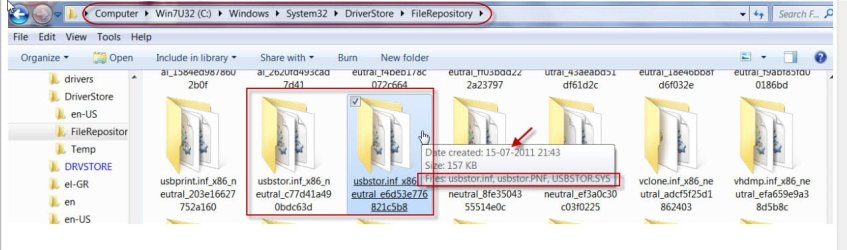
From the Windows FileRepository- as in the screenshot - locate and open the the USBStor folder with the latest date - if you find more than one

11-02-2013 09-19-45.jpg

Copy the usbstor.inf and usbstor.PNF files to C > Windows > inf and the USBSTOR.SYS to C > Windows > System32 > drivers.

Reboot your PC.


3. Rebuild infcache.1


As in post #2. ( no need to plug-in a hitherto unused USB device. You can plug in any USB device.)


If after this complete USB rebuild, the problem is not resolved a repair install, I would think, is the only option left.


http://www.sevenforums.com/tutorials/3413-repair-install.html

I hope you have made the recovery CDs for your machine.


Jai Ho! ( Let victory be yours. :))


My Computer

OS
Windows 7 Home Premium 32 bit
infcache.1...no security tab

Hi Mista Monroe,

Welcome onboard.

The infcache.1 in C:Windows/System32/DriverStore might have been corrupted. Deleteing it and allowing Windows rebuild it may resolve the issue.

Do the following:

  1. Disconnect all USB devices except the keyboard and mouse. (Desktop only) (Remove all USB devices in a Laptop)
  2. Locate the INFCACHE.1 file in C:\Windows\System32\DriverStore , right click on it, and then click Properties.
  3. In the INFCACHE.1 Properties dialog box, click the Security tab, and then click Edit.
  4. In the User Account Control dialog box, click Continue.
  5. In the Permissions for INFCACHE.1 dialog box under the Group or user names section, click Add.
  6. In the Select Users or Groups dialog box in the Enter the object names to select text box, type Administrators, (plural) not just Administrator. Click OK.
  7. In the Permissions for INFCACHE.1 dialog box in the Permissions for Administrators section, select to allow Full Control, and then click OK.
  8. In the INFCACHE.1 Properties dialog box, click OK.
  9. In the Windows Explorer window, delete INFCACHE.1 (Instead of deleteing you can rename it as INFCACHE.1bak and keep it as a backup, just in case you need to go back.)
  10. Connect a USB device other than the one or all that Windows had trouble detecting. (That means that it has to be one that had not been connected to it earlier anytime.) This forces Windows to rebuild the INFCACHE.1 file.
This detection issue can happen several times in a row. If so, repeat steps 1-10 until the device is detected.


Good day, I have an Acer Windows 7 Home Premium 64bit and there is no security tab for the infcache.1 file. I can't even rename it. Just so you know I am the administrator for this laptop. Is there a way to activate the security tab? Any help would be great.
 

My Computer

Computer type
Laptop
Computer Manufacturer/Model Number
Acer
OS
Windows 7 Home Premium 64 bit
CPU
Intel Core i5-460M processor
Memory
8 GB
pjafudge, in your case, I'd:

F5 after POST (upon powering up PC)

Take:

Boot into command prompt mode and rename from there. [might be able to do this in safe mode also]

CD is the change directory command and ren is for rename.

/? after them gives viable parameters to use.

ren oldname newname

Have never dealt with that before, but that is how I would go about dealing with renaming of locked files.

If by chance it's hidden:

attrib -h <filename here>

attrib /? will show others in case it requires more.
 

My Computer

Computer type
PC/Desktop
Computer Manufacturer/Model Number
Self Built Custom
OS
Windows 7 Ultimate Retail Box (64-bit installed) + Service Pack 1
CPU
AMD FX-8350 CPU v1.15 (or 1.0F) BIOS was required!
Motherboard
MSI 890FXA-GD70
Memory
8G CAS-7 G-Skill DDR3 @1333 (2 fours) [mobo nonOC max rec'd]
Graphics Card(s)
Radeon HD 7950 [3 gigs of GDDR5] MSI Twin Frozr model
Sound Card
Realtek High Definition Audio (onboard mobo, ALC-889 chip)
Monitor(s) Displays
2 WS LED Monitors: One LG One Viewsonic
Screen Resolution
1920 by 1080
Hard Drives
SSD for OS: Samsung 840 Pro
SSD for VM and utilities: Adata SX900
7200 RPM SATA HDs for the rest: Hitachi and Seagate
PSU
Corsair TX850 - 850W max, in service since August 2010.
Case
Thermaltake Armor A90
Cooling
Thermaltake Spin Q CPU Cooler, in service since August 2010
Keyboard
Logitech G11
Mouse
Logitech M310 Wireless
Internet Speed
100 Megabit broadband supposedly upgraded from 50 (Cable)
Antivirus
Bitdefender Internet Security 2014 suite
Browser
Pale Moon 64-bit main, also IceDragon, Opera, and Maxthon.
Other Info
CompTIA A+ certified (220-800 series) in July 2013.
Back
Top