
How to Restore Backup User and System Files in Windows 7
Information
If you used created a backup of your user and system files, then this will show you how to restore them in Windows 7.
You can restore backed-up versions of files that are lost, damaged, or changed accidentally. You also restore individual files, groups of files, or all of the files that you've backed up.
You can restore backed-up versions of files that are lost, damaged, or changed accidentally. You also restore individual files, groups of files, or all of the files that you've backed up.
Note
New backups are saved in this format:
drive letter:\computer name\Backup Set YYYY-MM-DD HHMMSS For example: If your computer name is Brink-PC, your backup location is on hard drive (network or local) F: , and you backed up on July 9th 2011 at 3:10:38 PM (it will use 24 hour time), then your backup would be located at:
F:\BRINK-PC\Backup Set 2011-07-09 151038
There will be a incremental Backup Files YYYY-MM-DD HHMMSS folder in the Backup Set... folder location above that contains ZIP folders each under 200MB in size. These ZIP folders contain the selected backed up files. If a file that you included to be backed up is larger 200MB then it will be automatically broken up into several pieces each under 200 MB to fit into multiple ZIP files. The pieces are combined back automatically when restored from the backup though.
drive letter:\computer name\Backup Set YYYY-MM-DD HHMMSS For example: If your computer name is Brink-PC, your backup location is on hard drive (network or local) F: , and you backed up on July 9th 2011 at 3:10:38 PM (it will use 24 hour time), then your backup would be located at:
F:\BRINK-PC\Backup Set 2011-07-09 151038
There will be a incremental Backup Files YYYY-MM-DD HHMMSS folder in the Backup Set... folder location above that contains ZIP folders each under 200MB in size. These ZIP folders contain the selected backed up files. If a file that you included to be backed up is larger 200MB then it will be automatically broken up into several pieces each under 200 MB to fit into multiple ZIP files. The pieces are combined back automatically when restored from the backup though.
OPTION ONE
Restore Backup from the Backup Drive

A) Click on either Restore.... option below. (see screenshot below)
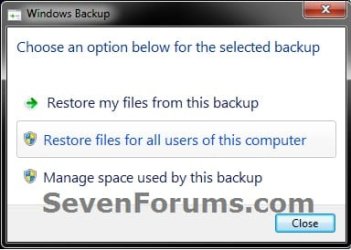
B) If prompted by UAC, then click on Yes.
C) Close the drive window, and go to step 7 below.
OPTION TWO
Restore Backup from "Backup and Restore"
3. Do either step 4, 5, or 6 below for which file(s) and/or folder(s) you would like to restore from a backup. (see screenshot below)
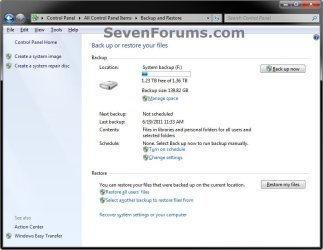
4. To Restore Your Files from Current Location A) Click on the Restore my files button. (see screenshot below step 3)
B) Go to step 7.
5. To Restore All Users' Files from Current Location A) Click on the Restore all users' files link. (see screenshot below step 3)
B) If prompted by UAC, then click on Yes.
C) Go to step 7.
6. To Restore another Backup from any Location A) Click on the Select another backup to restore files from link. (see screenshot below step 3)
B) If prompted by UAC, then click on Yes.
C) If you wanted to select a network backup location, then click on the Browse network location. (see screenshot below)
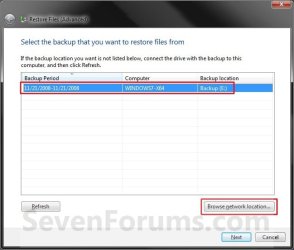
- Browse to and select a network backup location, then click on OK. (see screenshot below)

D) Select (highlight) an available Backup Period from the location you want, and click on the Next button.. (see screenshot below step 6C)
7. You will now see the Restore Files window. (see screenshots below)
NOTE: By default, all selected files below (steps 9, 10, 11, and 12) will be restored to the lastest version that was last backed up unless you choose a different date in step 9.
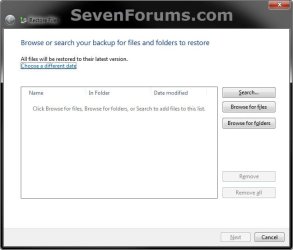
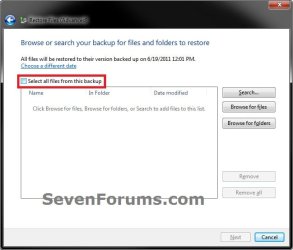
8. To Select All Files and Folders from the Backup
NOTE: This option will only be available if you did step 6 above. A) Check the Select all files from this backup box. (see right screenshot below step 7)
B) Click on Next, and go to step 14. (see screenshot below)

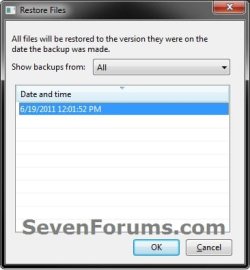
9. To Choose a Different Backup Period and Date
NOTE: All selected files below (steps 10, 11, and 12) will be restored to the version they were on the date the backup period you select was made. A) Click on the Choose a different date link. (see screenshots below step 7)
B) Select a Show backups from period, select a Date and time, then click on OK. (see screenshot below)
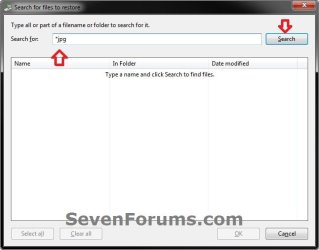
10. To Search For Contents of the Backup to Add Files to be Restored A) Click on the Search button. (see screenshots below step 7)
B) Type all or part of a file name, and then click Search. (see screenshot below)
Tip
- If you're searching for files or folders associated with a specific user account, you can improve search results by typing the location of the file or folder in the Search for box. For example, to search for all JPG files that were backed up, type JPG in the Search for box. To only search for JPG files associated with the user Bill, type C:\Users\Bill\JPG in the Search for box.
- You can use wildcard characters such as *.jpg to search for all JPG files that were backed up.
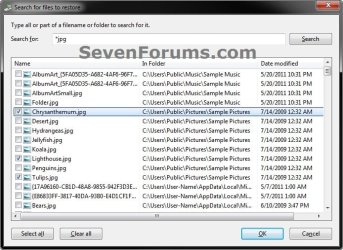
C) In the search results, check the boxes of the files you want to select to restore, and click on OK. (see screenshot below)
NOTE: This will add the selected files to the list of items to be restored (step 13).
11. To Add Backup Files to be Restored A) Click on the Browse for files button. (see screenshots below step 7)
B) Just like in Windows Explorer, navigate to and select a backup file that you want to restore from a backup location in the left navigation pane, then click on the Add files button. (see screenshot below)
NOTE: This will add the backup file to the list of items to be restored (step 13).
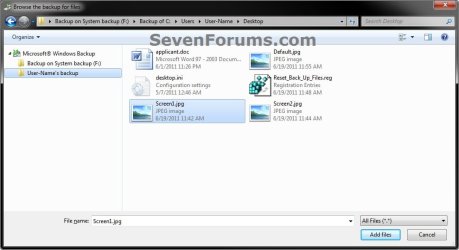
C) If you would like to add another backup file to be restored, then repeat step 10.
12. To Add Backup Folders to be Restored A) Click on the Browse for folders button. (see screenshots below step 7)
B) Just like in Windows Explorer, navigate to and select a backup folder that you want it and it's contents to be restored from a backup location in the left navigation pane, then click on the Add folder button. (see screenshot below)
NOTE: This will add the backup folder to the list of items to be restored (step 13).

C) If you would like to add another backup folder to be restored, then repeat step 11.
13. When finished selecting backed up files and folders to be restored, click on the Next button. (see screenshot below)
NOTE: If you change your mind about a listed file or folder to be restored, then you could select a item and click on Remove to not have it restored. Click on Remove all will remove all listed files and folders.
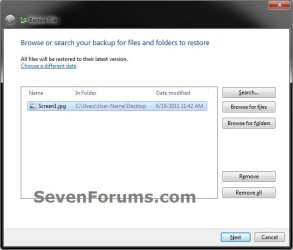
14. Select (dot) where you want to restore the backup files to, and click on the Restore button. (see screenshot below)
- In the original location - Restores the selected backup files and folders to their original location on the computer.
- In the following location - Allows you to restore the selected backup files and folders to a location of your choice instead. You have the choice of restoring the backup with it's subfolders and files or only the files in the backup to the selected location.
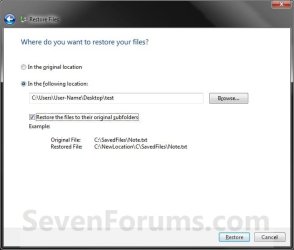
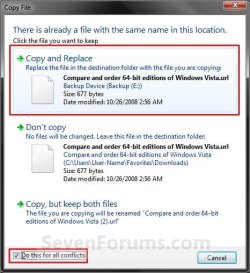
15. You will now see this window. (see screenshot below)
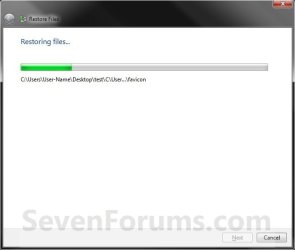
16. If you have existing copies of the selected backup files and folders at the restore location you have selected, then click on the Copy and Replace option. (see screenshot below)
NOTE: You will not see this pop-up if you do not have existing copies of the selected backup files and folders at the restore location.
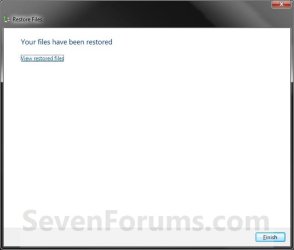
17. When it is finished restoring the backup, click on the Finish button. (see screenshot below)
18. When finished, you can close the Backup and Restore window. (see screenshot below step 3)
That's it,
Shawn
Related Tutorials
- How to Enable or Disable Restoring Backup Files in Windows 7
- How to Backup User and System Files in Windows 7
- How to Turn the Windows 7 Backup Files Schedule On or Off
- How to Delete Windows 7 User and System Backup Files
- How to Create a "Manage Windows Backup Disk Space" Shortcut in Windows 7
- How to Reset the Backup Files Configuration in Windows 7
- How to Do a System Image Recovery in Windows 7
- How to Enable or Disable to Backup Data Files in Windows 7
- How to Create a Windows 7 "Backup User and System Files" Shortcut
- How to Create a Windows 7 "Restore Backup User and System Files" Shortcut
- How to Create a "Restore Files from Selected Backup Location" Shortcut
- How to Create a System Recovery Shortcut in Windows 7
- How to Create a Windows 7 "Backup and Restore" Shortcut
- How to Restore Files and Folders in Windows 7 with Previous Versions
- How to Delete Windows 7 User Data and System Image Backup Files
- How to Manually Extract Files from a Backup in Vista and Windows 7
- How to Make a "Create Incremental Backup" Shortcut in Windows 7 and Vista
- How to Make a "Create New Backup" Shortcut in Windows 7 and Vista
Attachments


Last edited:

