Solved How to run .bat file in Windows 7?

theredmoose

New member
I was hoping someone could assist me with running a .bat file on Windows 7.

Previously, in WinXP I would run a .bat file from launchy to add a task to my remember the milk account. The .bat file was stored under C:\Program Files\Launchy\Utilities\Launchy Batch Plug-ins.

The problem is that the cmd window will pop up and disappear but nothing gets added to the rtm account.

Here is what I have tried:
1) Since ProgramFiles is a 'protected directory' I have moved the .bat file to the D drive. same problem
2) Tried to set the .bat file or the launchy.exe file to Run As Admin. .bat file is greyed out and launchy still gets the same problem
3) turned off windows defender service, same problem

Does anyone have any other ideas? Thanks for the help.
 

My Computer

OS
se7en
You may get an answer for an easier way to to this; but the following should work:

Open an elevated command prompt (run as administrator) the prompt will show C:\windows\system32> by default.

Change the directory to the directory where you have your batch file. You might find it easier if you move the batch file and the program file back to the C drive.

At the prompt, type the name of your .bat file and press Enter. It should run.
 

My Computer

Computer Manufacturer/Model Number
Home built
OS
Windows 7 Ultimate 32 bit
CPU
Intel(R) Pentium(R) 4 CPU 3.00GHz
Motherboard
ASUS P4P800-VM Motherboard Chipset: Intel 865G + ICH5
Memory
2.50 GB RAM
Graphics Card(s)
NVIDIA GeForce 7600 GS
Sound Card
SoundMax Integrated Digital Audio (Chip)
Monitor(s) Displays
ViewSonic VX 1962 wm
Screen Resolution
1680 X 1050
Hard Drives
Seagate Barracuda 7200.10 80 GB
ST380215A ATA Device 18.6 GB
Western Digital "My Book" external hard drive 750 GB
Cooling
Fan based
Keyboard
Microsoft Comfort Curve Keyboard 2000 v10 USB
Mouse
Logitec optic USB
Internet Speed
3.01 Mb/s download 0.64 Mb/s upload
If the .bat file has to do ANYTHING that would require administrative privaliges it will not run correctly at start up or when double clicked.

The only way to make it able to do administrative things is to right click on the Command Prompt icon in the start menu and click run as Administrator or to follow a tutorial like the one at Always Run a Batch File as an Administrator : Windows Vista and Windows 7 Help.

The other option is of course to make it so there are no administrative commands in the batch file.

Oli
 

My Computer

Computer Manufacturer/Model Number
Apple MacBook 5,1
OS
Windows 7 Profesional x86, Mac OS X 10.6 Snow Leopard
CPU
Intel Core 2 Duo 2.4Ghz
Memory
4GB DDR3
Graphics Card(s)
Nvidia 9400m
Monitor(s) Displays
13.3" Internal + 22" DVI + 21.5" USB
Screen Resolution
1280x800 + 1920x1080 + 1920x1080
Hard Drives
Internal SATA 2.5" 500GB (395GB Mac HFS+, 105GB Windows NTFS)
2.48TB RAID consisting of 5 disks (HFS+)
Case
Aluminium Unibody
Keyboard
Apple Late 2009 Wireless Keyboard (US)
Mouse
Apple Magic Mouse
Internet Speed
6.33Mb/s up. 0.36Mb/s down.
Other Info
Harman Kardon Soundsticks II Speakers
Hi guys, thanks for your quick reply but I may have not communicated correctly.

The bat file has to run when it is called from Launchy. An example scenario is as follows:


  1. I think of a new task while I am working on something else
  2. I hit alt space to bring up Launchy
  3. I type rtm> new task and hit return
  4. The batch file pops up runs and adds that new task to my Remember the Milk account.
I am not sure if the bat file contains administrator privilege commands but I am assuming yes because it calls a cmd prompt. Here is the code:

Code:
@echo off
cd c:\
cmd /c curl --basic --user myname:password --data status="d rtm %*" http://twitter.com/statuses/update.xml
Echo Exiting...

The batch file essentially sends a direct message via Twitter to the Remember the Milk friend on Twitter, and this adds it to the task list. I know that part is working because I tested it. It is the running of the .bat that is not working. It worked in XP but know something is stopping it from running.

Any ideas?

I turned off UAC (well put it down to never notify) and I tried the shortcut technique that oshalt mentioned but same response.
 

My Computer

OS
se7en
Hi guys, thanks for your quick reply but I may have not communicated correctly.

The bat file has to run when it is called from Launchy. An example scenario is as follows:


  1. I think of a new task while I am working on something else
  2. I hit alt space to bring up Launchy
  3. I type rtm> new task and hit return
  4. The batch file pops up runs and adds that new task to my Remember the Milk account.
I am not sure if the bat file contains administrator privilege commands but I am assuming yes because it calls a cmd prompt. Here is the code:

Code:
@echo off
cd c:\
cmd /c curl --basic --user myname:password --data status="d rtm %*" http://twitter.com/statuses/update.xml
Echo Exiting...

The batch file essentially sends a direct message via Twitter to the Remember the Milk friend on Twitter, and this adds it to the task list. I know that part is working because I tested it. It is the running of the .bat that is not working. It worked in XP but know something is stopping it from running.

Any ideas?

I turned off UAC (well put it down to never notify) and I tried the shortcut technique that oshalt mentioned but same response.


Is curl.exe in c:\ ? 'cause that's where your asking it to run from with the cd C:\ command at the beginning of the file. You should take that line out completely and put the batch file in the same folder as your curl.exe file.

Lets assume your Curl.exe is in c:\program files\launchie
Take out that first line... and put your RTM.BAT batch file in with it.
Next you can set launchie to find it there...
OR
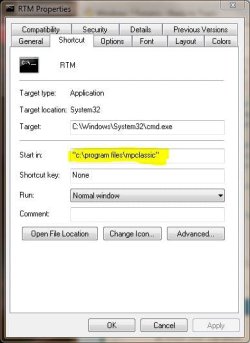
You can create a shortcut... Right click in the folder where you want the shortcut and select NEW -> Shortcut When asked for the location of the item enter CMD.exe and click next... It will ask for a name for the shortcut... call it say RTM...

Now go to the shortcut and right click it selecting properties... You will find this...

Capture.JPG

In the START IN bar type the name of the folder where you have your batch file...
As you can see in the example I've set it to C:\Program Files\MPClassic... If you're working from c:\program files\launchie... that's what you would put in yours.

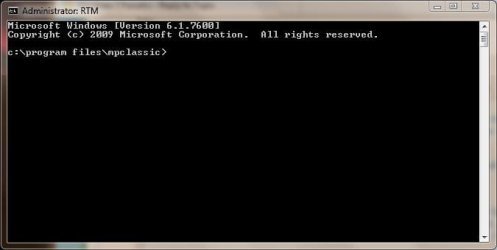
The result of this is that it will open a command prompt in the folder you specify...

Capture2.JPG

Now since this is the same folder as your batch file which is in the same folder as CURL.EXE your RTM Get Milk command is going to work. All you have to do is click the shortcut.
 

My Computer

Computer Manufacturer/Model Number
Homebrew
OS
XP Pro SP3 X86 / Win7 Pro X86
CPU
Amd 64 x2 4200 (2.4ghz)
Motherboard
Asus M2N-MX SE Plus
Memory
Kingston DDR2 800 2gb
Graphics Card(s)
Nvidia GF-8400
Sound Card
Realtek on Motherboard
Monitor(s) Displays
Acer x-193bw
Screen Resolution
1440 x 900
Hard Drives
Western Digital 500g
PSU
350watt In-Win
Case
In-Win
Cooling
Air
Keyboard
yes
Mouse
yes
Internet Speed
5mpbs
Other Info
Also ASRock ION 330 as HTPC (on XP).
Acer Aspire as GP netbook (on XP).
Thanks for all the help. In the end it was the location of the curl file not the permissions of running it. I ended up moving it all in the same folder as you suggested. Thanks.
 

My Computer

OS
se7en
Glad you have it working. Thanks for letting us know.
 

My Computer

Computer Manufacturer/Model Number
Home built
OS
Windows 7 Ultimate 32 bit
CPU
Intel(R) Pentium(R) 4 CPU 3.00GHz
Motherboard
ASUS P4P800-VM Motherboard Chipset: Intel 865G + ICH5
Memory
2.50 GB RAM
Graphics Card(s)
NVIDIA GeForce 7600 GS
Sound Card
SoundMax Integrated Digital Audio (Chip)
Monitor(s) Displays
ViewSonic VX 1962 wm
Screen Resolution
1680 X 1050
Hard Drives
Seagate Barracuda 7200.10 80 GB
ST380215A ATA Device 18.6 GB
Western Digital "My Book" external hard drive 750 GB
Cooling
Fan based
Keyboard
Microsoft Comfort Curve Keyboard 2000 v10 USB
Mouse
Logitec optic USB
Internet Speed
3.01 Mb/s download 0.64 Mb/s upload
CommonTater,

Sry for the necrobump but you were the first person I found that actually gave the right reason for this problem and the correct fix. After over an hour of googling, I had to create an account and tell you thanks. Hopefully others will find their way here as well.
 

My Computer

Computer Manufacturer/Model Number
Dell M6300, Toshiba A105-S4084, Dell Optiplex 270,
OS
Windows 7 Ultimate x64, Windows 7 Ultimate x86, Windows XP Pro x86
CPU
Intel T9300, Intel T2050, Intel P4-800
Graphics Card(s)
nVidia Quadro FX3600M, Intel GMA, Intel GMA
Sorry for the necrobump after 532 days. (I'm stealing the term used by fwdixon and will use it evermore!). I searched, just as Mr/Ms Dixon did, for a few hours trying to find the solution for this. Common Taters previous post #5 helped a lot. I'm probably less skilled and knowledgeable newbie than the original poster, theredmoose. I wanted to post more detailed how-to instructions for others like me.

I think this is a problem related to Launchy's operation on 64-bit Windows; I could get Launchy to do what I wanted on an older PC with 32-bit Windows 7.

My goal was to have Launchy run a batch file to append text to a text file. Why? So that while working on "Project A" I could quickly record thoughts unrelated to "Project A" in a way that didn't disrupt my workflow, such as opening another application or using pen and paper.

Here's what I did and it worked.

  1. Create the batch file in a location outside of the programs folders: the desktop, documents, etc. I'll use "MyDocs" in this explanation.
  2. Copy the batch file and paste a shortcut in the same MyDocs folder.
  3. Right-click on the shortcut and select properties.
    shortcutproperties.png
  4. Change the target to C:\Windows\System32\cmd.exe
  5. Change the "start in" location to the launch utilities folder. I used the default installation location: C:\Program Files (x86)\Launchy\Utilities
  6. Click the Advanced button
  7. Check the box "Run as Administrator"
  8. Okay your way out of the properties dialog.
  9. Copy the batch file and the shortcut to the Launchy Utilities folder. (I copied from MyDocs instead of moving. If I needed to change the .bat file, editing the .bat file in the Utitilies folder (a sub-sub of Program Fiels) didn't work well for me.)
  10. Open the Launchy options, click the catalog tab.
  11. Check "include executables"
  12. Add .bat and .lnk to the file types.
  13. Rescan the Launchy catalog.
 

Attachments

  • shortcut properties.png
    shortcut properties.png
    23.3 KB · Views: 77
  • utilities folder.png
    utilities folder.png
    9.3 KB · Views: 77
  • catalog - launchy4win7.png
    catalog - launchy4win7.png
    10.1 KB · Views: 76

My Computer

OS
Windows 7
A good approach is to create a C:\bin directory and a C:\scripts directory.

Put all your batch files in C:\scripts
Put all your binary files (i.e. curl.exe) in your bin folder.

Add C:\bin and C:\scripts to your path (in advanced settings of computer properties)

This way you can easily add scripts and binaries (e.g. unixtools, tifftools, putty, md5sums) to you bin folder and any scripts you write can be added to your scripts folder for easy access anywhere without having to worry about paths etc.
 

My Computer

Computer type
PC/Desktop
Computer Manufacturer/Model Number
hp xeon workstation
OS
win 7 64
Memory
20gb
A good approach is to create a C:\bin directory and a C:\scripts directory.

Put all your batch files in C:\scripts
Put all your binary files (i.e. curl.exe) in your bin folder.

Add C:\bin and C:\scripts to your path (in advanced settings of computer properties)

This way you can easily add scripts and binaries (e.g. unixtools, tifftools, putty, md5sums) to you bin folder and any scripts you write can be added to your scripts folder for easy access anywhere without having to worry about paths etc.

Bad idea and goes against best practices. You never want anything off the Root of C:. Microsoft even makes the security settings tighter on the root of C: for just that very thing. Create a D: drive and make all the directories you wish is better. -WS
 

My Computer

Computer type
PC/Desktop
Computer Manufacturer/Model Number
Dell OP7010
OS
Windows 7 Enterprise (x64); Windows Server 2008 R2 (x64)
Memory
16GB
Monitor(s) Displays
4 Dell 24" LCD
Screen Resolution
1280x1024
Keyboard
Dell
Mouse
Dell Optical
Internet Speed
40meg
Back
Top