
How to Import and Export Cookies in Internet Explorer
Information
Cookies are small text (.txt) files that websites put on your computer to store information about you and your preferences, such as your name, site login password, preferences, shopping cart info, and more.
This will show you how to import or export your cookies in Internet Explorer to use as a backup, or import into another computer or user account.
This will show you how to import or export your cookies in Internet Explorer to use as a backup, or import into another computer or user account.
Note
Each separate user account has their cookies stored in the hidden protected operating system folders below in their user folder.
Locations In Vista and Windows 7:
C:\Users\(User-Name)\AppData\Roaming\Microsoft\Windows\Cookies
AND
C:\Users\(User-Name)\AppData\Roaming\Microsoft\Windows\Cookies\Low
Locations In Windows 8 and 8.1:
C:\Users\(User-Name)\AppData\Roaming\Microsoft\Windows\INetCookies
AND
C:\Users\(User-Name)\AppData\Roaming\Microsoft\Windows\INetCookies\Low
Locations In Vista and Windows 7:
C:\Users\(User-Name)\AppData\Roaming\Microsoft\Windows\Cookies
AND
C:\Users\(User-Name)\AppData\Roaming\Microsoft\Windows\Cookies\Low
Locations In Windows 8 and 8.1:
C:\Users\(User-Name)\AppData\Roaming\Microsoft\Windows\INetCookies
AND
C:\Users\(User-Name)\AppData\Roaming\Microsoft\Windows\INetCookies\Low
OPTION ONE
To Export Cookies in Internet Explorer
1. Open Internet Explorer.
NOTE: This would need to be the desktop Internet Explorer in Windows 8/8.1, and not the modern IE.
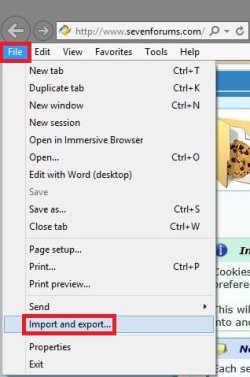
2. Click/tap on the Files (Alt+F) on the menu bar, and click/tap on Import and Export. (see screenshot below)
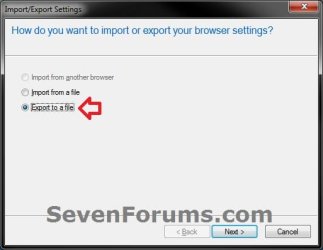
3. Select (dot) Export to a file, and click/tap on Next. (see screenshot below)
4. Check Cookies, and click/tap on Next. (see screenshot below)

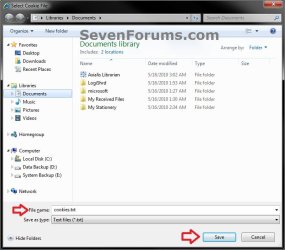
5. Browse to the location that you want to save the exported Cookies txt file to, type in a name (ex: cookies.txt) for the .txt file, click/tap on Save, and click/tap on Export. (see screenshots below)

6. Click/tap on Finish. (see screenshot below)

7. You can now use this exported cookie.txt file to select and import your cookies with.
OPTION TWO
To Import Cookies in Internet Explorer
NOTE: This would need to be the desktop Internet Explorer in Windows 8/8.1, and not the modern IE.
2. Click/tap on the Files (Alt+F) on the menu bar, and click/tap on Import and Export. (see screenshot below)
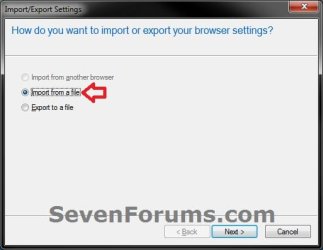
3. Select (dot) Import from a file, and click/tap on Next. (see screenshot below)
4. Check Cookies, and click/tap on Next. (see screenshot below)

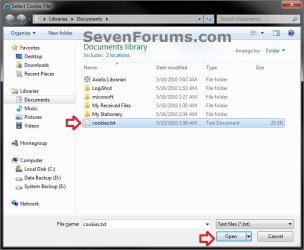
5. Browse to the location of the exported cookie.txt file that you want to import, select the .txt file, and click/tap on Open. (see screenshots below)

6. Click/tap on Finish. (see screenshot below)

That's it,
Shawn
Related Tutorials
- How to Delete Cookies in Windows 7 and Vista
- How to Allow or Block Cookies in Internet Explorer in Vista and Windows 7
- How to Allow or Block Cookies in IE10 and IE11 in Windows 8 and 8.1
- How to Import and Export Internet Explorer Cookies Per Site Privacy Actions
- How to Import and Export RSS Feeds in Internet Explorer
- How to Import and Export Favorites in Internet Explorer
- How to Import and Export Internet Explorer Pop-up Blocker Settings
- How to View the Webpage Privacy Report in Internet Explorer
- How to Import and Export Compatibility View Websites in Internet Explorer
Last edited: