Windows 7 Forums Search
Welcome to Windows 7 Forums. Our forum is dedicated to helping you find solutions with any problems, errors or issues you are experiencing with Windows 7. The Windows 7 forum also covers news and updates and has an extensive Windows 7 tutorial section that covers a wide range of tips and tricks.


Windows 7 - Cant Install sony vegas 9.0 on Windos7 Please help

 
10-28-2009   #1


Windows7


Cant Install sony vegas 9.0 on Windos7 Please help

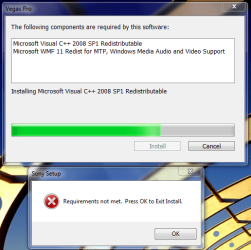
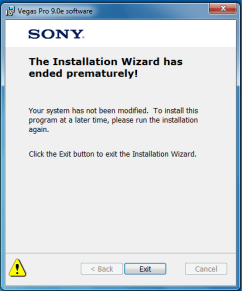
Hi, I just got windows 7 and I am unable to install sony vegas 9.0. i get a message saying " Requirements not met. Press OK to Exit Install. when it gets to the part where you install C++ and WMF11.

I have attached a picture of the error.

Please help I really need Vegas, since i make a lot of videos for school.

Attached Thumbnails
Cant Install sony vegas 9.0 on Windos7 Please help-capture.png  

Last edited by bornkilla3950; 10-28-2009 at 04:37 PM.. Reason: Nothing Immportant
My System SpecsSystem Spec
11-07-2009   #2


Windows 7 Professional / Windows 7 Professional


I'm having exactly the same problem trying to install the demo
My System SpecsSystem Spec
11-09-2009   #3


Windows7


I fixed it lol

Hey just to let you know I fixed the problem now i have sony vegas up and running and have made couple of videos with it .

vegaspro90a_32bit

this is the file i downloaded try searching it on google
i lost the site i got the file from IT WASNT THE SONY WEBSITE
if i find it ill get back to you
My System SpecsSystem Spec
.


11-10-2009   #4


Windows 7 Professional / Windows 7 Professional


I got it working also Just rebooted the computer and tried again and it installed fine
My System SpecsSystem Spec
01-13-2010   #5


Windows 7 Ultimate 64-bit


Solution

After some hours of troubleshooting the installtion of Vegas Pro 9c on Win 7 64-bit I figured out the solution:

Microsoft Visual C++ Redistributable installation problems in Vegas Pro 9c:

The versions needed Are:

Microsoft Visual C++ 2005 Redistributable 8.0.59193
Microsoft Visual C++ 2008 Redistributable 9.0.30729.4148
Microsoft Visual C++ 2008 Redistributable 9.0.30729.4148 (x64)


If you are on a 64-bit Version of Vista or Windows 7 and installing a 64-bit version of
Vegas Pro, there will be 2 versions of the 2008 redistributable files, (x86) and (x64).

You can check whether the proper redistributable file is installed by going to:

Control Panel > Programs and Features on Windows Vista/Windows 7.

If the VegasPro installer did not install the proper versions correctly, I
recommend the following:

Uninstall all versions(traces) of Microsoft Visual C++ either using Control Panel or by

Microsoft Windows Installer Clean Up Utility (Recommended).

Get it here Windows Installer Clean Up Utility

Now attempt the installation again to retrieve the correct components automatically.

If it still doesn't work and gives you the following error:
Requrirements not met. Press OK to Exit Install.


You have to perform any of the following two options:

Option 1: Get the correct versions of Microsoft Visual C++ from the microsoft site.
If you can't get those versions, go to the option-2.

Option 2: Do the following:
1.Run the installer of Vegas Pro (32 or 64-bit).
2.When it prompts to install Microsoft Visual C++, Don't click install or exit and Go to the temp folder located at C:\Users\Username\AppData\Local\Temp.

Tip: You can access the "temp folder" by typing %temp% in the address bar.

3.Now open the folder "SonyInstall" or "SonyInstall_1", "SonyInstall_2" etc which one contains the program u want to install.
Here you'll find the following files:

vcredist_x86.exe and vcredist2_x86.exe (32-bit installation)
and
vcredist_x86.exe , vcredist2_x64.exe and vcredist2_x86.exe (64-bit installation)


These are the required versions of Microsoft Visual C++ for Vegas Pro.
4.Copy the above files or just run from that folder in sequence and install one by one.
If you get Error 1402 While Installing Visual C++, follow the steps 5-12. Otherwise skip to Step 13.

You get some error while installing Microsoft visual C++ like

"Error 1402.Could not open key:UNKNOWN\Components\DA42BC89BF25F5BD0AF18C3B9B1A1EE8\0000210303000000000000000000F01FEC
Verify that you have sufficient access to that key, or contact your support personnel."


5.Open registry (run->regedit)
6.Browse to: HKEY_LOCAL_MACHINE\SOFTWARE\Microsoft\Windows\CurrentVersion\Installer\UserData\S-1-5-18\Components
7.Right click on the components folder, click permissions.
8.On all the users there, tick full control (allow) and then apply. At some points it may
say it failed to set permissions for some keys, just keep going.
9. Click advanced, go to the owner tab.
10. Select whichever user you are, or administrators, tick "replace owner on subcontainers and objects" and click apply.
11.Click OK, go back to the window from beforehand and try to reapply full control settings for each user just to make sure.
12. Try your installer (Visual C++) again.
It will now install without any problem.
13. FINAL STEP:
Exit the installation of Vegas pro and re-run the installer.
It will install without a hitch.
Enjoy and Have Fun!

Regards
Buntoo
My System SpecsSystem Spec
01-19-2010   #6


Windows 7 x64


Quote   Quote: Originally Posted by buntoo View Post
After some hours of troubleshooting the installtion of Vegas Pro 9c on Win 7 64-bit I figured out the solution:

Microsoft Visual C++ Redistributable installation problems in Vegas Pro 9c:

The versions needed Are:

Microsoft Visual C++ 2005 Redistributable 8.0.59193
Microsoft Visual C++ 2008 Redistributable 9.0.30729.4148
Microsoft Visual C++ 2008 Redistributable 9.0.30729.4148 (x64)


If you are on a 64-bit Version of Vista or Windows 7 and installing a 64-bit version of
Vegas Pro, there will be 2 versions of the 2008 redistributable files, (x86) and (x64).

You can check whether the proper redistributable file is installed by going to:

Control Panel > Programs and Features on Windows Vista/Windows 7.

If the VegasPro installer did not install the proper versions correctly, I
recommend the following:

Uninstall all versions(traces) of Microsoft Visual C++ either using Control Panel or by

Microsoft Windows Installer Clean Up Utility (Recommended).

Get it here Windows Installer Clean Up Utility

Now attempt the installation again to retrieve the correct components automatically.

If it still doesn't work and gives you the following error:
Requrirements not met. Press OK to Exit Install.


You have to perform any of the following two options:

Option 1: Get the correct versions of Microsoft Visual C++ from the microsoft site.
If you can't get those versions, go to the option-2.

Option 2: Do the following:
1.Run the installer of Vegas Pro (32 or 64-bit).
2.When it prompts to install Microsoft Visual C++, Don't click install or exit and Go to the temp folder located at C:\Users\Username\AppData\Local\Temp.

Tip: You can access the "temp folder" by typing %temp% in the address bar.

3.Now open the folder "SonyInstall" or "SonyInstall_1", "SonyInstall_2" etc which one contains the program u want to install.
Here you'll find the following files:

vcredist_x86.exe and vcredist2_x86.exe (32-bit installation)
and
vcredist_x86.exe , vcredist2_x64.exe and vcredist2_x86.exe (64-bit installation)


These are the required versions of Microsoft Visual C++ for Vegas Pro.
4.Copy the above files or just run from that folder in sequence and install one by one.
If you get Error 1402 While Installing Visual C++, follow the steps 5-12. Otherwise skip to Step 13.

You get some error while installing Microsoft visual C++ like

"Error 1402.Could not open key:UNKNOWN\Components\DA42BC89BF25F5BD0AF18C3B9B1A1EE8\0000210303000000000000000000F01FEC
Verify that you have sufficient access to that key, or contact your support personnel."


5.Open registry (run->regedit)
6.Browse to: HKEY_LOCAL_MACHINE\SOFTWARE\Microsoft\Windows\CurrentVersion\Installer\UserData\S-1-5-18\Components
7.Right click on the components folder, click permissions.
8.On all the users there, tick full control (allow) and then apply. At some points it may
say it failed to set permissions for some keys, just keep going.
9. Click advanced, go to the owner tab.
10. Select whichever user you are, or administrators, tick "replace owner on subcontainers and objects" and click apply.
11.Click OK, go back to the window from beforehand and try to reapply full control settings for each user just to make sure.
12. Try your installer (Visual C++) again.
It will now install without any problem.
13. FINAL STEP:
Exit the installation of Vegas pro and re-run the installer.
It will install without a hitch.
Enjoy and Have Fun!

Regards
Buntoo
Registered on forums just to thank Buntoo...

Perfect solution. All problems with Vegas has now gone.

Thanks a lot.
My System SpecsSystem Spec
03-31-2010   #7


Win 7


Yeees it works thanks to Buntoo

Option 2 worked like a charm
TYVM Buntoo
My System SpecsSystem Spec
04-08-2010   #8


Windows 7 Ultimate 64-bit


@Cretinoo & B35A13
You are welcome
Its my pleasure that my work helped somebody.
My System SpecsSystem Spec
04-27-2010   #9


Windows XP


Quote   Quote: Originally Posted by buntoo View Post
After some hours of troubleshooting the installtion of Vegas Pro 9c on Win 7 64-bit I figured out the solution:

Microsoft Visual C++ Redistributable installation problems in Vegas Pro 9c:

The versions needed Are:

Microsoft Visual C++ 2005 Redistributable 8.0.59193
Microsoft Visual C++ 2008 Redistributable 9.0.30729.4148
Microsoft Visual C++ 2008 Redistributable 9.0.30729.4148 (x64)


If you are on a 64-bit Version of Vista or Windows 7 and installing a 64-bit version of
Vegas Pro, there will be 2 versions of the 2008 redistributable files, (x86) and (x64).

You can check whether the proper redistributable file is installed by going to:

Control Panel > Programs and Features on Windows Vista/Windows 7.

If the VegasPro installer did not install the proper versions correctly, I
recommend the following:

Uninstall all versions(traces) of Microsoft Visual C++ either using Control Panel or by

Microsoft Windows Installer Clean Up Utility (Recommended).

Get it here Windows Installer Clean Up Utility

Now attempt the installation again to retrieve the correct components automatically.

If it still doesn't work and gives you the following error:
Requrirements not met. Press OK to Exit Install.


You have to perform any of the following two options:

Option 1: Get the correct versions of Microsoft Visual C++ from the microsoft site.
If you can't get those versions, go to the option-2.

Option 2: Do the following:
1.Run the installer of Vegas Pro (32 or 64-bit).
2.When it prompts to install Microsoft Visual C++, Don't click install or exit and Go to the temp folder located at C:\Users\Username\AppData\Local\Temp.

Tip: You can access the "temp folder" by typing %temp% in the address bar.

3.Now open the folder "SonyInstall" or "SonyInstall_1", "SonyInstall_2" etc which one contains the program u want to install.
Here you'll find the following files:

vcredist_x86.exe and vcredist2_x86.exe (32-bit installation)
and
vcredist_x86.exe , vcredist2_x64.exe and vcredist2_x86.exe (64-bit installation)


These are the required versions of Microsoft Visual C++ for Vegas Pro.
4.Copy the above files or just run from that folder in sequence and install one by one.
If you get Error 1402 While Installing Visual C++, follow the steps 5-12. Otherwise skip to Step 13.

You get some error while installing Microsoft visual C++ like

"Error 1402.Could not open key:UNKNOWN\Components\DA42BC89BF25F5BD0AF18C3B9B1A1EE8\0000210303000000000000000000F01FEC
Verify that you have sufficient access to that key, or contact your support personnel."


5.Open registry (run->regedit)
6.Browse to: HKEY_LOCAL_MACHINE\SOFTWARE\Microsoft\Windows\CurrentVersion\Installer\UserData\S-1-5-18\Components
7.Right click on the components folder, click permissions.
8.On all the users there, tick full control (allow) and then apply. At some points it may
say it failed to set permissions for some keys, just keep going.
9. Click advanced, go to the owner tab.
10. Select whichever user you are, or administrators, tick "replace owner on subcontainers and objects" and click apply.
11.Click OK, go back to the window from beforehand and try to reapply full control settings for each user just to make sure.
12. Try your installer (Visual C++) again.
It will now install without any problem.
13. FINAL STEP:
Exit the installation of Vegas pro and re-run the installer.
It will install without a hitch.
Enjoy and Have Fun!

Regards
Buntoo
HEY JUST SO YOU KNOW YOU'RE A LIFESAVER MAN. i have to go through the register on this forum just to say this. couldn't thank more. /speechless... thank god xD
My System SpecsSystem Spec
05-02-2010   #10


Windows 7 Ultimate


need help did it like you said with the temp, but it didn't work, and the biggest problem im having is i dont want to mess around with C++ because im using Visual basic 2010 which is used to make C++ apps...so im not sure what to do, i went to the Microsoft website and downloaded the files and installed them but it had not effect.
only the 2008 C++ is the problem...
and its the same error
'requirements not met"...
plz help.
My System SpecsSystem Spec
Reply

 Cant Install sony vegas 9.0 on Windos7 Please help problems?


Thread Tools


Similar Threads for: Cant Install sony vegas 9.0 on Windos7 Please help
Thread Forum
Solved Sony Vegas 9 Software
Sony vegas pro 9 install issues w/ C++ Resdistributable Software
Sony Vegas Pro 9 Trial Won't Install Software
Sony Vegas 8 Gaming
Can't install sony vegas, probably because of C++ Redistributable Software


All times are GMT -5. The time now is 11:58 PM.


Windows 7 Forums is an independent web site and has not been authorized,
sponsored, or otherwise approved by Microsoft Corporation.
"Windows 7" and related materials are trademarks of Microsoft Corp.
© Designer Media Ltd
  

1 2 3 4 5 6 7 8 9 10 11 12 13 14 15 16 17 18 19 20 21 22 23 24 25 26 27 28 29 30