|
Welcome to Windows 7 Forums. Our forum is dedicated to helping you find solutions with any problems, errors or issues you are experiencing with Windows 7. The Windows 7 forum also covers news and updates and has an extensive Windows 7 tutorial section that covers a wide range of tips and tricks.
Windows 7 - Windows Audio service not running ! But it is ? |
05-30-2011
|
#41 | | |
this fix worked for me I had this problem too. My audio was not working and the volume controls were inactive. Followed these steps as posted earlier and the problem was solved...
1. Click Start, type Services.msc in the Start Search box.
2. Scroll down the list of services, right-click Windows Audio and select Start.
3. Select Properties for Windows Audio and set its Startup Type to Automatic.
If the Windows Audio service does not start and you get the error Error 1068: The dependency service or group failed to start, then make sure that the following services are started and their Startup Type is set to Automatic.
Plug and Play
Multimedia Class Scheduler
Windows Audio Endpoint Builder
| My System Specs | | |
06-06-2011
|
#42 | | |
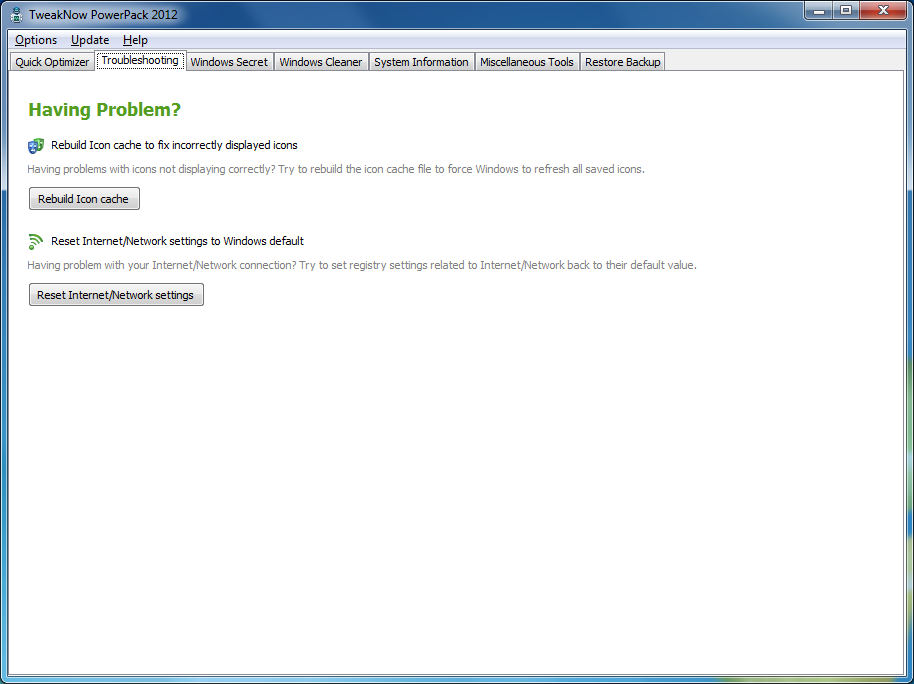
Can be caused by registry tweak: I joined the forums because I had this problem for the first time today (3 times today), along with a couple of other little glitches that caused me many headaches.
I realized I had just done some 'registry tweaks'. I fixed it by doing the following. Quote: Windows 7 may occasionally display a symptom where the screen flashes after user optimizes the computer shutdown speed. The symptom happens whenever user selects a folder or browses to new web page, the desktop which supposed to be in the background will jump or bring to front – flash out for a while, and the “Not Responding” error message will display on the top left corner. The problem is probably due to optimization to increase PC shutdown speed and decrease time required to shut down the computer.
The change can be used by Windows optimization utility or technical user who modifies the registry manually. When the setting is changed, Windows 7 may encounter lack of buffer time or other slowness.
To fix the screen flashing issue, follow steps below.
Run Registry Editor, and then delete the following registry keys:
HKEY_USERS\.DEFAULT\Control Panel\Desktop\HungAppTimeOut
HKEY_USERS\.DEFAULT\Control Panel\Desktop\WaitToKillAppTimeOut
HKEY_CURRENT_USER\Control Panel\Desktop\HungAppTimeOut
HKEY_CURRENT_USER\Control Panel\Desktop\WaitToKillAppTimeOut
HKEY_CURRENT_USER\Control Panel\Desktop\WaitToKillServiceTimeOut
Restart the computer after deletion, and the screen flashing issue on Windows 7 should be fixed. Source: Fix Windows 7 Screen Flashes to Desktop with Not Responding Error « My Digital Life
If you don't have all of them, don't worry. I only had HungAppTimeOut and WaitToKillAppTimeOut from the second group.
For your information: By deleting those registry keys, Windows just uses the default values.
This fixes the problem "Windows Audio service not running" with the little red "x" as described in this thread. | My System Specs | | OS Windows 7 Ultimate x64 CPU i5-750 Motherboard MSI CD-53 Memory G.Skill 4GB Graphics Card Gigabyte 460GTX 1GB Super Overclock Sound Card X-Fi Xtreme Music Monitor(s) Displays Samsung X2370 (23.5" 1080p) LED PSU Seasonic X650 Gold Case Antec 900 Gen.1 Cooling Scythe S-Flex |
07-01-2011
|
#43 | | |

Quote: Originally Posted by JACKIETOOLS You can also right click on audio icon and click sounds and then playback. It should show an HDMI cable unplugged from your video card. Simply right click on that and choose disable to correct problem. Only do this if you donot intend to use your HDMI from your video card for sound Having the same problem I attempted this fix but I do intend to use HDMI only now the option has vanished. How can I reactivate that please? | My System Specs | | System Manufacturer/Model Number Alienware M17x R2 OS Windows 7 Ultimate x64 CPU i7 Q840 Motherboard M17x Memory 8 GB Graphics Card 2 x ATI Radeon H5780 Sound Card ATI HD Audio Hard Drives 2 x 500 GB in RAID 0 |
08-05-2011
|
#44 | | |

Quote: Originally Posted by tim30250 I had this problem too. My audio was not working and the volume controls were inactive. Followed these steps as posted earlier and the problem was solved...
1. Click Start, type Services.msc in the Start Search box.
2. Scroll down the list of services, right-click Windows Audio and select Start.
3. Select Properties for Windows Audio and set its Startup Type to Automatic.
If the Windows Audio service does not start and you get the error Error 1068: The dependency service or group failed to start, then make sure that the following services are started and their Startup Type is set to Automatic.
Plug and Play
Multimedia Class Scheduler
Windows Audio Endpoint Builder I tried doing the things you have mentioned above, but when I tried starting the two processes (Windows Class Scheduler and Windows Audio Endpoint Builder), I got Error 126: Specific Module Could Not Be Found. My Plug and Play process is running and is set to Automatic. Other two processes are also set to Automatic, but are not starting up and I'm getting the error message. Please help out. | My System Specs | | OS Windows 7 Ultimate N x64 |
08-21-2011
|
#45 | | Windows 7 Professional 32-bit |
I tried to install bluetooth headset and installed Broadcom drivers for this. Headset still not appears in 'Add device' list, but red cross on boot appeared. I removed 3 Broadcom oemxx.inf files from Windows\inf folder (found by date) and rebooted system. Now redcross appears on boot but goes away shortly when Windows plays it's start up sound. I am not sure if the problem is finally fixed because I do not remember how it was earlier  .
BTW both Windows audio services were in 'automatic' mode all the time.
Last edited by Takhit; 08-21-2011 at 01:45 AM..
| My System Specs | | OS Windows 7 Professional 32-bit |
09-25-2011
|
#46 | | |
Audio service not running solved Ok. For everyone that's having this issue about audio service not running, if you have a bluetooth headset, it's probably off or disconnected. As soon as you reconnect it, the service starts working properly. If you don't want to see this message, you could always remove the headset from the system setup to make it go away. 
I found this one out when I reconnected my Voyager pro earpiece back to the computer. | My System Specs | | System Manufacturer/Model Number HP Pav 9700 OS Win 7 home 32bit CPU na Motherboard na Memory 4G Graphics Card ati Sound Card integrated Monitor(s) Displays 17" PSU na Case na Cooling na Hard Drives na |
09-30-2011
|
#47 | | |
Thanks guys. Adjusting the volume slider did the trick for me | My System Specs | | System Manufacturer/Model Number Amd 4 core OS win 7 ult 64bit CPU fast Motherboard gigabyte Memory 8 gb Graphics Card i dunno Sound Card sound blaster Monitor(s) Displays 1 PSU 500 Case big Cooling noisy Hard Drives 4 |
10-28-2011
|
#48 | | |

Quote: Originally Posted by midgo 
Quote: Originally Posted by cyberman mine does exactly the same as JackDinn describes
the service is actually running but tray icon says differently
minor pita but nicer if it did what it was supposed to do
simply restarting the service makes the red cross go away
i have also noticed some other erratic issues with other tray icons as well
possibly it's general issue with windows 7 as it never did such things with vista
addendum booted the pc tonight audio service had the red cross clicked on it volume slider opened adjusted volume red cross went away
go figure
Same here.
Just tried adjusting the audio as suggested and the red cross disappeared.
What gives? Ditto. I have the same problem too and just made the notice disappear by adjusting the volume. | My System Specs | | System Manufacturer/Model Number Privately built OS Windows 7 32 bit CPU Intel Core 2 Duo E8400 @ 3.00GHz Motherboard ASAUS P5KPL/1600 Memory 4GB Graphics Card AOC LM729 on NVIDIA GeForce 7300 SE/7200 GS Sound Card On board Monitor(s) Displays AOC LM729 @ 1280x1024 Screen Resolution 1280 X 1024 Keyboard Trust PS/2 Mouse Trust PS/2 PSU Intel core 2 DUO E8400 Case Antec Hard Drives 1X150BG 1X250GB Internet Speed 10Mb |
11-21-2011
|
#49 | | 64 bit Windows 7 Home Premium SP1 |
A solution, I guess. Thanks to who ever figured it out and relayed the information. 
Quote: Originally Posted by Niteshade1870 Oh well, a bug like this is easy to work with and I'm sure they'll fix it eventually. LOL How long is eventually? So far, this is the only place I have found with any solution to this problem, and this thread is two years old. | My System Specs | | System Manufacturer/Model Number Toshiba Satellite L655-S5151 OS 64 bit Windows 7 Home Premium SP1 CPU Intel(R) Pentium(R) CPU P6200 @ 2.13GHz Memory 4096MB RAM Graphics Card Intel(R) HD Graphics version=8.15.10.2189 Sound Card Conexant SmartAudio HD version=4.119.0.60 Monitor(s) Displays HD TruBrite LED Backlit display Keyboard Standard with 10-key numeric pad Mouse Touch pad with Symantec driver PSU 65 W, 100-240V AC/6-cell, 48Wh, Li-ion, 4 hour battery Case Black soft faux leather brief case Cooling A standard fan, I suppose. Hard Drives Hitachi HTS545032B9A300 ATA Device
MBR, Total: 298.09 GB, C: 284.90 GB NTFS
Recovery Partition: 1.46 GB
Inactive Partition: 11.72 GB
HL-DT-ST DVDRAM GT30F ATA Device FW version=TS08
WD 800BB External USB Device
MBR, F: 74.53 G Internet Speed 54 Mbps |
02-08-2012
|
#50 | | |
I see this is an old topic and I haven't read through ALL the posts, but I got this problem and I simply fixed it:
1. Right click on your volume control icon
2. Press volume control options
3. I had to tick my speakers in the box - fixed the icon momentarily | My System Specs | | Windows Audio service not running ! But it is ? problems? All times are GMT -5. The time now is 01:53 AM. |  |