Front jack not working for Realtek HD Audio on Windows 7

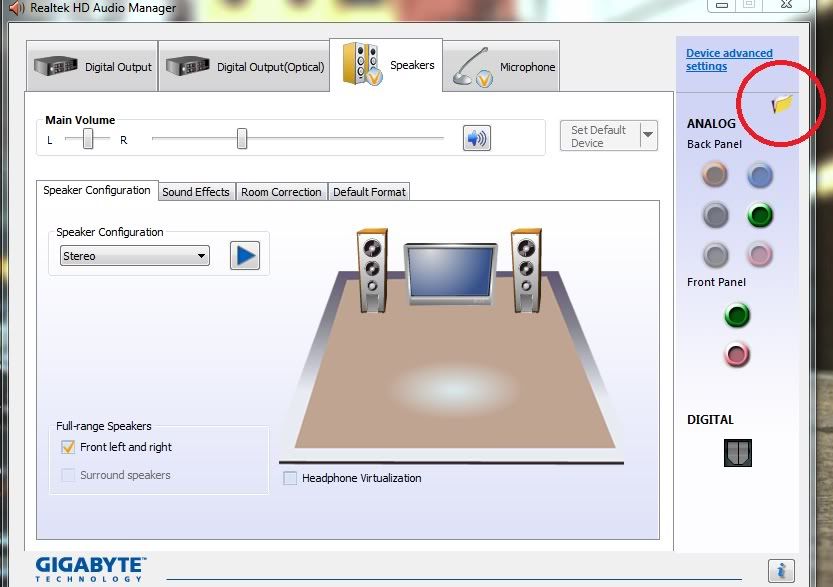
People I have a serious problem with my sound card. When I bay my computer I didn't remember is it work on XP SP2 buth from post I sow it I can find couple of things like digital output or the yellow folder who is show in right corner of the window. I have a yellow connector on backside of the computer buth don't show in menu. So can you help me how to activate my front panel. Also to not forget I have instaled new drivers from internet for Realtek for Windows 7 and now is show Audio Drive Version 6.0.6016, DirectX version 11 ,Audio Controler HD Audio and Audio codec ALC883/ALC662. Now my rear green connector when I play music on 2.1 channel Is grambing. Tell me how to activate the front panel to use MIC and Headphone or change the blue connector be green and green be blue. Tell me is it posible.
 

My Computer

Computer Manufacturer/Model Number
ASUS
OS
Windows 7
CPU
Intel (R) Core (TM) 2 Duo CPU E 460 @ 2.40 GHz 2.40 GHz
Motherboard
ASUS P5LD2_X/1333
Memory
1 GB
Graphics Card(s)
nVidia GeForce 8500 GT
Sound Card
Realtek HD Audio
Monitor(s) Displays
MS
Hard Drives
Excel Store
Activate Front Panel

People I have a serious problem with my sound card. When I bay my computer I didn't remember is it work on XP SP2 buth from post I sow it I can find couple of things like digital output or the yellow folder who is show in right corner of the window. I have a yellow connector on backside of the computer buth don't show in menu. So can you help me how to activate my front panel. Also to not forget I have instaled new drivers from internet for Realtek for Windows 7 and now is show Audio Drive Version 6.0.6016, DirectX version 11 ,Audio Controler HD Audio and Audio codec ALC883/ALC662. Now my rear green connector when I play music on 2.1 channel Is grambing. Tell me how to activate the front panel to use MIC and Headphone or change the blue connector be green and green be blue. Tell me is it posible.
 

My Computer

Computer Manufacturer/Model Number
ASUS
OS
Windows 7
CPU
Intel (R) Core (TM) 2 Duo CPU E 460 @ 2.40 GHz 2.40 GHz
Motherboard
ASUS P5LD2_X/1333
Memory
1 GB
Graphics Card(s)
nVidia GeForce 8500 GT
Sound Card
Realtek HD Audio
Monitor(s) Displays
MS
Hard Drives
Excel Store
I have the same problem here. I also can use my laptop's front jack but the speakers are find. after installing/uninstalling the most updated driver still it didn't work. worst thing is that i cant even find an option on bios about audio and i dont also have the audio manager after installing the driver. please help us.. i cant use my headset this way...thanks
 

My Computer

OS
windows 7
my computer same probleme i plug in my headset in the front jack and it worked than the next without reason it stopped working :sarc:
i think i updated my driver and than it stopped working now i have audio driver 6.0.1.5953 and always it isnt working :sick:
 

My Computer

OS
Windows 7
Problem solved

Hi
Thanks for the tips. I downloaded the latest Realtek Audio driver from their site. Its version 2.41 for Vista and 7. Disable the Detect Front Jack option and now both front and rear jacks work together. Just like the Windows XP option.
 

My Computer

OS
vista
Maybe solved already but its eating at me i have the same issue with my pc and i have installed the new drivers but still the front panel does not work i have also entered the bios for my pc but i dont see anything of the such any other ideas
 

My Computer

Computer Manufacturer/Model Number
HP Media Center PC m7250n
OS
windows 7
CPU
Intel Pentium D
Memory
3G
Graphics Card(s)
GForce 8400 GS
Sound Card
Intergrated
Monitor(s) Displays
HP w1907
Worked Like a Dream!!!

"OPTION 2: Go to your BIOS and see under HD Sound/Audio something, then see front jack something change that so "AC' 97".. it STILL may not work if you follow option 2..... (coz i haven't tested it)..."

Brilliant! This worked for me, it's quite well hidden in the BIOS but it's under something like FP-audio.

As it says above, change this to "AC' 97" and your front panel will output the same as the rear panel which is exactly what I needed! Thanks so much to the original poster, what a great fix!
 

My Computer

OS
Windows 7
I had this problem. I solved it.

(I have an AC'97 front panel and an ASRock M3A790GXH/128M with ALC890 onboard sound. Running Windows 7 Ultimate 64 bit).

The problem is that the front panel audio is AC'97 spec whilst the motherboard is HD Audio spec. The AC'97 connector from the front panel as a result lacks two presence sensing wires (PRESENCE and J_SENSE) for each of the mic and headphone ports.

Port specs compared:
Desktop Boards — Front panel audio header pinouts

The motherboard manual said to set front panel audio in BIOS to "ENABLED". That option must have been out of date, because it only had AUTO or DISABLED. So AUTO was naturally the right option.

The manual also said in (CONTROL PANEL > SOUND > Realtek HD Audio Manager) to click the Folder or Spanner icon just under "Advanced Settings". Then to select "Disable Front Panel Jack Detection". This folder/spanner icon was not there on my computer, no matter if I tried the latest drivers or a whole range of older drivers. However, it apparently did not matter - perhaps that option is now deprecated.

NB: There is no option to select an AC'97 front panel in my BIOS (as such I think it auto determines this based on the wires connected - see below).

The solution was:
1) Install latest drivers from Realtek website (older ones worked too, but best make sure you're up to date).
2) NOT to use the connector block to connect the front panel wiring to the motherboard. Instead to use the individual jumper wires to connect only 5 pins. (My case wiring had the block as a unit with all wires connected and also separate jumpers for each wire coming out the back of the block). This is the KEY point of this solution!

On the case connector, DO NOT connect the two wires called RET-R and RET-L. On the motherboard connector, the corresponding ports not connected were called MIC_RET and OUT_RET (your motherboard manual should have a diagram). These appear to make the motherboard think it is connected to an HD Audio front panel, but as the two PRESENCE wires are not present from an AC'97 front panel, the computer will never think anything is plugged into the jacks and so not send/receive sound from them. Without the two RET wires plugged in, it appears to instead assume that it is dealing with an AC'97 front panel and the two jacks are permanently active. (As a result, unlike if you had an HD Audio front panel, the rear jacks aren't muted when using the front jacks - but I can live with this).

Hope this helps some people (I signed up only to post this). :)
 

My Computer

OS
Windows 7 Ultimate 64 bit
CPU
AMD Phenom 955 BE
Motherboard
ASRock M3A790GXH/128M
Sound Card
Realtek ALC890B Onboard
Case
Asus TA-210
using front jacks for headphones

It appears many of us are struggling to get the headphones jacks working with win 7. I had the same problem and this is how I fixed it : First I made sure my drivers were up to date

Go To Control Panel
sound until you to you sound properties,clicked on the RECORDING tab you should see your mic ( if you have one), your line in and any other audio devices. Right click an a menu appears, were you can disable a device, make a device default and also allow you to see any hidden devices.
I clciked on show me hidden devices and low and behold a Stereo Mixer for Realtek appeared, I made this my default device and then check My Realttek audio manager, and noticed, the previously greyed out options were visible.

I didnt make any changes to my configuration other than this.

Now I can plug my headset into the front jack and get sound ONLY out of my headset, or I can pull the headset jack out and the sound goes directly back to the speakers. have a go you may get likely like me...:)
 

Attachments

  • sound 1.PNG
    sound 1.PNG
    89.1 KB · Views: 156

My Computer

OS
windows 7 34 bit
When you click on the properties for the stereo mix, you can see you have a lot more options
 

Attachments

  • sound 2.PNG
    sound 2.PNG
    41.5 KB · Views: 162

My Computer

OS
windows 7 34 bit
My system showed the same problem: After installing Windows 8 Consumer Preview there was no audio output from the front headphone jack. The jack worked fine in XP SP3

Extreme Timnah's steps to find the Realtek HD Audio Panel worked for me, except I did not need his steps 8 and 8.

Environment Information:
Windows 8 Consumer Preview 64 bit
Motherboard Asus M3A using onboard sound (with specifications listing Realtek ALC883 8-channel High Definition Audio CODEC)
Realtek High Definition Audio Codecs driver Version R.268 for Windows 7 64 bits.

Asus did not have the audio driver for Windows 7. I downloaded the Realtek driver from here: Realtek.

E.T. originally posted instructions to find and install the sound drivers and BIOS update as well.
to complete the setup you need to check/change a couple of settings.

1 open the CONTROL PANEL.
2 click on the hardware and sound option
3 at the bottom of the list Find the Realtek HD Audio Panel.
4 click on this option.

5 on the right of the display, you will see a graphic of the Audio connection sockets. Analog shows the rear panel. there will be a new set called FRONT Panel.
this isn't present if you don't do the BIOS change above.

6 there is a little yellow folder near the Analog channels.
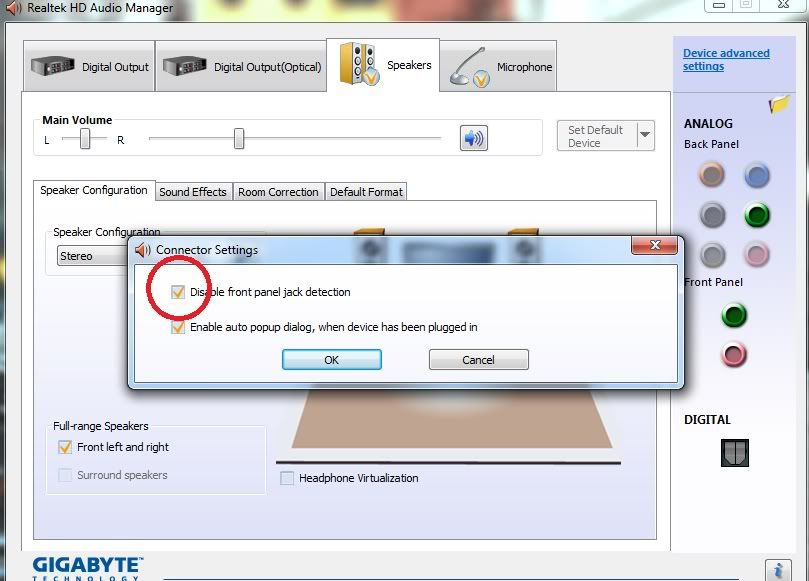
7 click it and TICK the Disable front panel detection. then close it.

{I did not need these steps - Jecid}
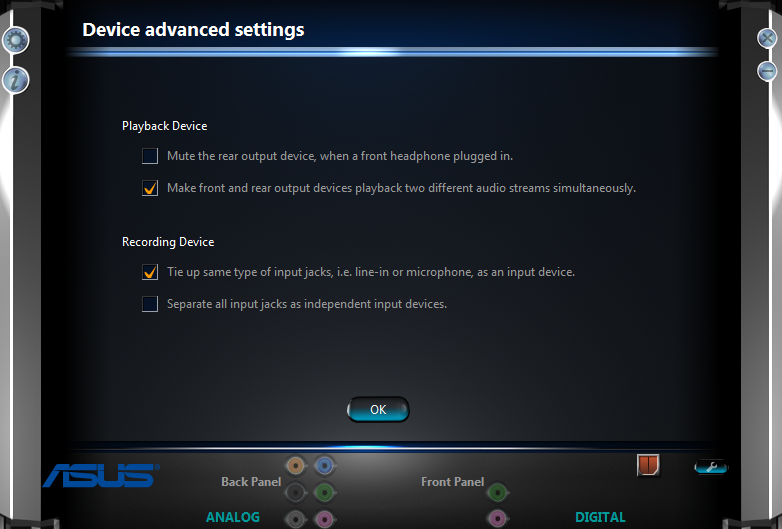
8 on the top right of the Audio Panel just below the EXIT X, you will see the text Device Advanced Settings underlined.
9 Click to open and check the dot is in the Mute rear output device when front headphone plugged in and not in the other one (the other one allows both channels to play sounds at the same time).

This is how i did mine hope it helps someone else, i'm not sure if this will work with laptops, i would suspect there will be something in the bios to this effect on many newer laptops.

NOTE not everyone will need to do the bios settings, you can tell easy enough once the driver has installed. open the audio panel and if there is no support for front panel or the yellow folder and you have no sound from you phones, you need to do the bios part.
 

My Computer

OS
Windows 8 Consumer Preview, Windows XP SP3
YES, works on me too.....

MasterChin20988 said:
"OPEN up sound manager. Look for the little yellow folder ICON up right corner below DEVICE ADVANCE SETTINGS. Click on it. Select disable front detection... It was there all along
biggrin.gif
"

Yeah, i got it work to.....

Realtek1.jpg


Realtek2.jpg
 

My Computer

OS
Wondows 7 starter x32 bit
The regedit bit did not do it for me. Finally, I started wiggling and rotating my mike plug in the front panel, and suddenly it lit up as a recognized device. Surface oxidation?

Still looking for manual control of my jacks. No little folder on my audio manager.

I am also having fits trying to get a bt headset showing as mic and earphone, too. I finally got it to pair, but not to do anything. Same dongle and headset work fine in vista 32 laptop. So many ways to derail audio! Room for a smart tool.
 

My Computer

Computer Manufacturer/Model Number
HP p6803w
OS
Windows 7-64 Home Premium
CPU
AMD Athlon II x2 220 2.8 GHz
Motherboard
FoxConn 2AB1
Memory
8 GB Dual Channel DDR3
Graphics Card(s)
NVIDIA GeForce 9400 GT
Sound Card
Realtek Semi 888 High Def. Audio / HP IXP SB600 HDA Cont.
Monitor(s) Displays
17" Packard Bell and 24" Acer wide screen
Hard Drives
Seagate 750 GB 7200 RPM SATA300
Hitachi 320GB 7200 RPM SATA300
Seagate 1TB 7200 RPM USB2/SATA300
PSU
APC BBU
Case
Stock HPHP
Cooling
Stock HP
I've had a Windows 7 machine A7n8x motherboard with Realtek HD Audio working with no issues at all for a while with the little option available to disable front panel detection.

I think there was a Windows Update driver change that updated my realtek drivers and now that option has disappeared... and my front panel behaved differently.

I had to work around what used to be possible to configure from the Realtek HD Audio manager by going into my bios (as mentioned earlier in the forum) to enable AC97 audio... This seems to allow the front panel detection to remain on at all times, and I've also selected 'Device Advanced Settings' in RHDAM to 'Separate all input jacks' and 'Make front and rear output devices playback two different audio streams simultaneously'.

The previous poster reported that if he pushed in the headphone jack into the front panel it seemed to detect, so he wondered if it were a hardware problem... I think this is a red herring, as I experienced the same behaviour and briefly thought the same, but the connection would be extremely flakey and the slightest touch would send the computer into a detect/not detect loop, but like I say, I knew that my front panel was working fine before this phantom driver update, and implementing the above I could get the headphones working fine also, so it can't be a bad connection?

My only problem now is that it doesn't autodetect that I've plugged headphones in, and switch to the headphones as a default device, I have to manually open the RHDAM and set the default to my headphones (front panel), or surround sound (back panel) before being able to work. Not the end of the world, but am irritated that a driver update has essentially made me take a step backwards.

I could try to uninstall and install the older driver, but have spent too long on this now, I rarely use headphones (when I manage to wake before our toddler!), so will live with the workaround.
 

My Computer

OS
Windows 7 Ultimate x64
Hi!

I have the same problem with headphones. In the front panel I have plugged microphone and headphones, headphones aren't working but the mic is.
But when I plug them in the rear panel both of them are working.

I also have speakers plugged in the rear panel and they are working fine until I plug the headphones in the front panel, then they stop working. When I unplug headphones the speakers start working again.

And another thing, when both the headphones and the speakers are plugged in, the 1st in the front and the 2nd in the rear panel, the speakers are working when the box is marked for AC'97 in the Realtek panel - connection settings, but when I change it to HD they stop working.
If the headphones are unplugged, the speakers are working no matter which box is marked.

I've updated audio driver for motherboard from this site Download Asus P8B75-V Realtek Audio Driver 5.10.0.6526 6.0.1.6526 for XP/ Vista, Windows 7 Driver for Windows XP / Windows Vista / Windows XP X64 / Windows Vista64 / Windows 7 / Windows 7 x64 - Softpedia

Then I followed your instructions - Extreme Timmah, but in my bios there are two options for FRONT PANEL: 1) HD; 2)AC'97. It was set to HD and I changed it to AC'97. But when I went to Realtek panel, there wasn't a new set FRONT PANEL or yellow folder. Everything stayed the same way and the headphones still aren't working. :(

This is how i got the headphones working under windows 7.

My System is no particular make with an Asrock motherboard and on board HD audio by Realtek.

If a previous version of the driver is installed.

1 download the latest driver from the motherboard manufacturers site.
2 extract the new driver to a file.
3 Run the driver setup, It will carry out an uninstall of the old driver first.
4 reboot as instructed when uninstall has completed.

To install the new driver and set up the bios.

1 open the folder you extracted the driver too and run the setup.exe.
2 when the driver has installed allow the system to restart.
3 when the system is restarting press whichever key takes you into the bios, before windows starts.
4 in the bios (typically a blue, keyboard controls menu system) right arrow across to the ADVANCED tab.
5 in this tab you are looking at a list of settings.
6 down arrow until you see FRONT PANEL, it should be set to [AUTO]
7 The selection should be Hilighted, Press ENTER to open the menu.
8 arrow down to select [ENABLE] and press enter.
9 Now goto the exit tab click the SAVE & EXIT option.

Your computer should now restart and boot into windows as normal.

to complete the setup you need to check/change a couple of settings.

1 open the CONTROL PANEL.
2 click on the hardware and sound option
3 at the bottom of the list Find the Realtek HD Audio Panel.
4 click on this option.

5 on the right of the display, you will see a graphic of the Audio connection sockets. Analog shows the rear panel. there will be a new set called FRONT Panel.
this isn't present if you don't do the BIOS change above.

6 there is a little yellow folder near the Analog channels.
7 click it and TICK the Disable front panel detection. then close it.
8 on the top right of the Audio Panel just below the EXIT X, you will see the text Device Advanced Settings underlined.
9 Click to open and check the dot is in the Mute rear output device when front headphone plugged in and not in the other one (the other one allows both channels to play sounds at the same time).


If anyone has another idea how to fix this, other than what I've already tried, please help. I would be really thankful if I could solve this. :huh:
 

My Computer

OS
Windows 7 Ultimate x64
"The last post in this thread was 268 days ago. If your post is not directly related to this discussion please consider making a new thread."
My issue is directly related to this. I have the newest realtek drivers, but there are no folder and "Disable front panel jack detection" checkbox anywhere. USB headphones works 100%, but the front/rear jack plugs does not work. I have tried several jack-plug speakers/headphones, no sound.

3c4691dbfd10a7274fe8be57a84cd4f9.png

889ae5b48713255223dc76f58bcb3ceb.png

493e26119f67c58281c5b3a6b156866d.png

I have tried both AC97 and HD audio, in the BIOS and here. Nothing works.
I currently have my speakers connected, and you can see that the "Speakers" says "Not plugged in."
 

My Computer

Computer type
PC/Desktop
Computer Manufacturer/Model Number
Asus
OS
Windows 7 Ultimate x64
Back
Top