
Cant get Applocker to work!

Chedmeister

New member
Hi there, I feel as though my problem should not be a hard one but i cant figure it out despite following countless walkthroughs on the net!

All i want to do is deny access to a couple of applications on another local, standard type user account. This is on Windwos 7 Pro or Ultimate.

So i start the application identity service and switch it to automatic.

I use the gpedit.msc command and configure a rule using filehash to deny notepad.exe for the user in question. I even tried leaving it as 'everyone'.

The rule appears with in the executive rules list. Now i try gpupdate even though its not needed.

When i log into the other user i can access notepad as normal so what am i doing wrong!?!!?

Any help is much appreciated!!
 

My Computer

OS
Windows 7 64x
Hello Ched,

Since it's only a couple of apps, you could right click on the EXE file of these apps and click on Properties to set their permissions (click for more info on how) to Deny a "specific user account" from all the listed permissions. Be sure to not deny "Everyone" since this would include you as well.

Hope this helps,
Shawn
 

My Computer

Computer type
PC/Desktop
Computer Manufacturer/Model Number
Self built custom
OS
64-bit Windows 11 Pro for Workstations
CPU
Intel i7-8700K OC'd to 5 GHz
Motherboard
ASUS ROG Maximus XI Formula Z390
Memory
64 GB (4x16GB) G.SKILL TridentZ RGB DDR4 3600 MHz
Graphics Card(s)
ASUS ROG-STRIX-GTX1080TI-O11G-GAMING
Sound Card
Integrated
Monitor(s) Displays
2 x Samsung Odyssey G7 27"
Screen Resolution
2560x1440
Hard Drives
1TB Samsung 990 PRO M.2,
4TB Samsung 990 PRO PRO M.2,
TerraMaster F8 SSD Plus NAS
PSU
Seasonic Prime Titanium 850W
Case
Thermaltake Core P3
Cooling
Corsair Hydro H115i
Keyboard
Logitech wireless K800
Mouse
Logitech MX Master 4
Internet Speed
2 Gb/s Download and 100 Mb/s Upload
Antivirus
Malwarebyte Anti-Malware Premium
Browser
Google Chrome
Other Info
Logitech Z625 speaker system,
Logitech BRIO 4K Pro webcam,
HP Color LaserJet Pro MFP M477fdn,
APC SMART-UPS RT 1000 XL - SURT1000XLI,
Galaxy S23 Plus phone
Hi there, I feel as though my problem should not be a hard one but i cant figure it out despite following countless walkthroughs on the net!

All i want to do is deny access to a couple of applications on another local, standard type user account. This is on Windwos 7 Pro or Ultimate.

So i start the application identity service and switch it to automatic.

I use the gpedit.msc command and configure a rule using filehash to deny notepad.exe for the user in question. I even tried leaving it as 'everyone'.

The rule appears with in the executive rules list. Now i try gpupdate even though its not needed.

When i log into the other user i can access notepad as normal so what am i doing wrong!?!!?

Any help is much appreciated!!

Did you enforce rules?

Try this:

http://www.sevenforums.com/tutorials/7844-applocker-create-new-rules.html

http://www.sevenforums.com/tutorials/7840-applocker-enable-dll-rule-collection.html

Press :orb: write Local Security Policy, run as admin it
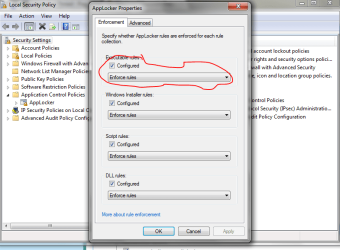
Go to Application Control Policies -> AppLocker

right click it and Properties
And Tick box Configured for Executables.
And put it into Enforce Rules
Capture.PNG


You have already put Application Indentity Service in to Automatic and created rule.
Therefore it should work.
After enforcing rules, restart your computer and try again.

If it doesnt work, note the time when you opened notepad
Open Event Viewer as admin
Go to Application and Service Logs --> Microsoft
--> Windows --> AppLocker --> Exe and DLLs

Check did it log allow rule for notepad at that time.
 
Last edited by a moderator:

My Computer

OS
Windows 7 Ultimate x86 SP1
Thanks for the suggestions and sorry for the long reply!

Anyway, its working now, I thought id tried the enforce rules bit but must have screwed up somewhere.
 

My Computer

OS
Windows 7 64x
That's great news Ched. I'm happy to hear that you got it sorted. :)
 

My Computer

Computer type
PC/Desktop
Computer Manufacturer/Model Number
Self built custom
OS
64-bit Windows 11 Pro for Workstations
CPU
Intel i7-8700K OC'd to 5 GHz
Motherboard
ASUS ROG Maximus XI Formula Z390
Memory
64 GB (4x16GB) G.SKILL TridentZ RGB DDR4 3600 MHz
Graphics Card(s)
ASUS ROG-STRIX-GTX1080TI-O11G-GAMING
Sound Card
Integrated
Monitor(s) Displays
2 x Samsung Odyssey G7 27"
Screen Resolution
2560x1440
Hard Drives
1TB Samsung 990 PRO M.2,
4TB Samsung 990 PRO PRO M.2,
TerraMaster F8 SSD Plus NAS
PSU
Seasonic Prime Titanium 850W
Case
Thermaltake Core P3
Cooling
Corsair Hydro H115i
Keyboard
Logitech wireless K800
Mouse
Logitech MX Master 4
Internet Speed
2 Gb/s Download and 100 Mb/s Upload
Antivirus
Malwarebyte Anti-Malware Premium
Browser
Google Chrome
Other Info
Logitech Z625 speaker system,
Logitech BRIO 4K Pro webcam,
HP Color LaserJet Pro MFP M477fdn,
APC SMART-UPS RT 1000 XL - SURT1000XLI,
Galaxy S23 Plus phone
Ok so that went well but now i find that the Admin account which should be unrestricted cant install any programs. When i do try it gives me the 'Blocked by group policy' message that the limited account should get.
I havent set up any other rules other than the previous notepad rule.
Is this something to do with the three default rules that Windows makes when you start using Applocker? :

Allow Everyone (default rule) All files located in the Programs folder
Allow Everyone (default rule) All files located in the Windows folder
Allow BUILTIN\Administrators (default Rule) All Files

:confused:

Just found that the restriction is still there even if i delete all the rules and disable the application identity service. What the hell?

Hmmm, had to reinstall to get back to normal but tried again straight away and the same this happened, cant install anything once an applocker rule is applied. Is this normal or am i just jinxed!?
 
Last edited:

My Computer

OS
Windows 7 64x
It is not really normal :P

1. Did you enforce any rules other than executables?

2. Did you try to run application right clicking it and Run as admin?

3. Just try restarting you system after you change, delete, enforce, or unenforce rules.
 

My Computer

OS
Windows 7 Ultimate x86 SP1
Ok so things appear to be going well now and im using Brinks advice to deny folder access as well. It seems that i was being runnish after all! :rolleyes:

Just two more questions and ill stop hassling you guys.

1. If i want to remove a rule in Applocker can i just delete it (from the Admin account) or do i have to de-enforce it? There only one tick box for this in the Applocker properties to do i untick that and then delete the rule? I suppose if i wanted to disable a rule then i just change it from 'deny' to 'allow' right?

2. I want to restrict the standard users access so that they cant access the system files namely the 'Windows' and 'Program Files' folders. I can ntfs deny the C drive and its subfolders (bad idea?) which seems fine but it wont apply it to those folders. This means they can still be run commanded into with C:\Windows or C:\Program Files. Any way i can do that or is it just the root of C that i can block?

Thanks for humouring me guys!!!!!
 

My Computer

OS
Windows 7 64x
1. If you want to just remove one rule. It is enough to delete it.
However don't delete default rules! (Unless you are 100% confident that you know what are you doing)

If you want to delete all rules and stop using it. Just delete all rules, and untick enforce. And stop Application Identity service.

2. It is BAD, really BAD idea to take away ACCESS or READ permission from user to those locations. It will just make windows unusable for those users. Just imagine they can't access or read anything from "Windows" and "Program Files"

That's why I hope you meant WRITE access? In this case Windows 7 already does it for you. Which means standard users don't have write access to those places by default.
 

My Computer

OS
Windows 7 Ultimate x86 SP1
Back
Top