Hallo!
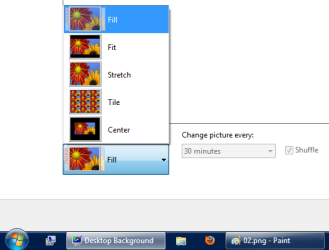
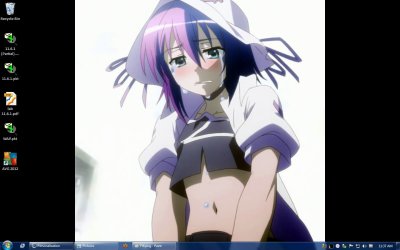
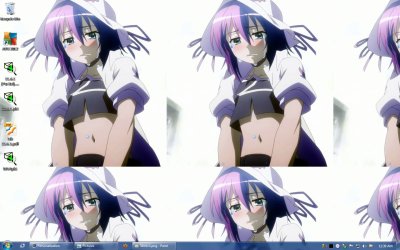
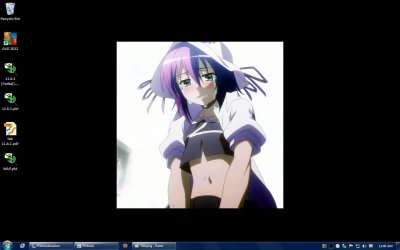
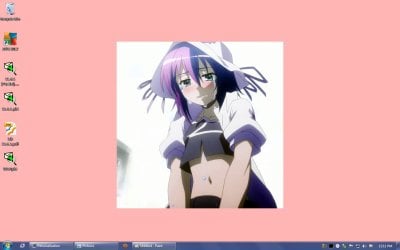
I'm using Windows 7 Ultimate OS. Probably I've done something (i haven't understood what) that changed my desktop background settings. There's a cute penguin photo that I'd like to use as a wallpaper but when I press the apply button the penguins heads are being cut off and the image itself gets really huge. That happens when I chose "Fill"picture position. I've got no problem with any other option. I would really want to fix this çause all the pictures used as wallpapers looked great in "Fill"" picture position before I unwittingly changed something.
I'll be more than happy if someone knows how to return to normal size pictures in this particular option
Regards!
Ed. I forgot to mention that I have 23"" Philips 234 LC monitor -1920 x 1080 resolution, 60 Hz
I'm using Windows 7 Ultimate OS. Probably I've done something (i haven't understood what) that changed my desktop background settings. There's a cute penguin photo that I'd like to use as a wallpaper but when I press the apply button the penguins heads are being cut off and the image itself gets really huge. That happens when I chose "Fill"picture position. I've got no problem with any other option. I would really want to fix this çause all the pictures used as wallpapers looked great in "Fill"" picture position before I unwittingly changed something.
I'll be more than happy if someone knows how to return to normal size pictures in this particular option
Regards!
Ed. I forgot to mention that I have 23"" Philips 234 LC monitor -1920 x 1080 resolution, 60 Hz
Last edited:
My Computer
At a glance
Windows 7 Ultimate
- OS
- Windows 7 Ultimate