
Windows 7 Forums


Windows 7: Help with custom theme: changing start menu items offset and font

08 Jun 2010   #1

Windows 7 & XP dual boot
 
 
Help with custom theme: changing start menu items offset and font

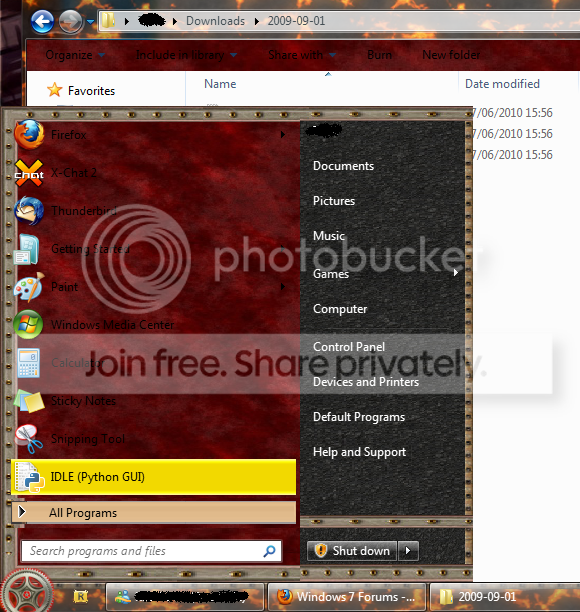
I've been creating a custom theme for windows 7, but my black text doesn't show up very well on the background. Is there a way to change it?

And can I change the location of the items? they overlap with the border of the start menu, and I want to move them a bit so they fit neatly.


My System SpecsSystem Spec

09 Jun 2010   #2

Windows 7
Glastonbury, England


How are you creating the theme? With the ubiquitous Style Builder?

The font colour can certainly be changed. The positioning is a bit more tricky as it is determined by internal stylesheets. I can't help noticing however that you have the narrow border on the right and the wider on the left which would be much better reversed.
My System SpecsSystem Spec
10 Jun 2010   #3

Windows 7 RTM 64bit, RTM 32bit Chinese
Wuxi, China


If you are using Windows Style Builder then to change the ProgramsList text color, go here:

StartMenu > Panels > Basic > ProgramsList > TEXTCOLOR:COLOR

StartMenu > Panels > Basic > PragramsListExtended > TEXTCOLOR:COLOR

If these properties don't exist then just create them.

To adjust the margins, you will have to play around with your ContentMargins in these same places.
My System SpecsSystem Spec
.


10 Jun 2010   #4

Windows 7 & XP dual boot


No, I've been using the Anolis resourcer.
My System SpecsSystem Spec
10 Jun 2010   #5

Windows 7
Glastonbury, England


Quote   Quote: Originally Posted by Sebenko View Post
No, I've been using the Anolis resourcer.
Ah. Then you're very much doing it the hard way so congrats on getting as far as you have but now it gets very tricky. Fonts and particularly font colours are virtually impossible to change using a resource hacker alone I'm afraid because they are set in xml using variables from stylesheets that hours of searching have failed to reveal the whereabouts of and are probably encrypted or hidden in some way anyway. Offsets are also set in this way so unless you are an xml wiz with the patience of a saint .....

Windows Style Builder costs but if you want to make any headway I'm afraid it's pretty much indispensable.
My System SpecsSystem Spec
11 Jun 2010   #6

Windows 7 & XP dual boot


Quote   Quote: Originally Posted by dunfiddlin View Post
Windows Style Builder costs but if you want to make any headway I'm afraid it's pretty much indispensable.
Well, curses, damn and blast, etc.

I just don't think it's worth the cost for one font.
My System SpecsSystem Spec
11 Jun 2010   #7


Without Windows Style Builder, you can not change the font colors. It simply isn't possible. I was looking for it once too, for hours even, and i didnt find anything. You will have to purchase WSB from Ave's Vista Style Builder, to be able to do.
You won't regret buying WSB, it is really really much better than doing it via a resource tool. It'll save you time as well, and make you able to change more images and properties than you are able to in a resource tool.
My System SpecsSystem Spec
Reply

 Help with custom theme: changing start menu items offset and font problems?


Thread Tools


Similar help and support threads for: Help with custom theme: changing start menu items offset and font
Thread Forum
How add custom entry to Start Menu shutdown menu Customization
Changing taskbar right click menu's font style Customization
custom left-click menu items General Discussion
Custom Items on Start Menu Context Menu Customization
changing menu bar font in adobe CS4 applications Software


All times are GMT -5. The time now is 02:15 AM.


Seven Forums Android App Seven Forums IOS App Follow us on Facebook

Windows 7 Forums is an independent web site and has not been authorized,
sponsored, or otherwise approved by Microsoft Corporation.
"Windows 7" and related materials are trademarks of Microsoft Corp.
© Designer Media Ltd
  

1 2 3 4 5 6 7 8 9 10 11 12 13 14 15 16 17 18 19 20 21 22 23 24 25 26 27 28 29 30 31 32