
Windows 7 and Windows Media Player 12
Up to and including Windows Vista, it was never easy to manage a sizable music library without the aid of third-party tools and utilities. Windows 7 changed all that, and thanks to the Libraries view of Windows Explorer, it is now possible to manage your music library as music, not just a bunch of files with names that often do not match the music:
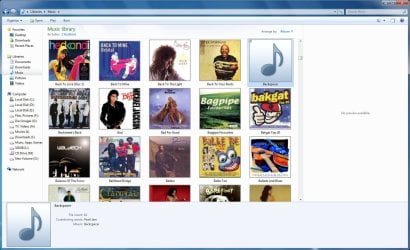
But it's also easier to find what you're looking for if you have the appropriate album cover art for the albums in your collection. As you can see in the above screenshot, it's pretty cool to be able to browse you music library by looking at the album art. But that generic icon is an eyesore that will be resolved with the aid of this tutorial.
Album Information
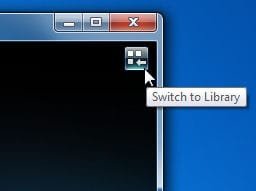
To begin, you'll have to open Windows Media Player 12, and go to the library view. If Media Player 12 does not automatically open in the library view when started, you can click the icon that appears in the top-right corner of Player Mode View when you move that mouse in that general location of the player:
You then need to browse for and locate the album for which you want to update the information. In the above screenshot, I've selected "Backspacer". Double-click the album to view it's details:
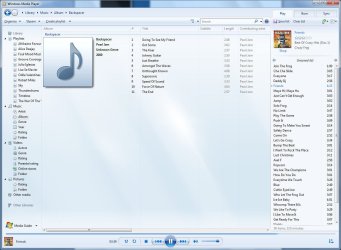
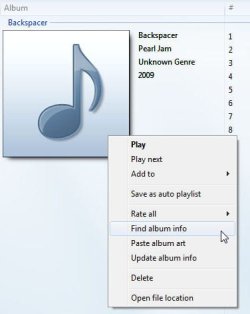
To find the correct album info, including album art, right-click the album icon, and select "Find album info":
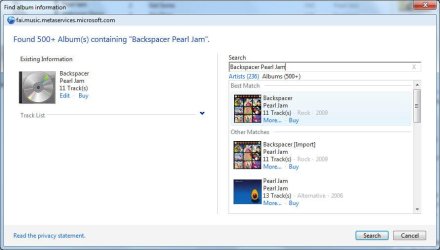
If Windows Media Player does not find a 100% match for the album you are looking for, you will be presented with a list of possible matches from which you need to select one. In this case, the first item in the list appears to match, and it also include the album art that is missing:
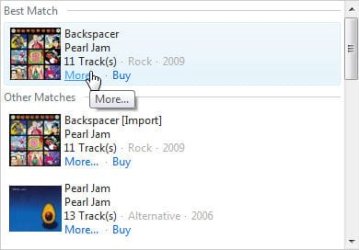
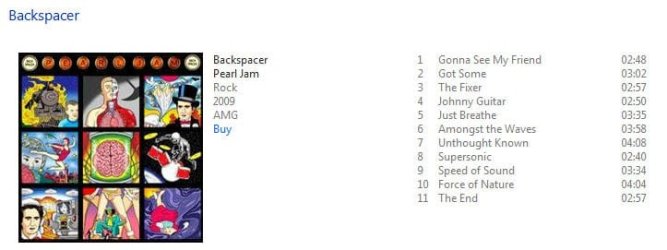
To verify that it is the correct album, you can click on the "More..." link, which opens an on-line summary of the album that you can use to verify the details before applying them:
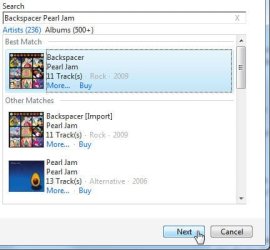
If the album is the correct one, then you can go back to Media Player 12, and apply the information. You'll need it later for the album art. Click the item in the search results to select it, then click next:
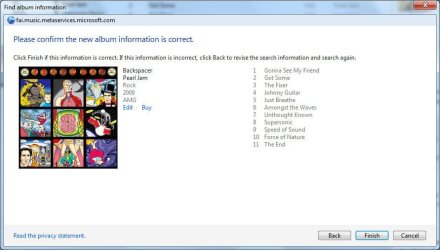
You can again verify the album information here, or you can click the "Edit" link to make changes. When you are satisfied, click "Finish". It may take a minute or two to properly update the Windows Media Player 12 Library.
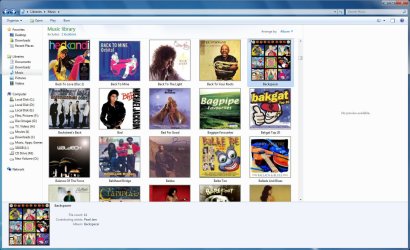
If you now go back to Windows Explorer Music Library, the nasty generic icon for the album is also gone:
Finding Missing Album Art
While the above works well, in some instances you'll get the album information, but you will not get album art. So what do you do then? The best places to locate album art for your music collection would be the online stores, of which Amazon has proven to be the most successful.
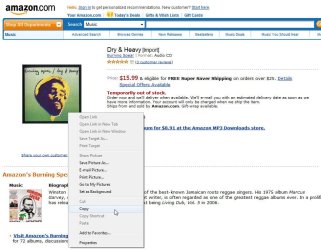
To use Album Art from Amazon, you first need to find the particular album on Amazon. When you have found the album info on Amazon, you need to copy the album art:
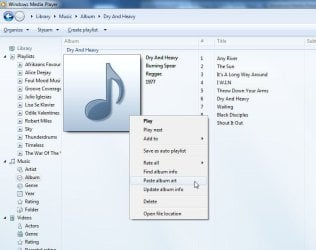
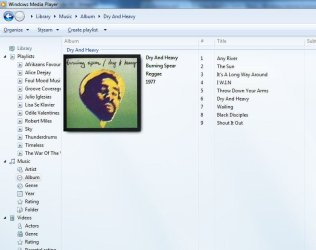
Then, go back to Windows Media Player, and Paste the album art into you library:
Where can I find the album art I'm looking for?
Amazon
DiscOgs
Album Art Exchange
Note
The N and KN editions of Windows 7 have all the features that normally come with each individual Windows 7 edition, except for Windows Media Player 12 and related programs, such as Windows Media Center or Windows DVD Maker.
The N editions of Windows 7 allow you to choose your own media player and software required to manage and play CDs, DVDs, and other digital media files. If you choose to use Windows Media Player 12, downloading it, along with related software, is free. Download Media Feature Pack for Windows 7 N with Service Pack 1 and Windows 7 KN with Service Pack 1 (KB968211) from Official Microsoft Download Center
The N editions of Windows 7 allow you to choose your own media player and software required to manage and play CDs, DVDs, and other digital media files. If you choose to use Windows Media Player 12, downloading it, along with related software, is free. Download Media Feature Pack for Windows 7 N with Service Pack 1 and Windows 7 KN with Service Pack 1 (KB968211) from Official Microsoft Download Center
Up to and including Windows Vista, it was never easy to manage a sizable music library without the aid of third-party tools and utilities. Windows 7 changed all that, and thanks to the Libraries view of Windows Explorer, it is now possible to manage your music library as music, not just a bunch of files with names that often do not match the music:
But it's also easier to find what you're looking for if you have the appropriate album cover art for the albums in your collection. As you can see in the above screenshot, it's pretty cool to be able to browse you music library by looking at the album art. But that generic icon is an eyesore that will be resolved with the aid of this tutorial.
Album Information
To begin, you'll have to open Windows Media Player 12, and go to the library view. If Media Player 12 does not automatically open in the library view when started, you can click the icon that appears in the top-right corner of Player Mode View when you move that mouse in that general location of the player:
You then need to browse for and locate the album for which you want to update the information. In the above screenshot, I've selected "Backspacer". Double-click the album to view it's details:
To find the correct album info, including album art, right-click the album icon, and select "Find album info":
If Windows Media Player does not find a 100% match for the album you are looking for, you will be presented with a list of possible matches from which you need to select one. In this case, the first item in the list appears to match, and it also include the album art that is missing:
To verify that it is the correct album, you can click on the "More..." link, which opens an on-line summary of the album that you can use to verify the details before applying them:
If the album is the correct one, then you can go back to Media Player 12, and apply the information. You'll need it later for the album art. Click the item in the search results to select it, then click next:
You can again verify the album information here, or you can click the "Edit" link to make changes. When you are satisfied, click "Finish". It may take a minute or two to properly update the Windows Media Player 12 Library.
If you now go back to Windows Explorer Music Library, the nasty generic icon for the album is also gone:
Finding Missing Album Art
While the above works well, in some instances you'll get the album information, but you will not get album art. So what do you do then? The best places to locate album art for your music collection would be the online stores, of which Amazon has proven to be the most successful.
To use Album Art from Amazon, you first need to find the particular album on Amazon. When you have found the album info on Amazon, you need to copy the album art:
Then, go back to Windows Media Player, and Paste the album art into you library:
Where can I find the album art I'm looking for?
Amazon
DiscOgs
Album Art Exchange
Attachments

Last edited by a moderator:


