
How to Enable or Disable Driver Verifier in Windows 7
Contents
Information
Driver Verifier runs in the background, "testing" drivers for bugs. If it finds one, a Blue Screen of Death (BSOD) will result; the corresponding dump file will hopefully show the faulty driver.
OPTION ONE
To Enable Driver Verifier
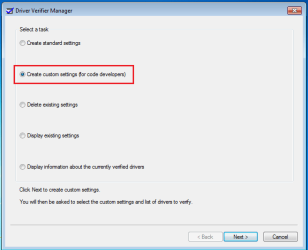
2. Select "Create custom settings (for code developers)", and hit Next.
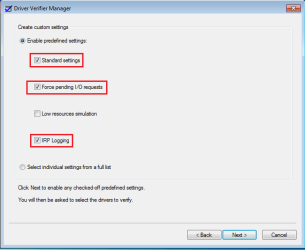
3. Make sure Standard settings, Force pending I/O requests, and IRP Logging are selected, and hit Next.
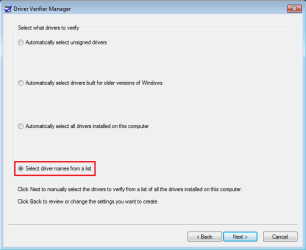
4. Select "Select driver names From a list", and hit Next.
5. Click on "Provider" at the top to sort the list by manufacturer; select all drivers not provided by Microsoft Corporation.
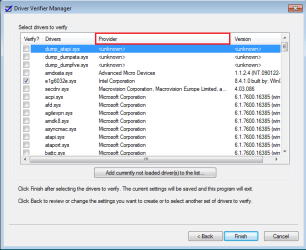
6. Press Next, and OK to the resulting window.
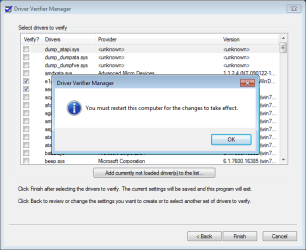
After a reboot, driver verifier should be enabled. Use your computer as you normally would, although expect frequent BSODs if there are driver issues. If the system doesn't crash after 24 hours, disable driver verifier.
OPTION TWO
To Disable Driver Verifier
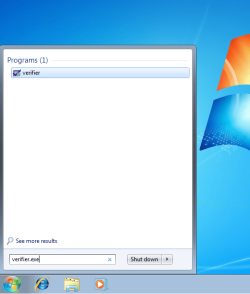
1. Start typing verifier.exe into the start menu, and open Verifier.
2. Select "Delete existing settings"
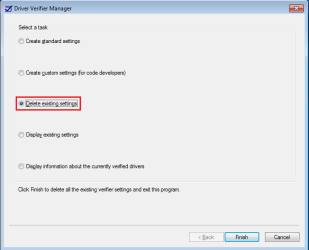
If you cannot get into Windows to turn off Verifier, try using Safe Mode.
Last edited by a moderator:


